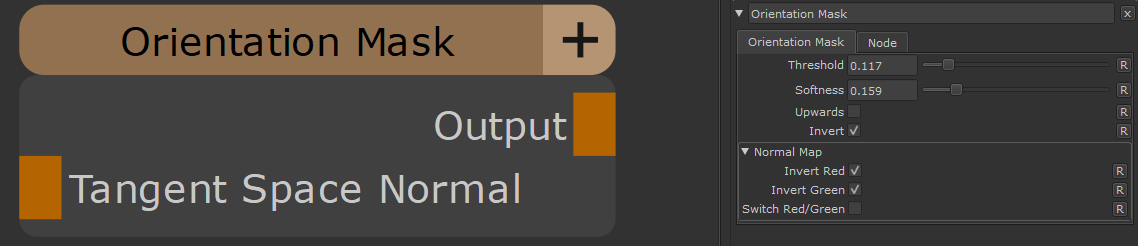
•Threshold
Controls where the mask cuts off between visible and hidden areas. Lower values show more surfaces, higher values show fewer surfaces
•Softness
Controls how smooth or sharp the transition is between masked and unmasked areas. Higher values create softer, more gradual transitions
•Upwards
When enabled, masks downard-facing surfaces instead of upwward-facing ones. Useful for effects like snow or dust accumulation on top surfaces
•Invert
Flips the mask so that previously hidden areas become visible and vice versa. Useful for reversing the effect
This affects any Tangent Space Normal Map Data fed in via the "Tangent Space Normal" Input Port of the Node
•Invert Red
Flips the red channel of the normal map. Enable this if your normal map appears to have inverted horizontal details
•Invert Green
Flips the green channel of the normal map. Enable this if your normal map appears to have inverted vertical details
•Flip Red/Green
Swaps the red and green channels of the normal map. Use this if your normal map was created with a different channel convention

 Where to find it:
 NodeGraph / Right Mouse Click / Add Nodes / Geometry / Extension Pack