
|
Help Menu |
 Where to find it:
 Main Window / Help
Main Window / Extension Pack / Help
Extension Pack adds a series of commands to the Mari Help Menu
The Extension Pack Splash Screen appears on start and can also be launched via the Help Menu.
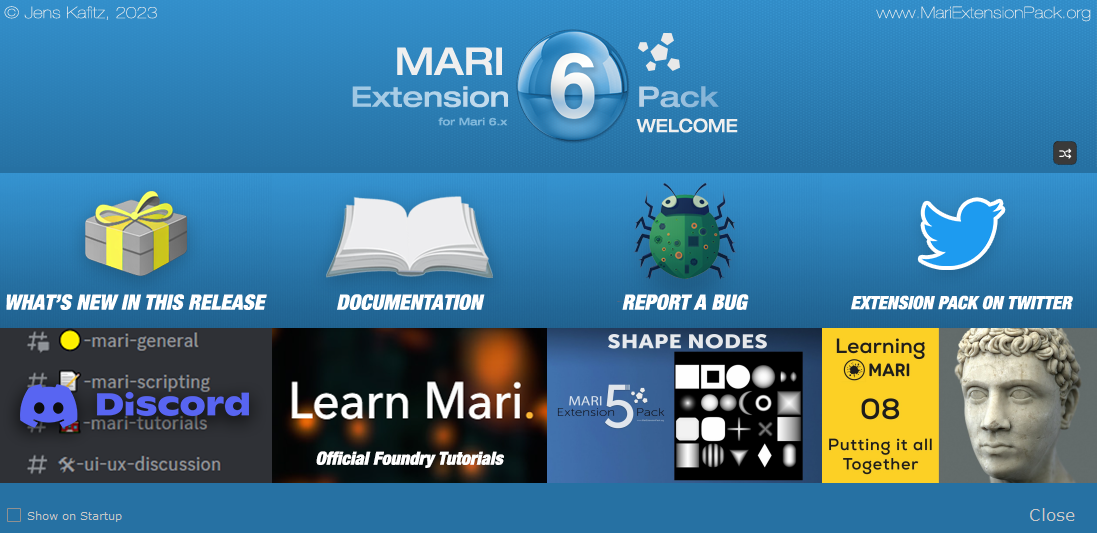
Apart from things you expect to find there (Documentation, Bug Reporting etc.) the Welcome Screen also contains
orandomized Extension Pack & general Mari Tutorials for Beginners and Advanced Users
orandomized Community Spotlight featuring tutorials by creators from the Mari community
If you want to cycle through the available content you
you can use the shuffle button
oIf available, information about new upgrades and patches with direct access to their release notes.
If a new Update is available the Welcome Screen will be shown on start every now and then, even if 'Show on Startup' is disabled.

oAnnouncements about Live Streams etc.
On Extension Pack load, a single connection test to www.youtube.com is performed to determine if to launch the
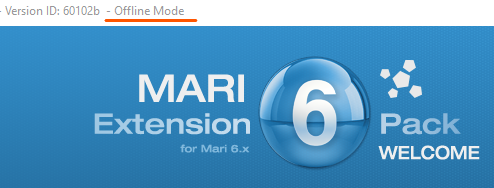
Extension Pack Splash Screen in Online mode (pulling content dynamically e.g. tutorials, new version info etc.) or Offline Mode.
When in Offline Mode the tiles are filled with pre-cached content.
Offline Mode is visible by the appended "Offline Mode" in the Title Bar of the Splash Screen
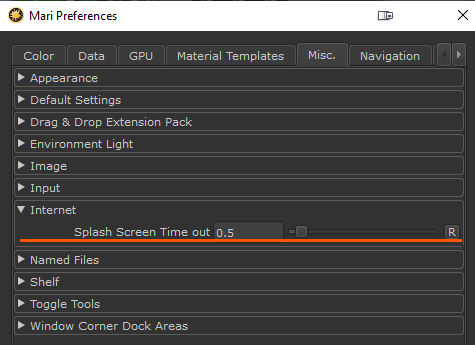
The Connection Timeout value can be controlled via the Mari preferences and an Environment Variable.
If the Connection takes longer than the value (in seconds) specified here, the Splash Screen will enter Offline Mode.
|
|
Set the Value to 0.0 to stop the Splash Screen from attempting to connect to the internet. |
The Setting can be globally defined via the Environment Variable.
🞙MARI_EP_SPLASHSCREEN_CONNECTION_TIMEOUT
If the Environment Variable is set the defined Value will overwrite the Setting in the Preferences.
•Create Smart Mask Project
Creates an example Project for testing Extension Pack Smart Masks.
The sample project has Ambient Occlusion and Curvature pre-calculated.
The Project is the same the Smart Mask Thumbnails in the Extension Pack
Mask Shelf were created with.
•Extension Pack Licensing
Launches the Extension Pack Licensing Dialog
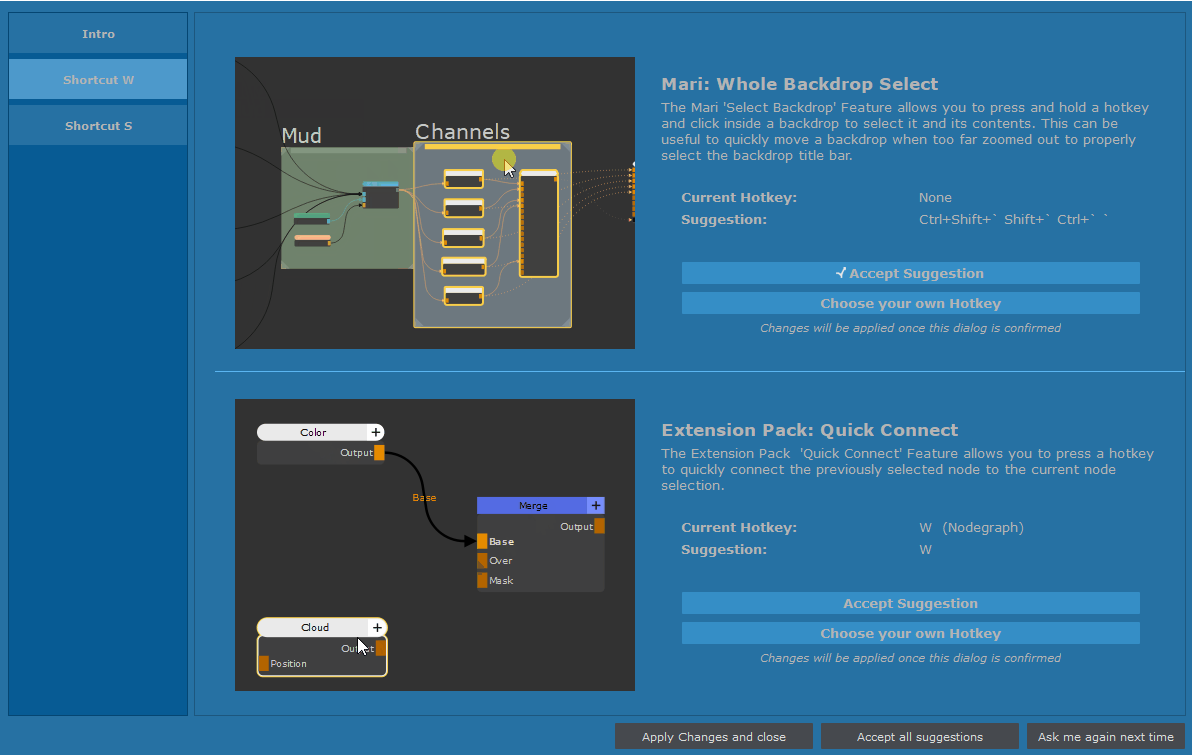
•Shortcut Conflict Resolve Dialog
Opens a dialog allowing you to decide how to resolve Shortcut Conflicts between native Mari and Extension Pack
•Extension Pack Online Help
Launches this Online Help. Please note you can relink the Online Help to call a local copy
as described here
•Extension Pack Tutorials
Link to the Youtube Playlist containing all Extension Pack Tutorials
•Extension Pack Release Notes
Link to the editorial style Release Notes for the current version
•Extension Pack Version Check
Checks if your currently installed Extension Pack is the latest available.
If one is available a Dialog will appear listing the changes in the released Version
•Extension Pack Bug Report
Launches your email client in order to report an Extension Pack Bug to the developer
•Hotkey Overview
Generates a on-demand webpage showing Hotkey Assignments from Mari and Mari Extension Pack.
A static version of this page is available here
•Open Project Folder
Opens the Folder in the Mari Cache Directory, where your current Project Data is stored
•Open Mari User Settings
Mari stores user specific data such as your main configuration file in
•Win: \user\username\.mari\TheFoundry
•Linux: ~/.config/TheFoundry (~ refers to your home directory)
•Mac: ~/.config/TheFoundry (~ refers to your home directory)
This Menu Entry opens this Folder.
•Open Mari Log File
To Debug Mari issues with Support (Foundry or Extension Pack), it is often helpful to provide a Log file.
The Log file is a file called MariLog.txt and can be found:
•Win: C:\Users\<USERNAME>\Documents\Mari\Logs\MariLog.txt
•Linux: /home/<USERNAME>/Mari/Logs/MariLog.txt
•Mac: /Users/<USERNAME>/Mari/Logs/MariLog.txt
This Menu Entry opens the Log file in a text editor.
•Create Foundry Support Ticket
Launches the Foundry Support Portal in a web browser, in order to file a bug or feature request.