Dynamic Brush Size


Where to find it:


Tool Properties Toolbar /


Shortcut: (unassigned, use "Edit / Shortcuts" to assign)


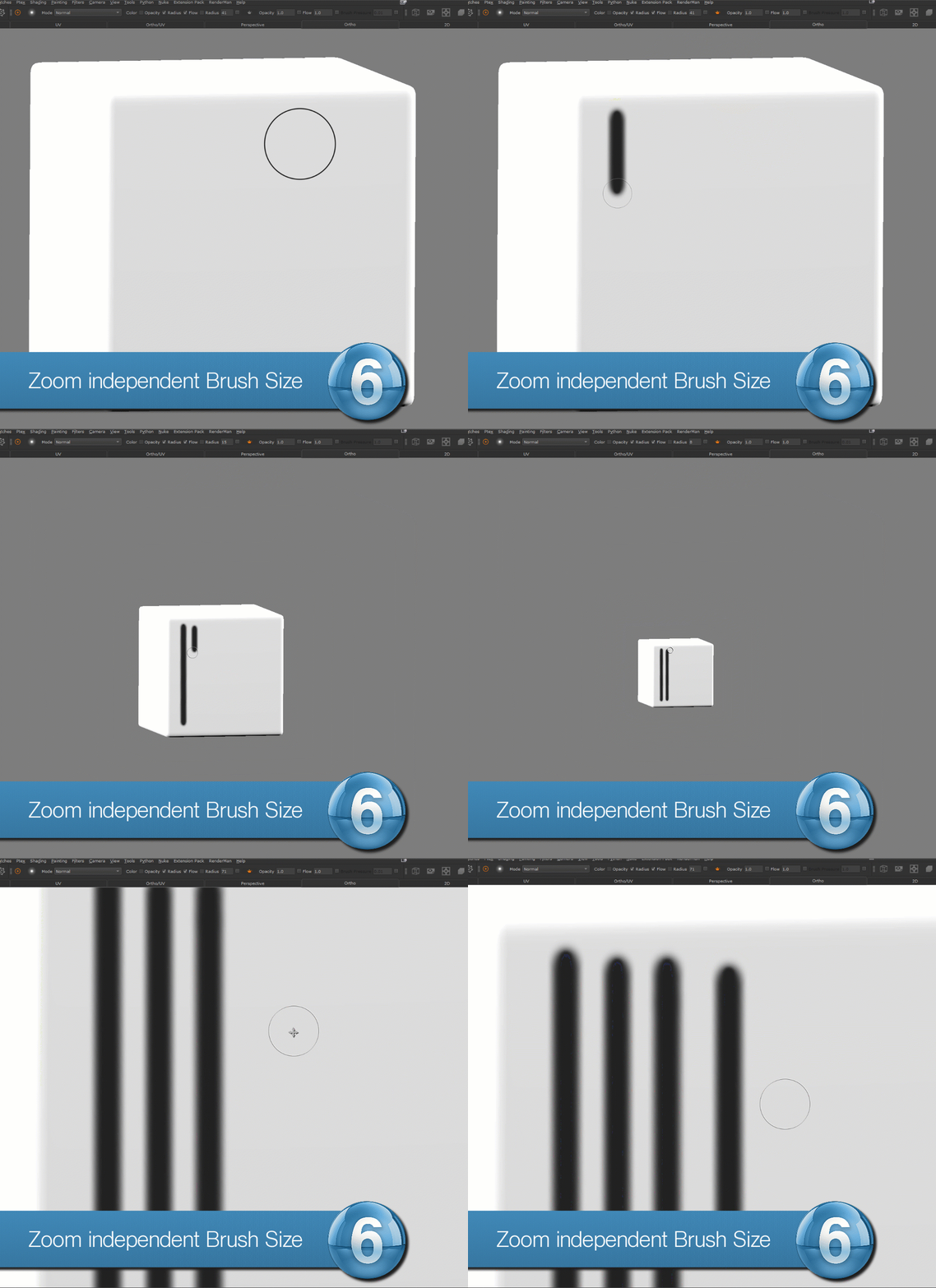
Dynamic Brush Size adjusts the size of your brush tip dynamically based on how far you are away from your object, maintaining consistent brush sizes no matter if painting from far or close up.


Dynamic Brush Size works best in Orthographic and UV Views. In perspective views it is an approximation that might not always be correct


To activate Dynamic Brush Size, locate the "Teapot" Icon in the Tool Properties Toolbar (top row of Mari by default) and toggle it on.


The Icon should turn orange, indicating it is active


When in Perspective view it will turn red instead.


Dynamic Brush Size works by evaluating the distance of the camera to your object. When in perspective mode, this calculation can become incorrect due to diifferences of Camera field of view and perspective distortion.

It is recommended to use dynamic Brushsize in Orthographic or UV View.


When in the Perspective View, the brush size will be approximated only and won't maintain 100% exact same size.
The Dynamic Brush Size Icon will turn red, in order to warn you.


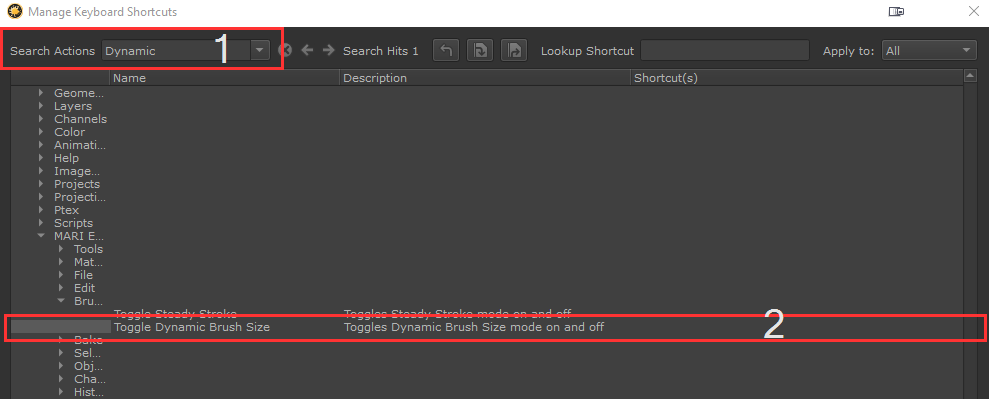
To assign a shortcut to the Dynamic Brush size Option, open the Mari Shortcut editor


1.Go the the Edit Menu

2.Choose the "Shortcut Editor"

3.In the top left search bar search for "Dynamic Brush Size"

4.Assign a Shortcut by double clicking in the "Shortcut" column on the far right


You can now toggle the Dynamic Brush size on and off using this single shortcut, regardless what paint tool you are in