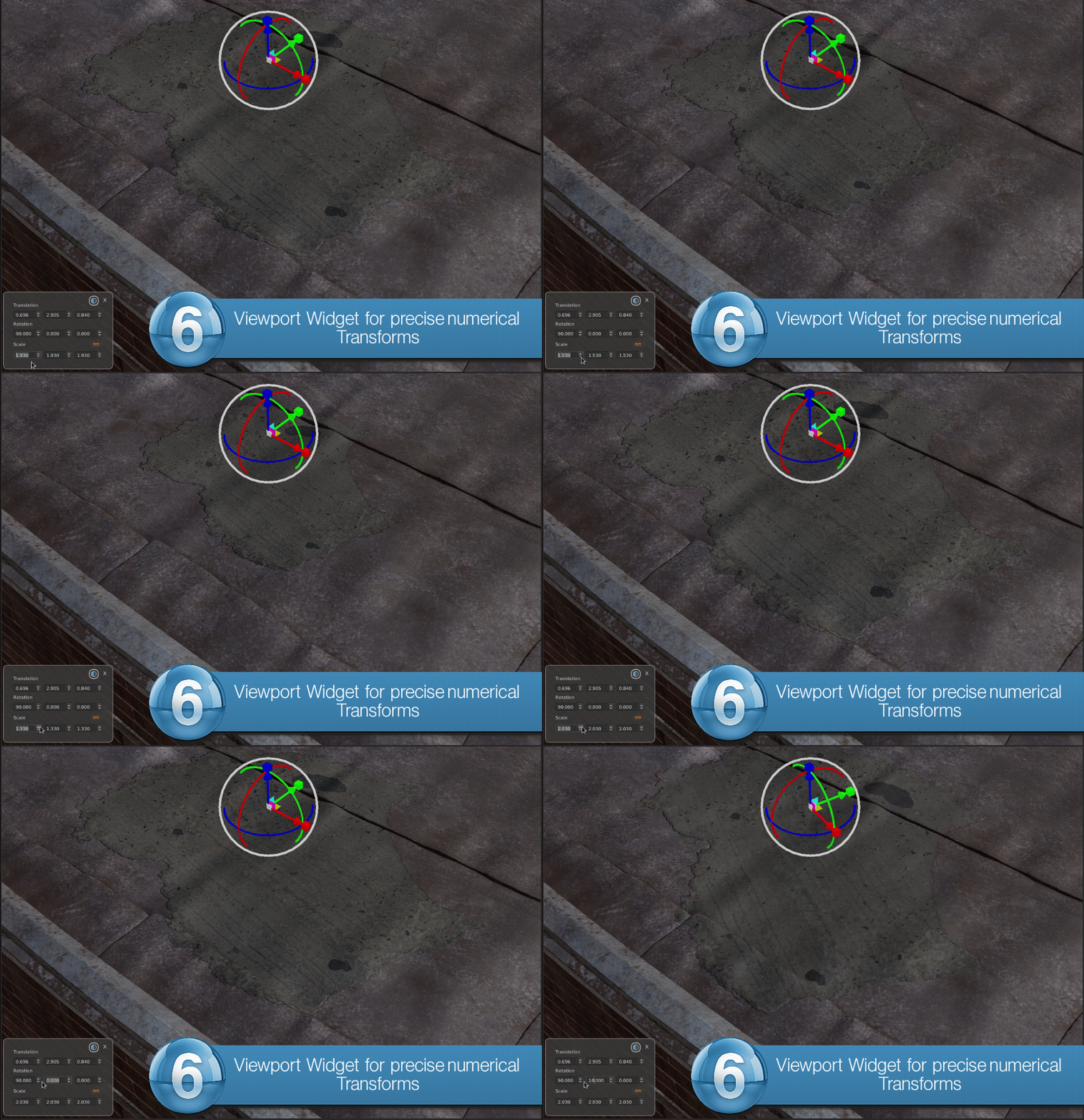
New options were added to the 'Tool Properties' Toolbar of the Transform Selected Object Tool.
You can find them by activating the 'Transform Selected Object' Tool (), then going to its Tool Properties Toolbar.
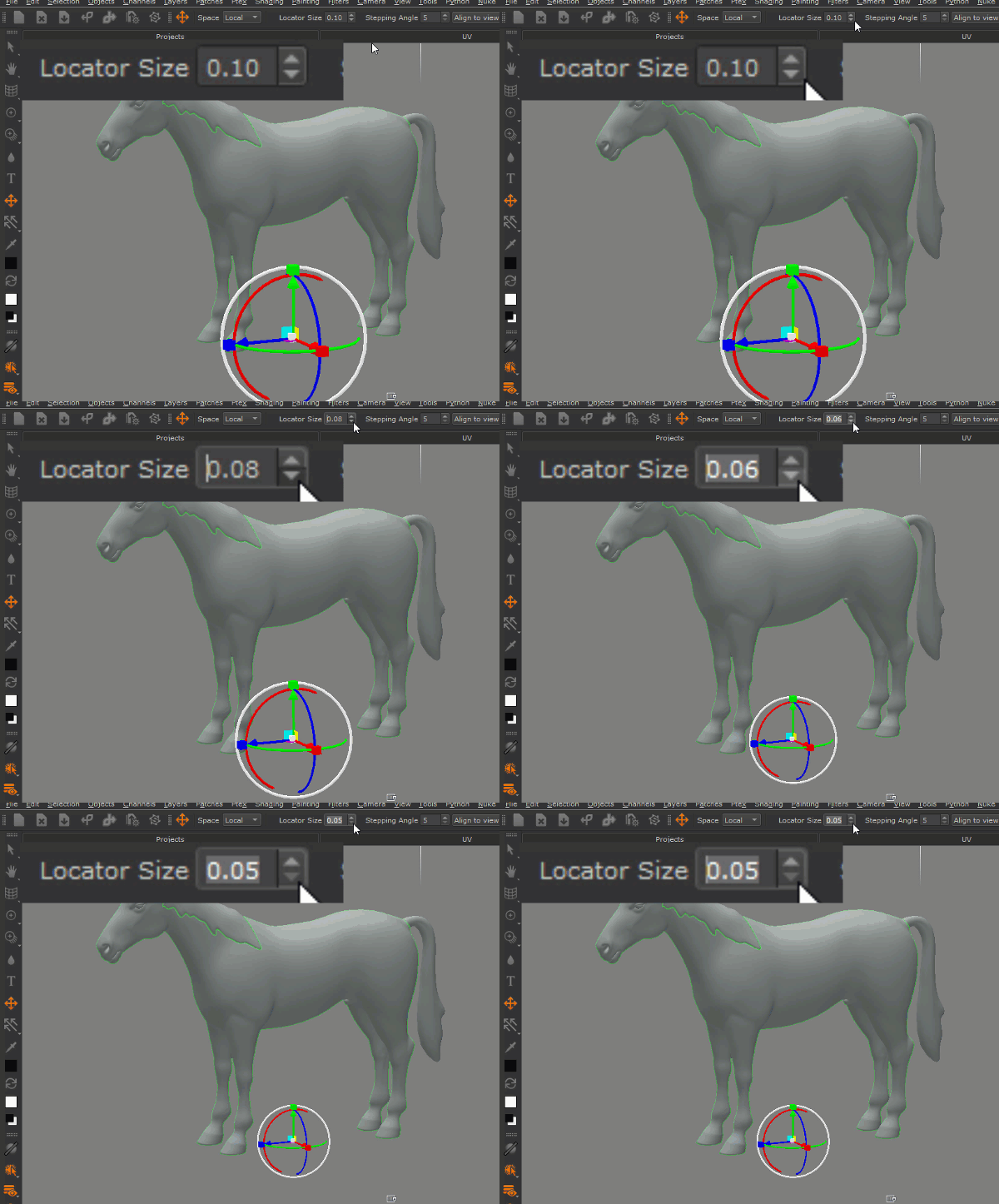
You can now adjust the size of Transform Locators in the viewport by adjusting the Locator Size Spinbox.
This is a copy of the attribute 'Locator Size' in the Mari Preferences / Misc / Appearance group
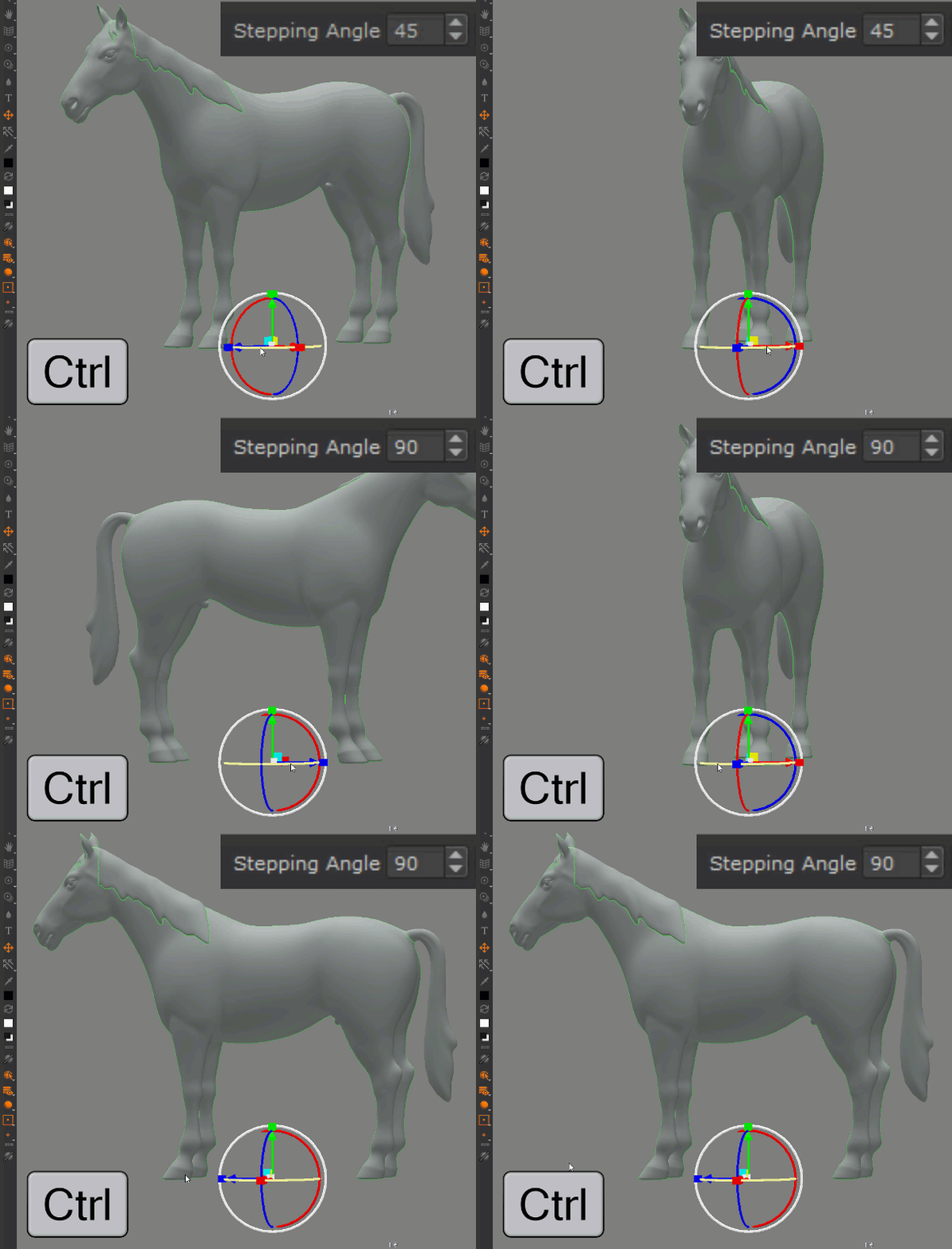
The Stepping Angle determines the increments Mari rotates and moves the Gizmo in, when CTRL is pressed down.
Align to View is a powerful and easy way to rotate a locator to your current view. It only works with Locators, not Objects.
The locator will be placed at the intersection of an imaginary plane that intersects with the parent Object's Center
The "Scale to fit" button will center the active locator on your object and scale it to fit the objects bounding sphere.
When you enter the "Transform Selection Object" Tool via the Tools Toolbar Button or by pressing SHIFT+T, a WIdget will appear in the lower left corner of the viewport,
allowing you to enter numerical transforms
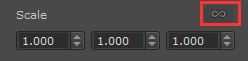
•Scale Lock
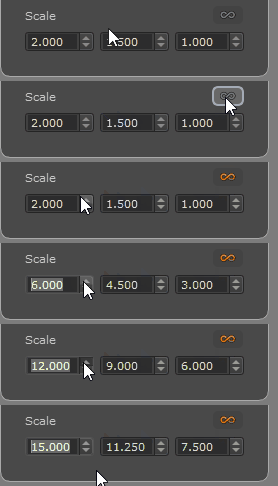
Toggling the "Scale Lock" Button on, will maintain the aspect Ratio between the X, Y and Z Scale Values if you modify one of them. The aspect ratio is recorded at the time the Scale Lock Button is toggled on, so not all values need to be identical.
A set of values of 1,2,4 when modifying the first one would result for example in 2,4,8
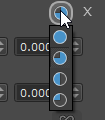
•Increments
The increments setting determines how fine or coarse values change when using the arrow up/down buttons next to a value. Available increments are 10.0 (filled circle), 1.0, 0.1 and 0.01
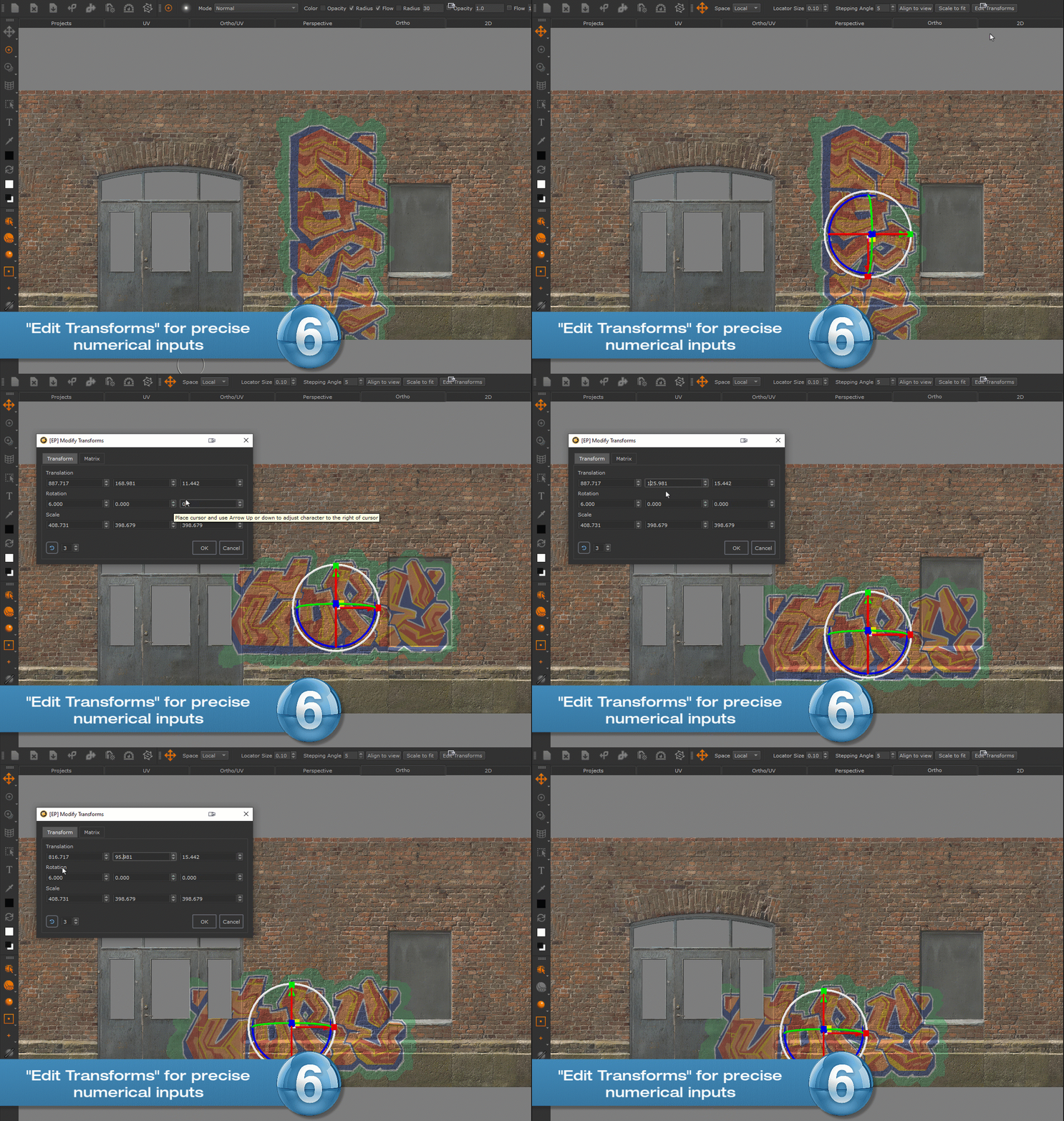
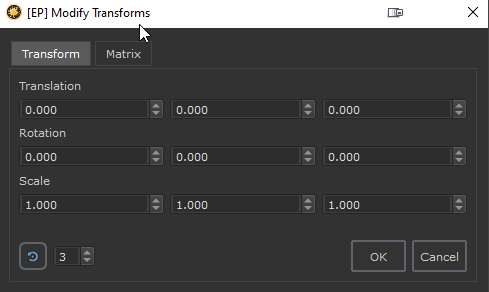
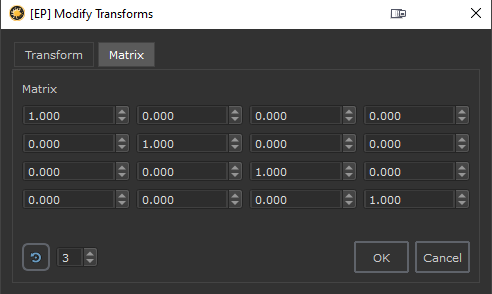
A new 'Edit Transforms' Option in the Toolbar allows you to edit the Transformations of the current Object or Locator and reset it.
By pressing on the 'R' Button in the lower left corner of the dialog you can reset the Transformation to its default.
Pressing the "R" Button again will toggle back to the previous values.
Changing the Valuebox next to the Reset Button, changes the amount of visible decimals

 Where to find it:
 'Transform Selected Object' Tool / Tool Properties Toolbar
 Shortcut: SHIFT + T