UI Styles


Where to find it: 

Main Window / Edit / Preferences / Misc / UI Style


Changes to the User Interface Style require a Mari Restart to take effect


You can adjust Mari's UI Brightness and sty;e to your personal liking via the Misc. Tab of the Mari Preferences
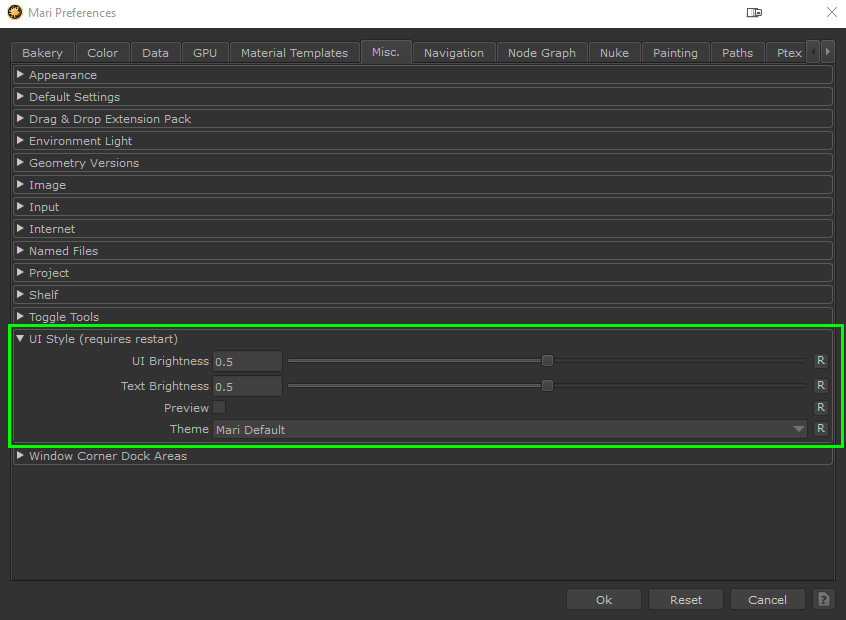



The UI Brightness sliders give you a quick way of lowering or raising the brightness of grey or near-grey tones inside the Mari interface.

Click on the "Preview" checkbox to open a preview window, giving you an estimation of how the changes will affect the UI look after a Mari restart


Use the Preview Window to estimate what the Style changes will look like after a Mari restart


For much more sweeping look changes than simple value adjustments, you can also choose from different themes


MARI DEFAULT


The Mari default theme dynamically sources the main UI Theme from Mari's installation, however Extension Pack applies minor adjustments to remove for example embossing from Toolbars


EXTENSION PACK STEEL


The Extension Pack Steel theme makes dramatic changes to Mari's UI, customizing both the general look (borders, sizes etc.) as well as colors of UI Elements.
It is using a blue highlighting scheme and grey tones are tinted towards blue.

Mari Default Theme vs Extension Pack Steel Theme


EXTENSION PACK STEEL (DESATURATED)


The Extension Pack Steel (Desaturated) theme is a modification of the Steel theme, desautration grey tones to remove any blue tint. 
Similar to the Steel Theme it makes dramatic changes to Mari's UI, customizing both the general look (borders, sizes etc.) as well as colors of UI Elements.


Mari Default Theme vs Extension Pack Steel (Desaturated) Theme


CUSTOM


The Custom Theme allows you to fully customize the Color Palette of Mari's UI Elements using the style designer.
For more information on the Style Designer, see the dedicated topic below


Style Customizations will be based on whatever theme was selected before. So if you had chosen "Extension Pack Steel" as a theme before opening the Style designer, its theme will be used as the base


The Mari UI Style Designer


NO CHANGE


The "No Change" Option will not apply any changes to the Mari Style when selected. It can be used to reactivate the Style Designer ("Custom" Theme in Dropdown) without resetting the internal theme.


Style Designer (Custom Themes)

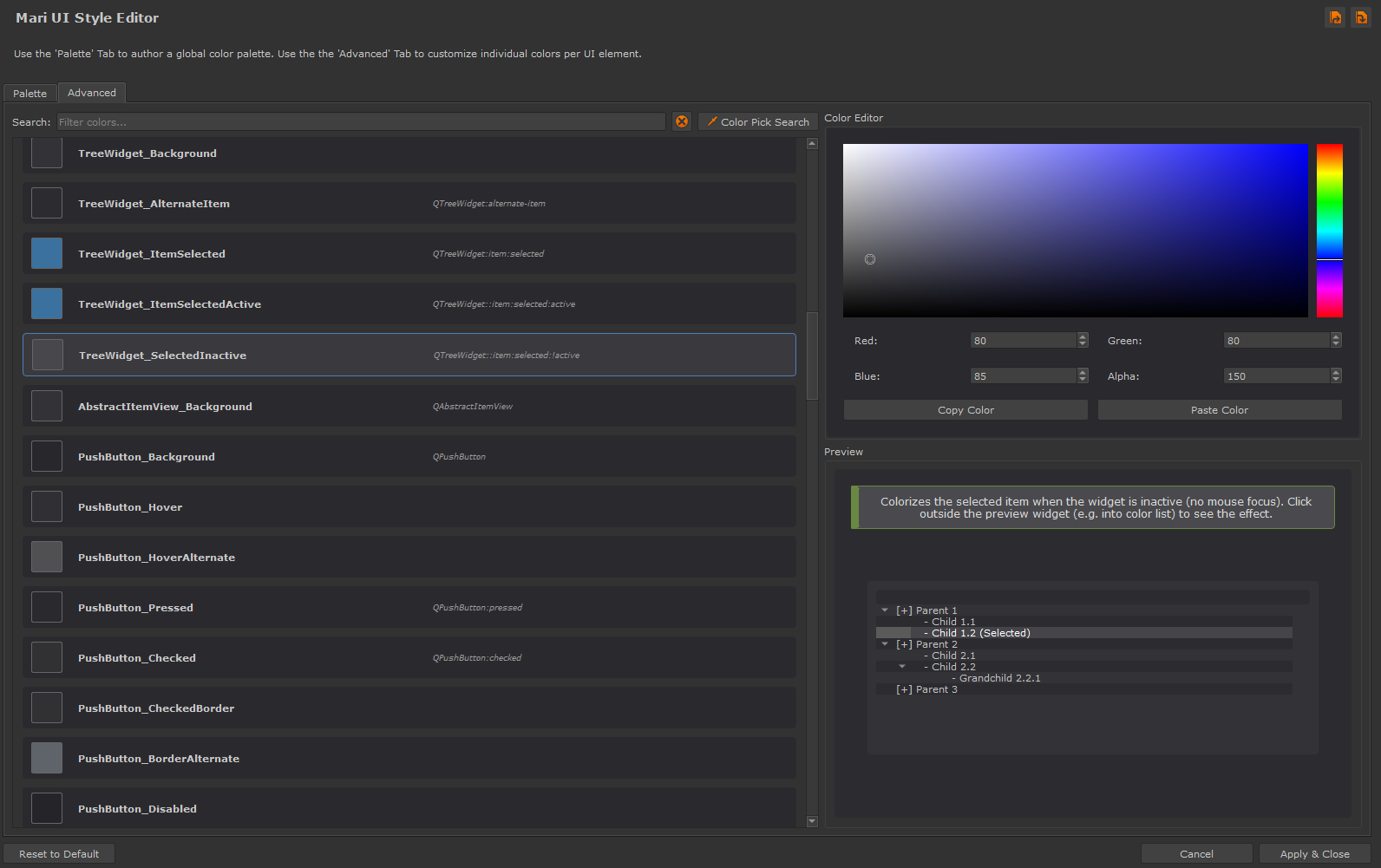
The "Style Designer" can be opened by choosing the "Custom" option in the Theme Dropdown Menu. It allows you to customize the internal Color Palette that Mari uses to draw its User Interface. You can customie the Palette globally, or drill down and

adjust different UI elements (e.g. buttons, lists etc.) separately.


Style Customizations will be based on whatever theme was selected before. So if you had chosen "Extension Pack Steel" as a theme before opening the Style designer, its theme will be used as the base


The Style Designer will operate on the last chosen "Theme" in Preferences Dropdown. If it was "Mari Default" colors and options will be based on the Mari Default Theme. If you had chosen an Extension Pack theme before, this one will be used.

It is important to understand the differences between the themes


The Mari Default Theme only has a small number of colors that are distributed and applied across all Mari UI Elements. Therefore it is often not possible to change the look of individual and specific UI elements as they are covered by the global color palette.

Extension Pack Themes have a very detailed and nuanced style definition, allowing you to tweak individual ui elements and their states (e.g. Background Colors, "Mouse Over" colors, Border colors etc.)


Extension Pack Themes allow you to adjust individual UI Elements


To open the Style Designer, simply choose the "Custom" Option in the "Theme" Dropdown Menu of the Preferences


Whenever you make a change in the "Theme" dropdown, Extension Pack will immediately adjust Mari's internal Style by overwriting your Style and Appearance Files in your user settings.
While your current Mari Instance does not change immediately in look, the change will load once Mari restarts.

If you select the "Custom" option and adjust Mari's Color Palette, the dropdown will stay on "Custom" after the dialog closes.  However you may want to reopen the Style Designer. 
If you were to select the "Mari Default" or "Extension Pack Steel" preset first, then reselect the "Custom" Option to make additional changes to your custom Color Palette, the internal style would have already been overwritten (e.g. by Mari Default) - resulting in you having lost you custom adjustments.


This is where the "No change" option comes in. By selecting "no change" first, then switching to "Custom", you can reopen the Style Designer without loosing any of your already made adjustments.


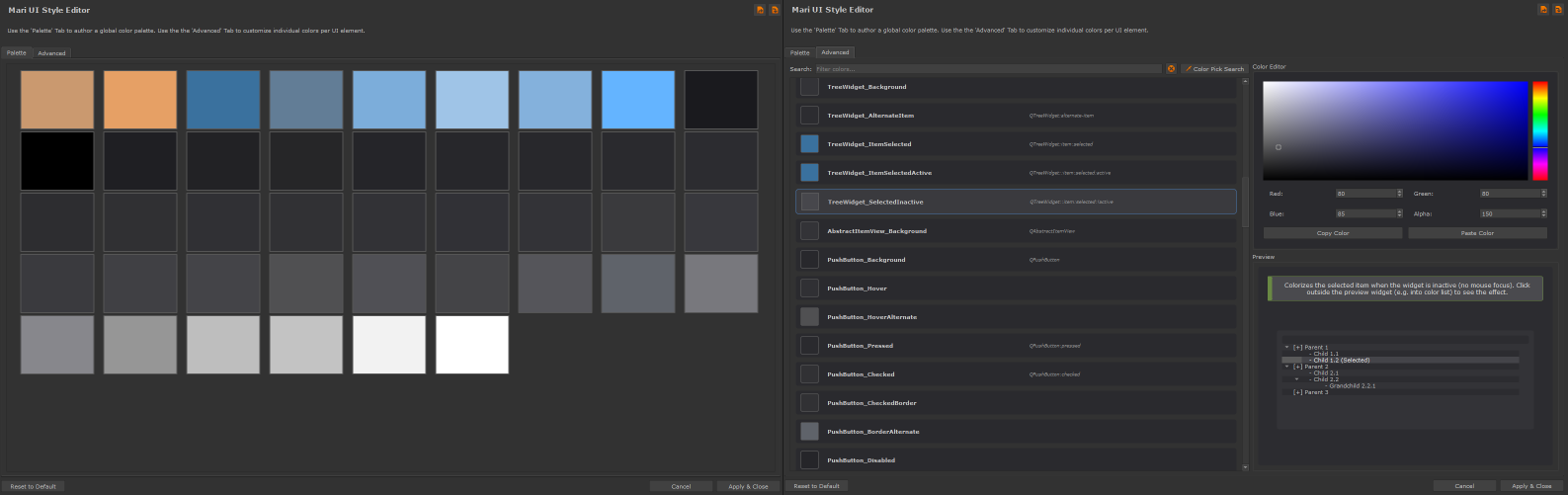
Palette Tab


Adjusting the global Color Palette is the easiest way to customize your User Interface, without worrying about tweaking individual Interface elements.

Simply click on a color and modify all assigned UI elements simultaneously.


Advanced Tab


The "Advanced" Tab allows you to dig into the Style of Mari and adjust items and their different states on a per Element level.
As an example on a regular button you can


adjust the background color

adjust the color it is when the cursor if hovering over it

adjust the border color of the button

and much more.


You will have a lot more customization options if you customize based on a Extension Pack Theme, than the Mari Default one.


On the left you see a list of all color definitions:


Core Colors  are colors that are native Color Names that Mari uses internally.  They are marked with the orange "Core Color" identifier

Widget Colors are dedicated color definitions color definitions that only apply to a specific Interface element type (e.g. buttons) and specific states (e.g. "mouse over button")


Widget Colors are mostly only available if you modify a Extension Pack Theme, as Maris Default Theme only has a small number of global colors that are used across the interface.


On the right you see the Color Editor and Preview window


The Color Window allows you to modify the currently selected color item (Core Color or Widget Color) as well as copy and paste the active color to another Core or widget color

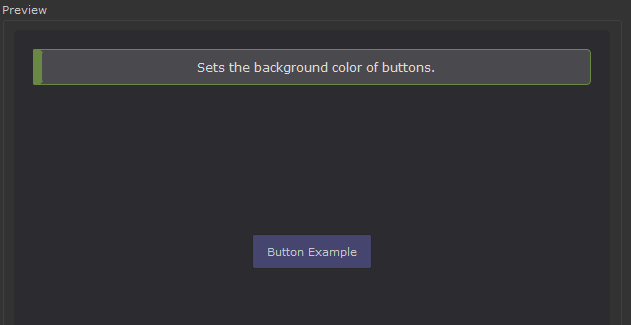
The Preview Window often gives a short description of how the color is used inside Mari. For Widget Colors often you will see a preview of the User Interface element you are modifying.

The Preview is usually state aware, so may require you to interact with the Element in order to see the effect you are modiyfing. In the below example we are modifying the "Hover" Color of the Button,
which only previews once you actually hover your cursor over the example button


In the advanced tab, there are several ways to identify what item you need to adjust to get a certain effect in the User Interface.


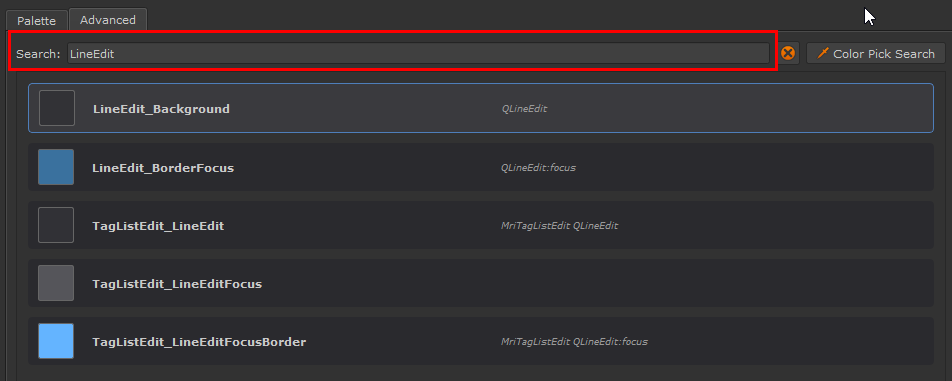
Use the Search field to search for specific names. 


The names of color definitions refer to QT specific Namings. You can find some examples in the "QT Item Names" section at the bottom of this page.


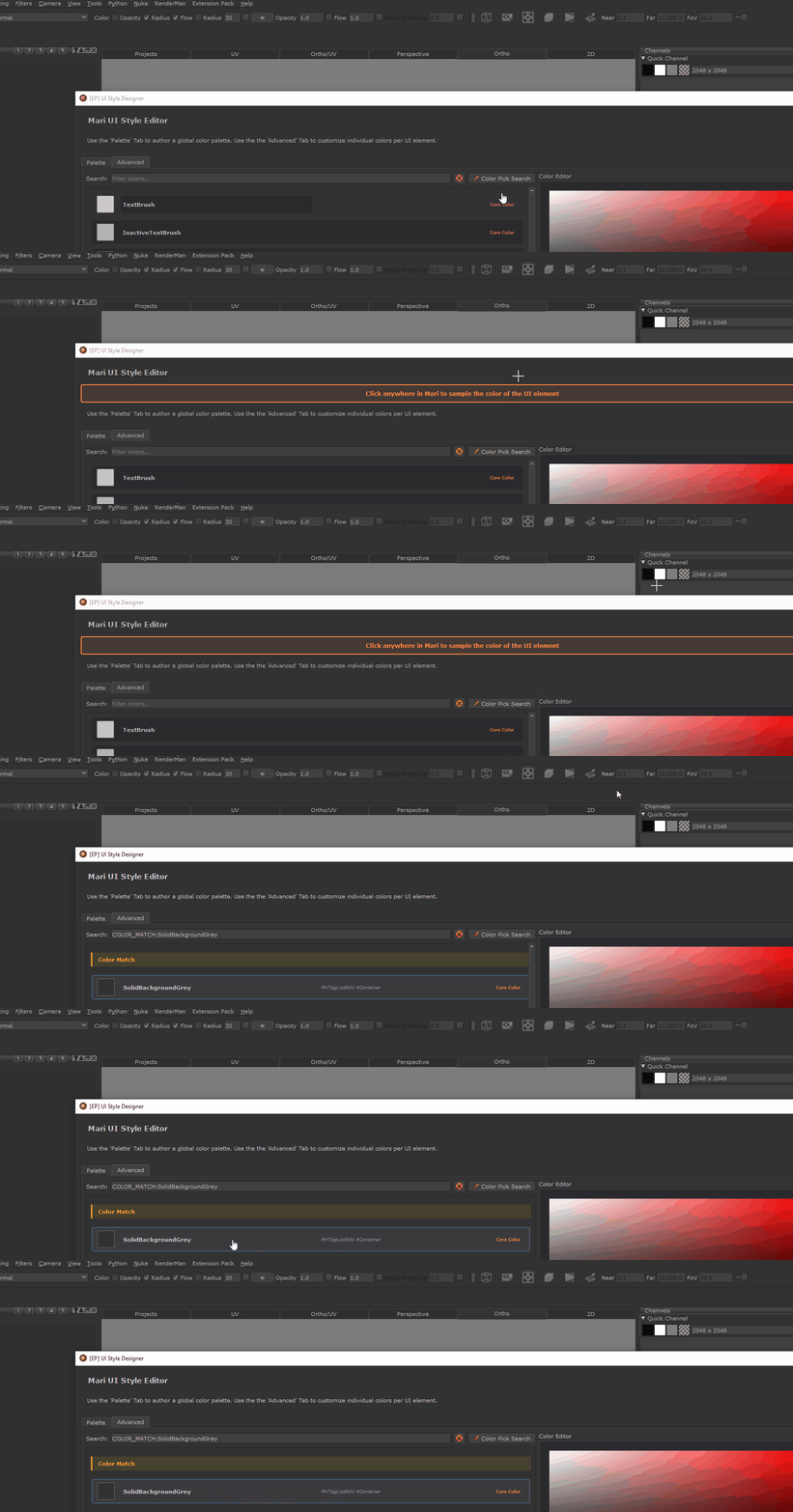
Use the "Color Pick Search" to locate what color a certain UI element is using. Click anywhere in the Mari interface to find the used color


When adjusting individual UI elements, it can be helpful to know some of QTs vocabulary. Below is a short description of different namings that appear inside color names:

WIdget Types (type of UI element)

LineEdit - A text input field where you can type text (like naming an object or entering a value)

PushButton - A clickable button that can be pressed or toggled on/off

TreeWidget - A hierarchical tree display, similar to folder structures in Windows Explorer (shows parent/child relationships)

ListView - A vertical list of items displayed in rows

ListWidget - A simple list view for displaying selectable items (e.g., Selection Groups Palette)

CheckBox - A small box that shows a checkmark when enabled, can be on or off independently

RadioButton - Part of a group where only one option can be selected at a time (selecting one automatically deselects others)

ComboBox - A dropdown menu that expands to show options when clicked. An "editable" ComboBox lets you type custom text in addition to selecting from the list

TabBar/TabWidget - Collection of tabs for switching between different views (e.g., Mari's "UV", "Perspective", "Ortho" tabs)

MenuBar - The main menu bar at the top of the application (File, Edit, Selection, etc.)

Menu - Context menus that appear when you right-click, or dropdown menus from the MenuBar

ToolBar - A bar containing tool buttons and icons for quick access to functions

TextEdit - A larger multi-line text area for editing longer text content


States (how they behave)


hover - When your mouse cursor is over the element (but not clicking)

pressed - While you're actively clicking/holding down on the element

checked - When a button, checkbox, or radio button is in the "on" or selected state

selected - When an item in a list, tree, or menu is currently selected/highlighted

active - When the widget or window is currently in focus (actively being used)

!active (or :inactive) - When the widget or window is not in focus (in the background)

disabled - When the element is grayed out and cannot be interacted with

default - Special state for the default button in a dialog (usually responds to Enter key)

focus - When the element has keyboard focus (ready to receive keyboard input)

editable - Special state for ComboBoxes that allow typing custom text

unchecked - When a checkbox or radio button is in the "off" state

alternate-item - For alternating row colors in lists/trees (every other row)

readOnly - When a text field displays text but cannot be edited

Special Components

item - Individual items within lists, trees, or menus

indicator - The actual checkmark box in CheckBoxes or the circle in RadioButtons

drop-down - The clickable arrow portion of a ComboBox

pane - The background panel area of TabWidgets