
|
Axis Mask by Jens Kafitz |
 Where to find it:
 Add Procedural Layer / Geometry / Extension Pack /
 NodeGraph / Right Mouse Click / Add Nodes / Geometry / Extension Pack /


Axis Mask lets you easily mask an object based on directions.
|
Node Overview |

•Axis Offset (XYZ)
Moves the Mask along an axis
•3D Rotation (XYZ)
When mapped the red channel of the attached connection is used to drive the Rotate X Attribute,
the green channel the Rotate Y Attribute and the blue channel the Rotate Z Attribute
By default the Edge Blending Jitter uses a node internal noise to perform its jittering/randomization of edges.
By attaching a noise of your choosing to the Jitter Noise Connection in the Nodegraph you can overwrite this
internal noise.

•Tangent Space Normal
The 'Tangent Space Normal' Handle allows you to have the Axis Mask evaluated against the effects of a
normal map as well

MAIN TAB
•X / -X
Masks the object from the positive and/or negative world X Axis
•Y / -Y
Masks the object from the positive and/or negative world Y Axis
•Z / -Z
Masks the object from the positive and/or negative world Z Axis
•Falloff
The Falloff Curve determines the general Falloff of each mask axis to its sides.
|
|
With default settings and all axis activated, your object will get a fully white mask |
Jitter will make the edges of the axis mask less uniform/straight.
The Jitter Intensity determines the amplitude of the the Jitter.
You can overwrite the Noise used for jittering the edges by mapping the Jitter Noise Port in the Nodegraph
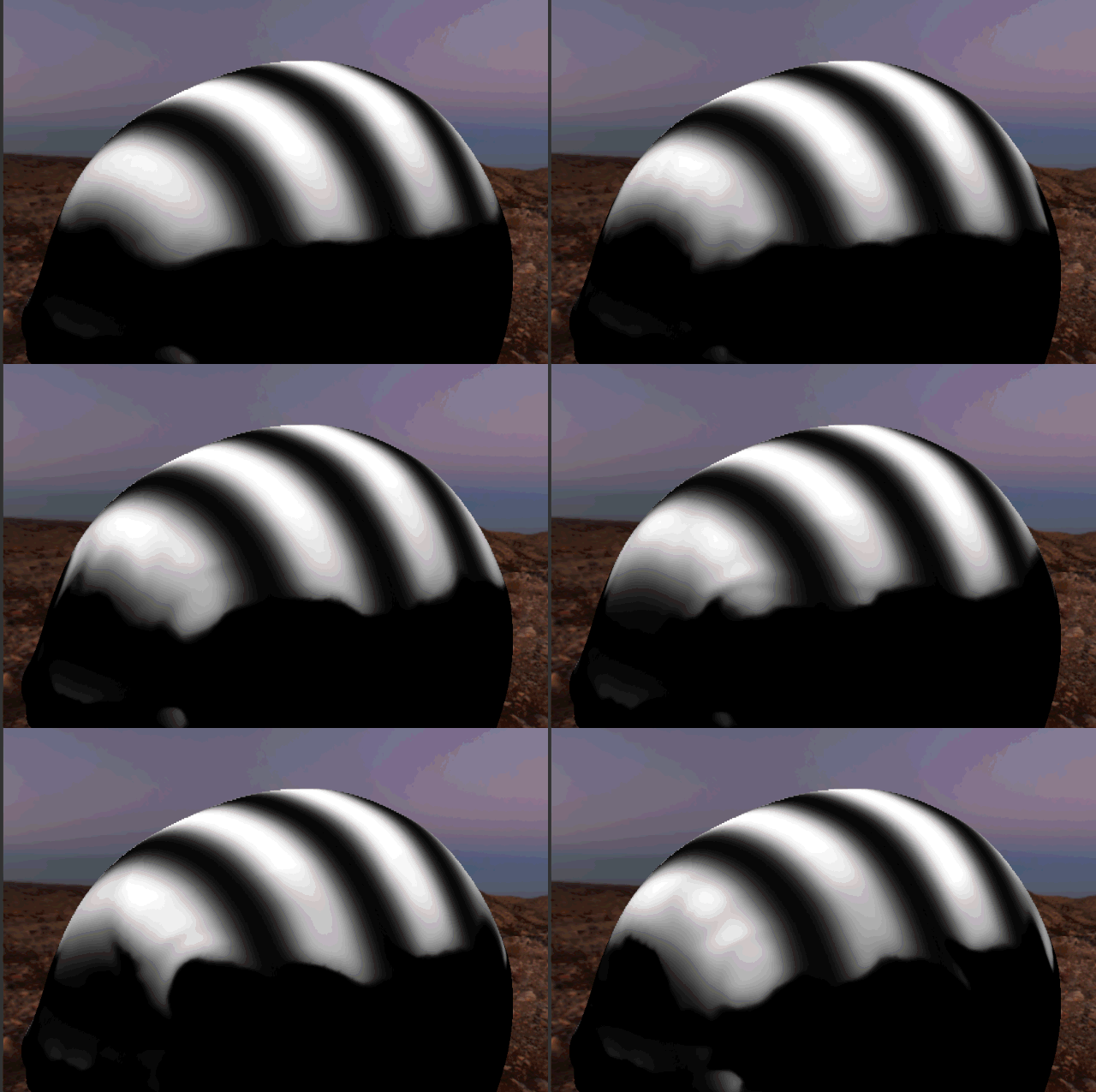
•Jitter Scale
Determines the Frequency of the internal Noise used for jittering.
|
|
Jitter Scale is ignored if something is attached via the Nodegraph to the Jitter Noise Port |
•Color A/B
The two colors that make up the mask.
Both colors support transparency so for example if you want to make the black part transparent, set the alpha value
of Color B to 0.
•Invert
Swaps Color A+B
•Invert Red
Will invert the Red Channel of the attached Normal Map
•Invert Green
Will invert the Green Channel of the attached Normal Map
|
|
OpenGl vs DirectX Normal Map Mari's Shaders by default expect a Direct X Normal Map. If you have an OpenGl Normal Map you will have to invert the Green Channel to get a Direct X Normal Map |
•Switch Red/Green
Allows you to swap the Red/Green Component of a Tangent Space Normal Map attached to the Node in the
Nodegraph
TRANSFORM TAB
|
Projection Axis Rotation |
•Rotate X / Y / Z
Allows you to rotate the global X, Y and Z axis separately to best suite your models need.
•Offset X / Y / Z
Allows you to shift the global X, Y and Z axis separately