
|
Dynamic Locators |
Some Nodes and Material Templates allow the user to assign a Locator to them to transform them in the viewport.
Example Node (Projection) allowing for assignments of Locators
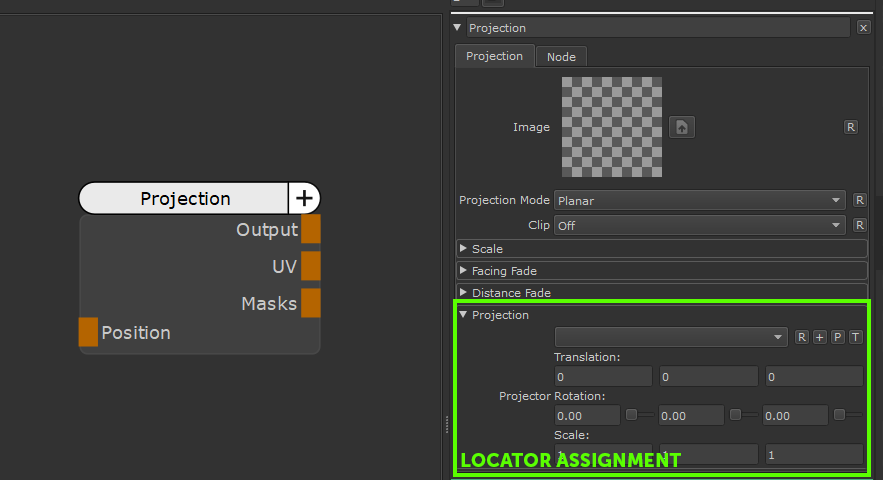
If you switch to the 'Transform Tool' with a Node or Layer selected that supports Locator Assignments:
The Transform Tool in the Mari Tools Toolbar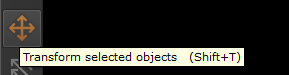
 If no Locator exist, Extension Pack will auto create one for you and switch to it in the Object Palette
If values already exist in the transform fields, this locator will inherit those values
If a Locator is already assigned Extension Pack will activate that Locator
If the Locator was created by Extension Pack, clicking on the original Object or switching Tools will remove the Locator
If the node node requires more than one locator to operate correctly a dialog will appear asking you which attribute
to assign or inherit a locator from
|
|
You can skip the "Choose Attribute to Edit" Dialog by launching the Transform Tool with the Hotkey ALT+SHIFT+T |
Example of a node with more than one Locator Slot