
|
Military Camo by Antoni Kujawa, Jens Kafitz |
 Where to find it:
 Add Procedural Layer / Procedural / Extension Pack / Pattern /
 NodeGraph / Right Mouse Click / Add Nodes / Procedural / Extension Pack / Pattern /


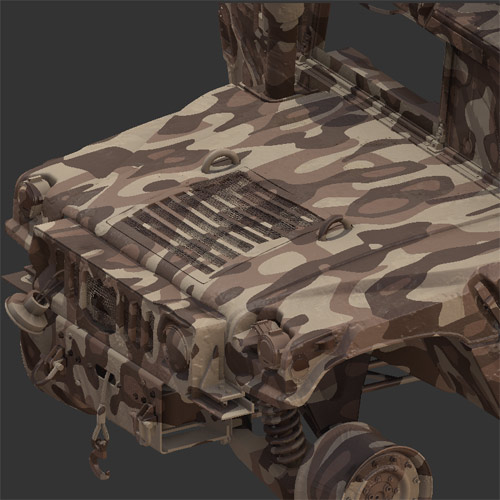
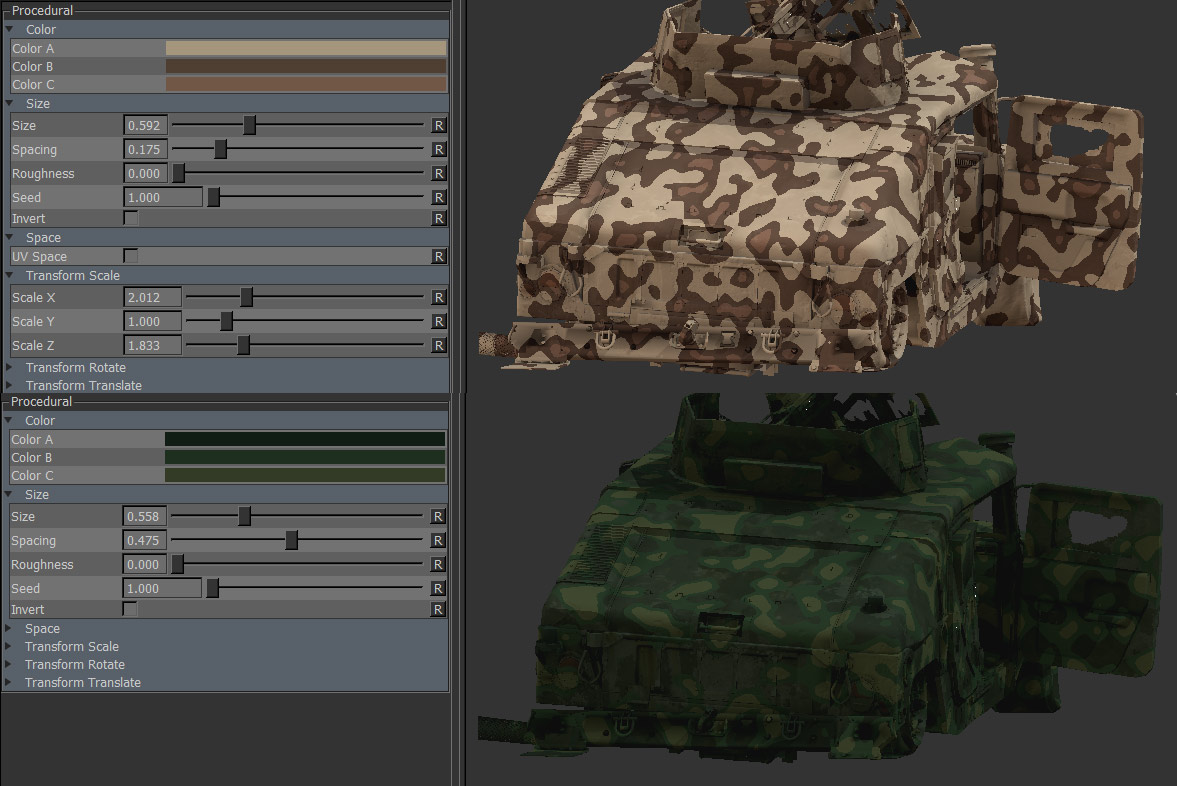
Military Camo creates a simple camouflage pattern. By layering multiple nodes on top of each other (and setting one of the colors to transparent)
complex patterns can be achieved.
2 Military Camo Nodes layered together
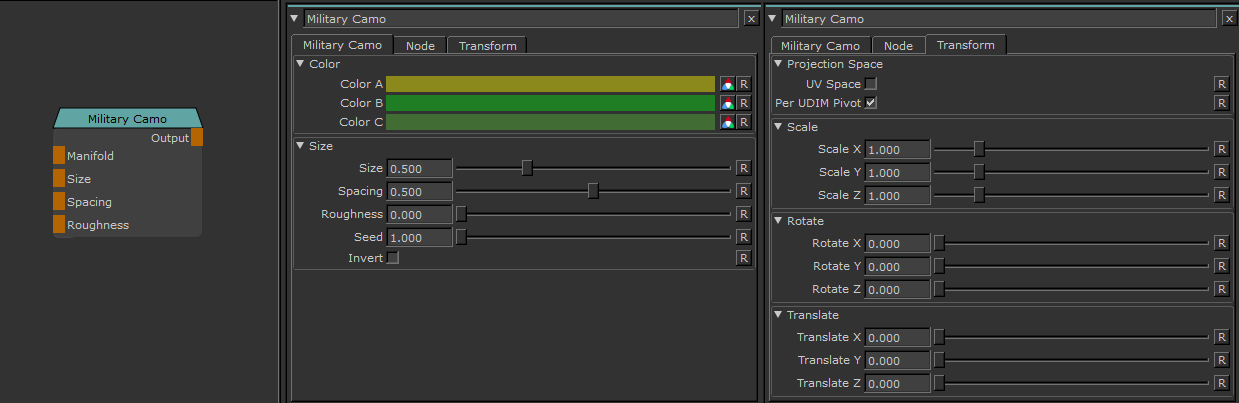
MAIN TAB
•Color A / B / C
The 3 Colors that make up the Camouflage Pattern. ColorA is the 'background', B & C the pattern.
|
|
You can remove one color by opening the color slot and setting its alpha value (transparency) to 0. |
•Size
The Size/Frequency of the procedural
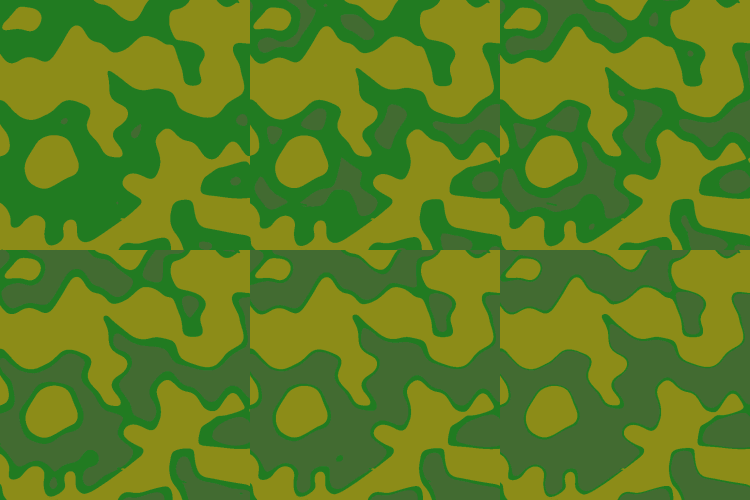
•Spacing
Determines the Spacing between Color B and Color C.
Changing Spacing on Military Camo:
•Roughness
Roughness sets the softness of the pattern outlines:
Changing Roughness on Military Camo:

•Seed
A random start value for your fractal.
Changing the seed changes the overall look of your fractal while the general feature look stays the same,
allowing for quick variation with a general look theme.
•Invert
Inverts the result of the noise. Inversion is done before color A, B and C are applied.
TRANSFORM TAB
•UV Space
By default this procedural is generated in 3D World Space. This results in a seamless noise across UV seams.
By turning on UV Space the procedural is generated based on your UVs, resulting in seams between UV tiles/UDIM & uv shells.
Utilizing Transform Controls such as Scale (see below) you can apply a non-uniform transform to the procedural
to make use of specific UV layouts
•Per UDIM Pivot
Affects the transformation pivot for UV Transforms when in UV Space
With PerUDIMPivot on all transformation will be performed with a pivot at the centre of each UDIM.
With PerUDIMPivot off, transformations for all UDIMs share one common pivot at the base of UDIM 1001.
This will ensure seamless textures across UDIMs when your UV Shell is scaled up and covering multiple UDIMs.
without a cut inbetween.
UV Transformations applied to multiple UDIMs with perUDIM Pivot On (left) and off (right).


•Scale X / Y / Z
Will apply a scale along X,Y or Z to your noise. This is useful for creating patterns like woodgrain, drips etc.
When UV Space is turned on Scale Z is ignored.
•Rotate X / Y / Z
Will apply a rotation in X,Y or Z to your noise. When UV Space is turned on Rotate X & Rotate Y are ignored
and rotation is done around the center of each UV Tile/UDIM using Rotate Z.
•Translate X / Y / Z
Will apply an offset in X,Y or Z to your noise. When UV Space is turned on Translate Z is ignored.