Windows Ink


Windows Ink is a software/service that handles Pens such as stylus or pens from graphic tablets.

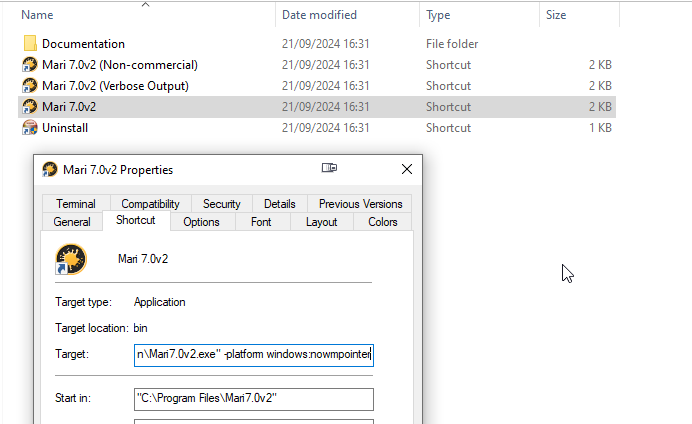
Mari on windows comes with two separate shortcuts for the application:


- By default on windows Mari uses "Wintab" which is achieved by appending "-platform windows:nowmpointer" to the executable


- by removing this part you will force Mari to use Windows Ink instead 


You can disable Windows Ink in the Wacom Settings:


1.Open the Start menu.

2.Type Wacom Tablet Properties and click on the first search result.

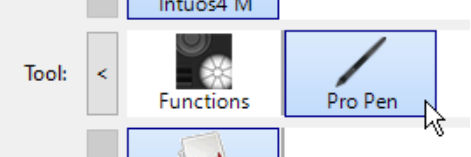
3.In the Wacom Tablet Properties Window click on the Pen in the tool list.


4.Click on the plus "+" button to add an application profile or set the setting globally for all applications


1.If you wish to disable Ink just for Mari, add the Mari application to the list by clicking the Browse Button

2.Click on OK to create the profile.


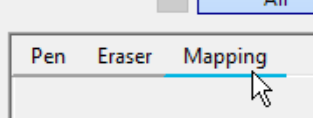
5.Click on the Mapping tab.


6.In the bottom left of the window, disable "Use Windows Ink"


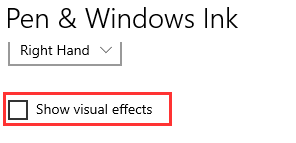
To disable the ripple effect of windows ink ...


1.Click on the Start Menu


2.Click on the settings menu


3.Click on "Devices"



4.Click on "Pen & Windows Ink"


5.Disable "Show Visual Effects"


To disable the ring effect ...


1.Open the Start menu.


2.Type Control Panel and click on the first search result.


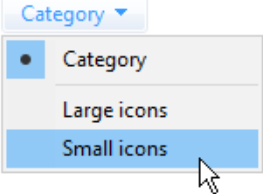
3.Switch the Control Panel display mode to small icon .


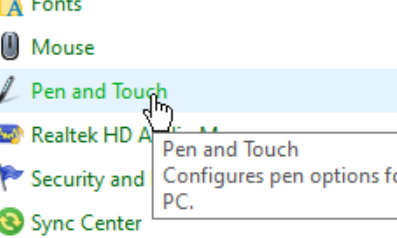
4.Click on Pen and Touch settings.


5.Open the settings with the "press and hold" list item selected


6.Disable the setting"Enable press and hold for right-clicking"