
 Where to find them:
 Layers Palette / Right Mouse Click
Main Window / Layers
Main Window / Extension Pack / Layers
Shortcuts: (unassigned, use "Edit / Shortcuts" to assign)
Swap Layer Type allows the swapping of one Layer Type for another e.g. a 'Tiled' Layer for a 'Triplanar',
a Texture Scatter 2D for a Texture Scatter 3D etc.
Ability to swap multiple Layers at once
Input and Output connections are maintained where possible
Attribute Settings (Size, Tiling etc.) are transferred where possible
Image Attributes are transferred
Example of converting a 'Tiled' Layer into an 'Axis Projection'
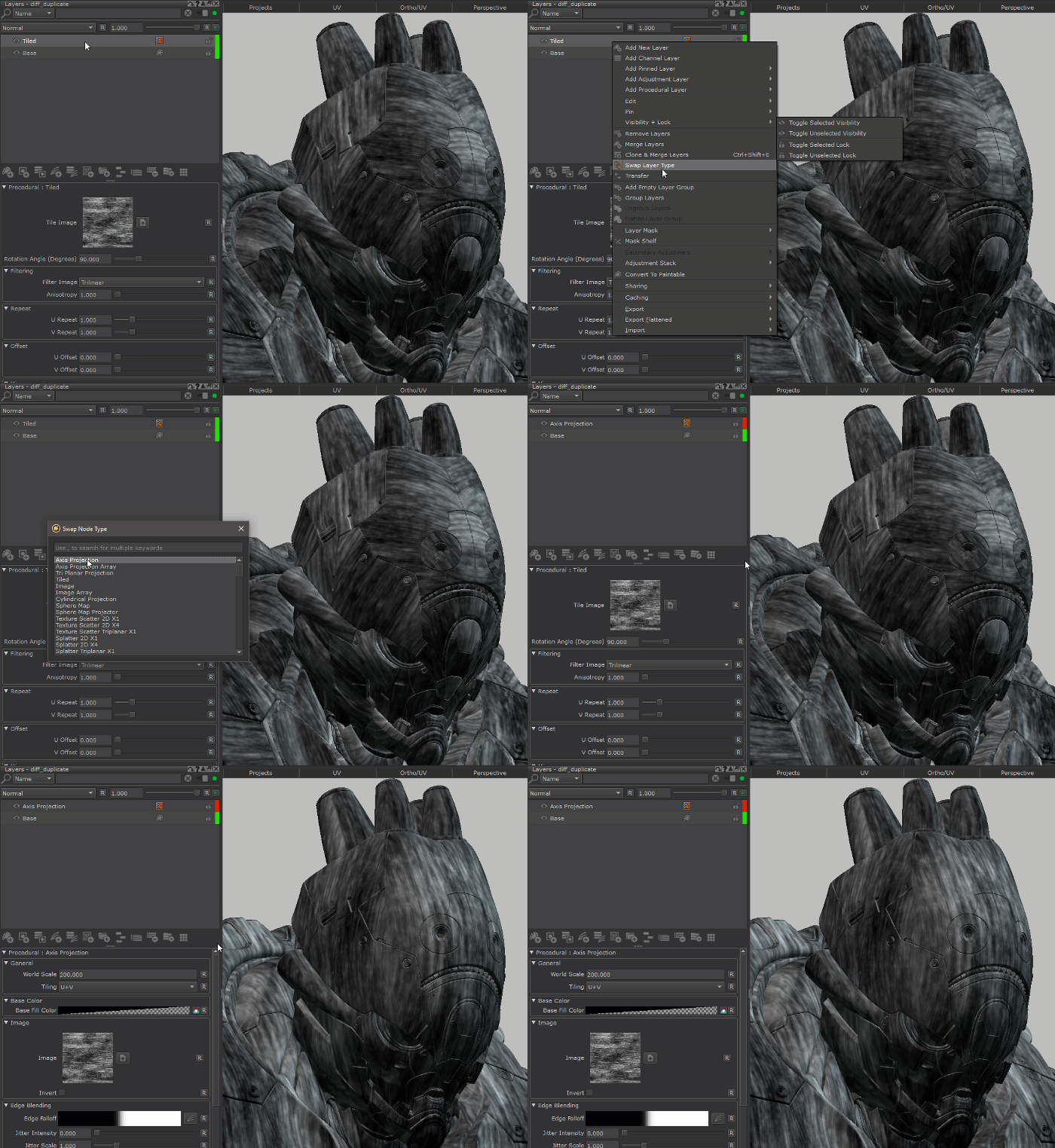
Selecting a standard Mari Node Type (e.g. a procedural node) will show nodes from the same category at the top of the list
Example of swapping from a Perlin Node, with the nodes from the same category (Cellular, Perlin, Squiggle etc.) displayed at the top of the list
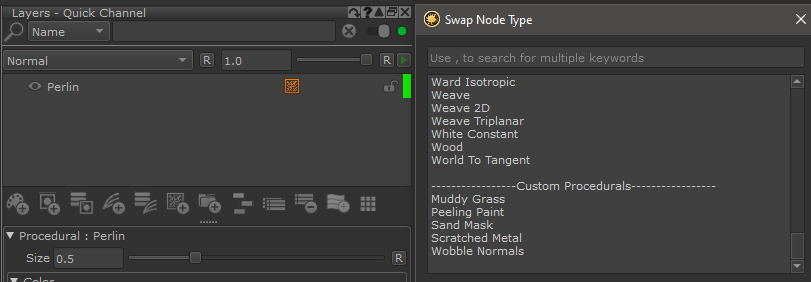
Selecting a standard Mari Node Type (e.g. a procedural node) will display custom procedurals from your shelf at the bottom of the list
Custom Procedurals found in your Shelf Palette will be displayed at the bottom of the List
Selecting a Material will show Materials (of the same shader type) found in your shelf in the list, as options to swap to
Materials from the Shelf Palette will be shown as swap target options, if the selected source layer is a material

If the selected source Material is based on an Extension Pack Material Template , the dialog will show
oother Material Templates from the same Shader Model at the top
oother Material Templates from other Shader Models below
oany other Material found in the Mari Shelf Palette further down the list
Swapping between Extension Pack Material Templates is running additional checks to ensure correct conversion between different models
e.g. Glossiness to Roughness Conversions etc.
