
|
Shelf Window - UI Overview |
|
|
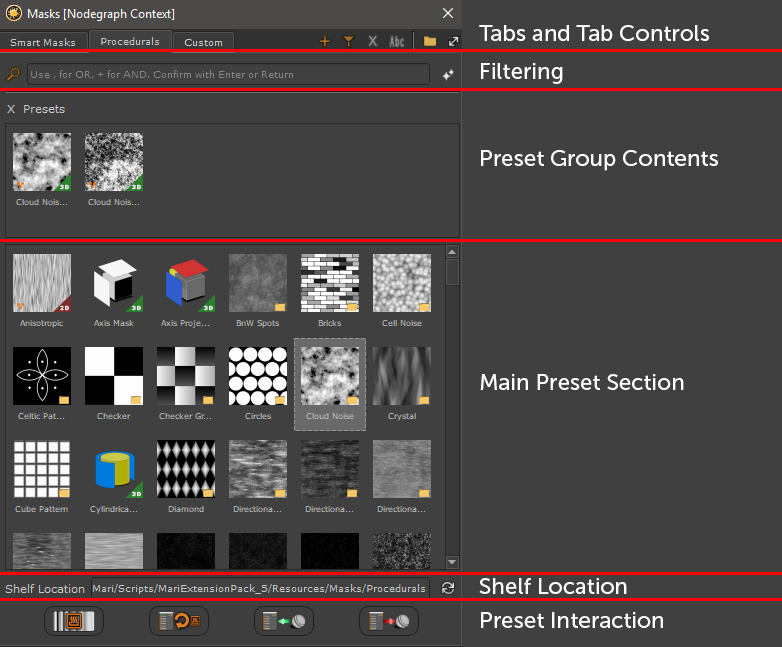
The Shelf Window looks slightly different depending on which context it was launched from |
Tabs are the visual representations of Folders on your hard disc.You can add as many tabs as you wish to organize your presets.
By default the Preset Browser has two Tabs
oSmart Masks
Smart Masks are presets for creating procedural edge wear and weathering effects using Ambinet Occlusion and Curvature
oProedurals
Procedurals are non-destructive nodes and generators for patterns, grunges etc.
|
|
The tabs 'Smart Masks' and 'Procedurals' are locked by default but can be unlocked via the Preferences |

Buttons in the upper right corner of the Window interact with the Tabs - adding, renaming, thumbnail size and display mode
•Create a new Tab

Allows you to add a new Tab to the Preset Browser
A dialog will appear asking you to specify a Tab Name and a Save Location on Disc:

oTab Names need to be unique
oThe Destination Path can be a path from an existing tab in which case you get a duplicate
oThe Destination Path can be shared by multiple people, allowing you to have a shared folder where added content updates for all team members
|
|
Tabs can be added for all members of team globally using an Environment Variable |
•Create new Tab from Filter

Allows you to add a new Tab from the currently active Tab Filter.
A new dialog will appear asking to specify a Tab Name.

oTab Names need to be unique
•Delete current Tab

Removes the current Tab. Only the Tab is removed, not the presets on disc in the Save Location of the Tab.
This way you can at any time restore the Tab.
•Rename current Tab

Renames the current Tab
•Switch Preset View Mode

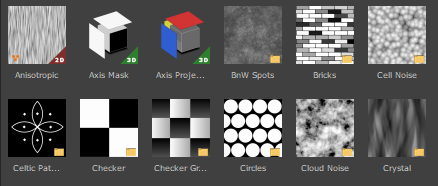
Presets in a Tab can be grouped together.
The Preset View Mode determines if items are shown grouped or 'exploded'

•Icon Size

Determines the Icon Size of Presets
|
Tiny: |
35x35 px |
|
Small: |
58x58 px |
|
Medium: |
90x90 px |
|
Big: |
125x125 px |
|
Large: |
200x200 px |
|
Huge: |
400x400 px |

The Filter Bar allows to filter the current preset tab.
•Clear Filter

Removes the Filtering from the Filtering Field
•Filter Field
Filter the current Tab. Filtering is done by:
oPreset Name
oPreset Tags
|
|
Tags can be defined in the
|

Filtering Operators are
▪Comma (,)____________
Separate multiple search terms or search term operators via a comma. If any of the terms in found the preset is displayed
e.g.: Scratches,2d,cracks will display any preset that has 'Scratches', '2d' or 'cracks' in its name or tags
🞙Plus (+)_____________
The Plus (+) operator stipulates a combination of terms that are required to be a filter match
e.g.: Scratches+2d will display any preset that has both 'Scratches' and '2d' in its name or tags
🞙Exclamation Mark (!)_____________
The Exclamation Mark (!) operator excludes a search term
e.g.:
▪Search String 'Axis' will give you the two presets Axis Mask and Axis Projection as a search result
▪Search String 'Axis+!Projection' will give you only Axis Mask as a search result, since the Term 'Projection' is marked to be exlcuded.
You can combine operators e.g. Scratches+2d+!Vertical,cracks+3d will display any preset that has
o 'Scratches' and '2d' in its name or tags but only if it doesn't contain 'Vertical'
o 'cracks' and '3d' in its name or tags
|
|
You can easily create a new tab from the result of the filtering using the Create new Tab from Filter Button |
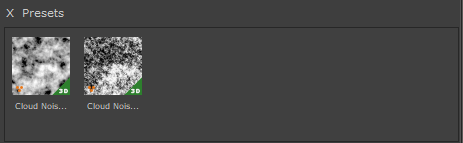
The Group Section of the Preset Browser shows presets under the currently selected Group in the Main Preset Section.
Presets are only shown grouped if the Preset View Mode  is set to 'Show Presets Grouped'
Groups, Presets belong to can be set in the
oCreate Preset Dialog(s)

The Shelf Location displays
othe current Tab's Save Location on Disc
oallows the reloading of the current Shelf 

The Preset Interaction Section of the Mask provides options to create new presets, import presets into Mari and launch Preset Specific
Bake Options.
For more information refer to the Working with Presets Page of this Documentation
|
Additional Shelf Options |
Tags allow you to define search terms for Presets that the Filtering Mechanism can discover.
Tags can be defined in the
oCreate Preset Dialog(s)
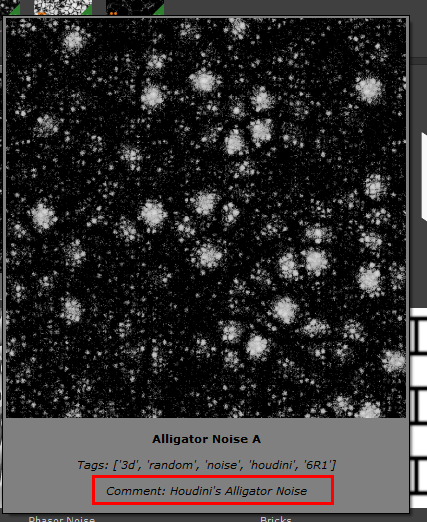
Tags are displayed in the Tooltip of a Preset when the Mouse is above the Preset
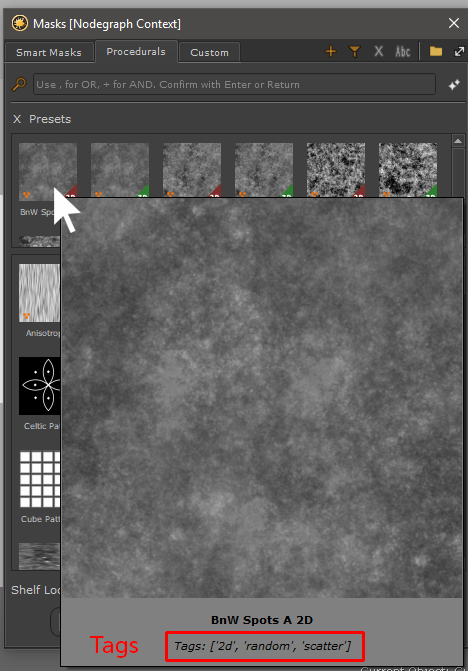
Certain Tags trigger a change to the Preset Icon:
oTag 'UV' or 'uv' adds a '2D' Indicator in the corner of the Preset Icon 
oTag '2d' or '2D' adds a '2D' Indicator in the corner of the Preset Icon
oTag '3d' or '3D' adds a '3D' Indicator in the corner of the Preset Icon 
oTag 'random' or 'Random' adds a 'Randomness' Indicator in the corner of the Preset icon 
Comments can help you add additional information to a preset.
Comments can be defined in the
oCreate Preset Dialog(s)
Comments are displayed in the Tooltip of a Preset when the Mouse is above the Preset.
If no comment is defined the comment line in the Tooltip will be hidden
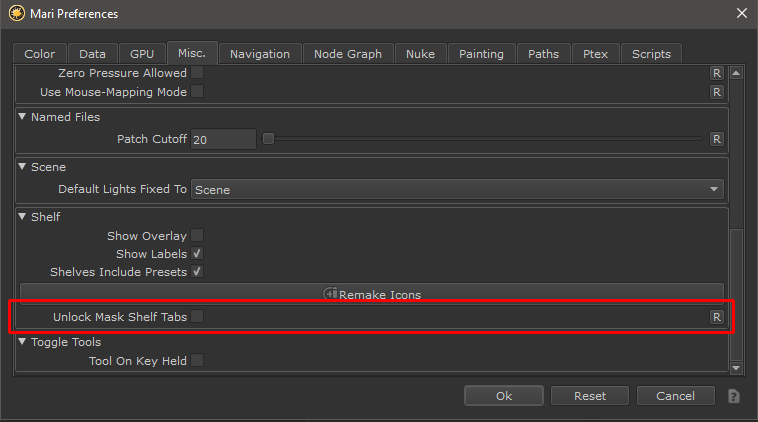
By default the two default tabs 'Smart Masks' and 'Procedurals' are locked meaning that you can't add, delete or change presets saved there.
The two locked Tabs and one unlocked, custom tab

A Preference is available to unlock these Tabs.
oGo to the Edit Menu in the Mari Main Window
oOpen Preferences
oGo to the Misc Tab
oScroll to the Shelf Group
oTick Unlock Preset Browser Tabs on
|
|
Making changes in the default Tabs cannot be undone without reinstalling Extension Pack ! |
The Size and Position of the Shelf Window is saved between sessions. If you ever need to reset its size and position to the default
go to
1.Extension Pack Menu in Mari Main Window
2.Choose either
▪Nodegraph / Masks / Reset Preset Browser Size and Position
▪Layers / Reset Preset Browser Size and Position
While adding Tabs manually is easy enough to do, maybe you want to set up a shared shelf for all your team members.
The easiest way to do this is by setting a global environment variable that will automatically add a Tab to all your team's shelves.
The Environment Variable to set is called MARI_EP_SMART_MASK_FOLDER and supports multiple paths separated with a semi-colon
Example
MARI_EP_SMART_MASK_FOLDER = \server\library\generalPresets;\server\ourProject\projectPresets
will create two Tabs:
oa tab called 'generalPresets' pointing to \server\library\generalPresets
oa tab called 'projectPresets' pointing to \server\ourProject\projectPresets
|
Preset Context Menu |
If you right click on any preset you get a context menu with a number of options and information.
|
|
Default Tabs have many options disabled by default unless you unlock them |
The right mouse click context menu for a preset and a preset group
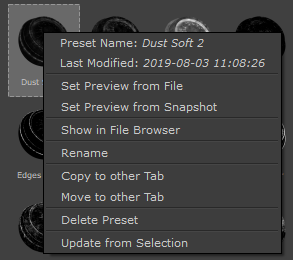

•Preset Name
Displays the current selection's preset name, or if a group is selected, the group name
•Preset Modification Date
Displays the last time this preset was updated
•Set Preview from File
Allows you to select an image file from disc to use as a Preview for the currently active preset.
|
|
Preset Preview Files should not exceed 400x400 pixels |
•Set Preview from Snapshot
Allows you to set a snapshot of your Mari Viewport as a Preset Preview.


With a Preset selected the dialog allows you to
oRename a Preset
oDefine Search Tags for a Preset
oDefine Groups for Presets
With a Group selected the dialog allows you to
oRename a Group
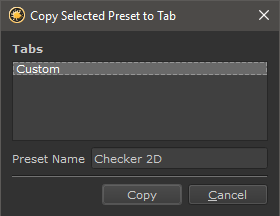
Copies the currently selected preset to another Tab.
|
|
The two default presets 'Smart Masks' and 'Procedurals' cannot be copy targets |

Moves the currently selected preset to another Tab.
|
|
The two default presets 'Smart Masks' and 'Procedurals' cannot be move targets |