
|
Annotation Types |
Annotations come in a variety of types and options
See all the Image Annotation Features in Action here: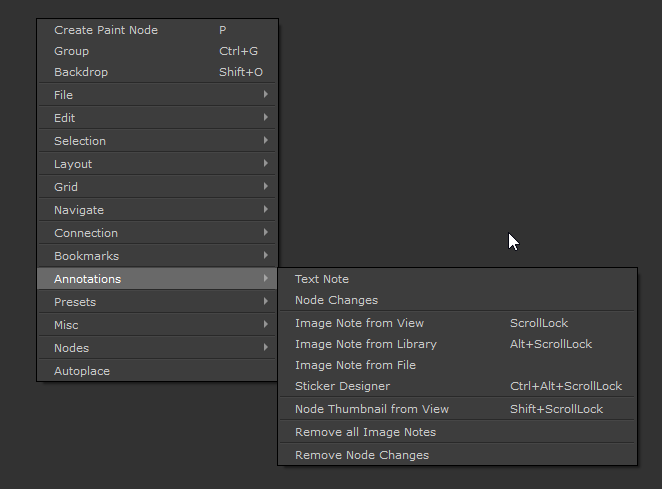
Text Notes are simple Mari Sticky Notes.
The option has been added to the Annotation menu for completion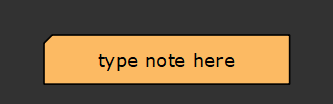
You can edit the Annotation text via the nodes node properties. Sticky Notes support full HTML syntax.
"Node Changes" Annotations are Text Nodes that automatically get filled with non-default Node Values.
This can be useful for example if you wish to share screenshots and easily document what is going on inside a node or node network.
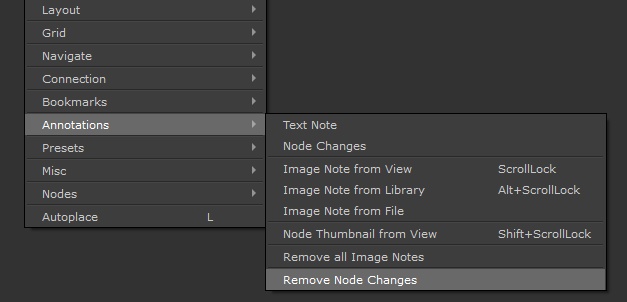
You can remove all "Node Changes" Text Nodes from the current Graph by using the "Remove Node Changes" Option
Use Image Note from View to capture your viewport and crop the image to your liking.
To use cropping, press and hold your left mouse button and drag a selection.
To force a square selection, press and hold either SHIFT or CTRL.
To move an existing selection, hold the SPACE bar.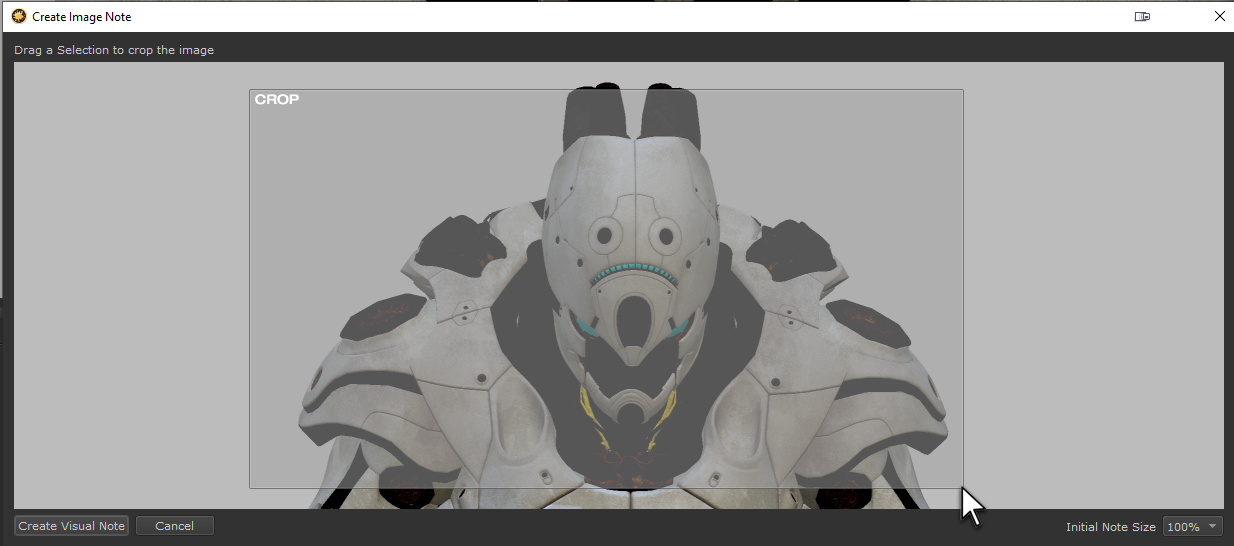
The initial Image Note size in relation to the original capture size can be set in the right corner of the dialog, but can be changed later via the Node Properties
of the Image Note.
Use Image Note from File to import arbitrary images from disc.
Supported file formats are:
 BMP
BMP
GIF
JPG, JPEG
PNG
BPM
PGM
TIF
TGA
SVG
PPM
XBM
XPM
The initial Icon size is defined by the Image Resolution but can at any point later be changed from the Image Notes Node Properties.
SVG Vector Files are rendered into 1k images for display in the Nodegraph

The sticker designer allows you to create and edit fully custom image annotations with free hand painting, vector tools and much more.
For a full overview of the tool, refer to the dedicated Sticker Designer Help Page
Use Node Thumbnail from View to quickly generate Node Thumbnails for selected nodes.
Node thumbnails retain a permanent link to the original node, meaning if you regenerate a thumbnail the original Image Annotation updates.
Most Node types will be rendered with a flat shaded lighting model.Only Shaders and Materials will be rendered fully lit.
You can adjust the Size of the Thumbnail fro the Note's Node Properties. By Default Thumbnail size will default to the width of the Node it is generated from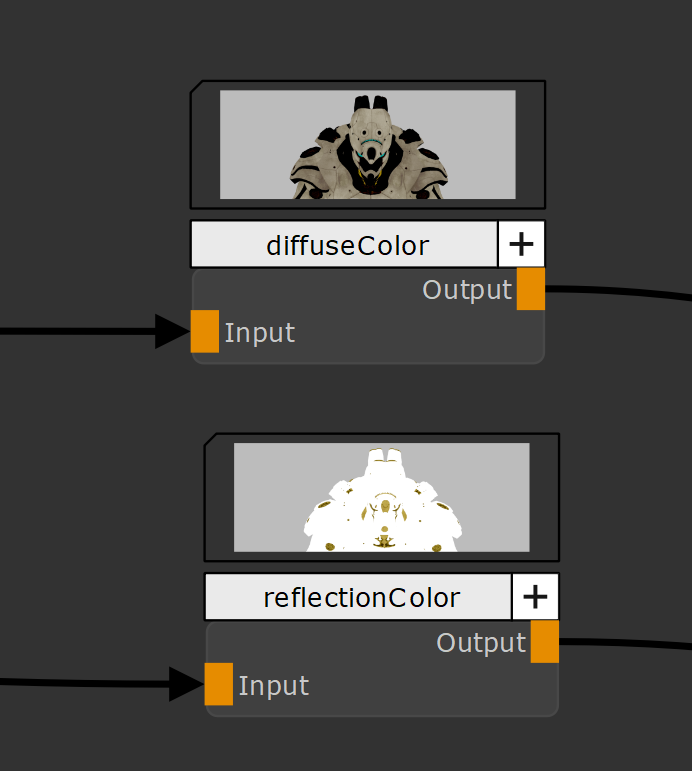
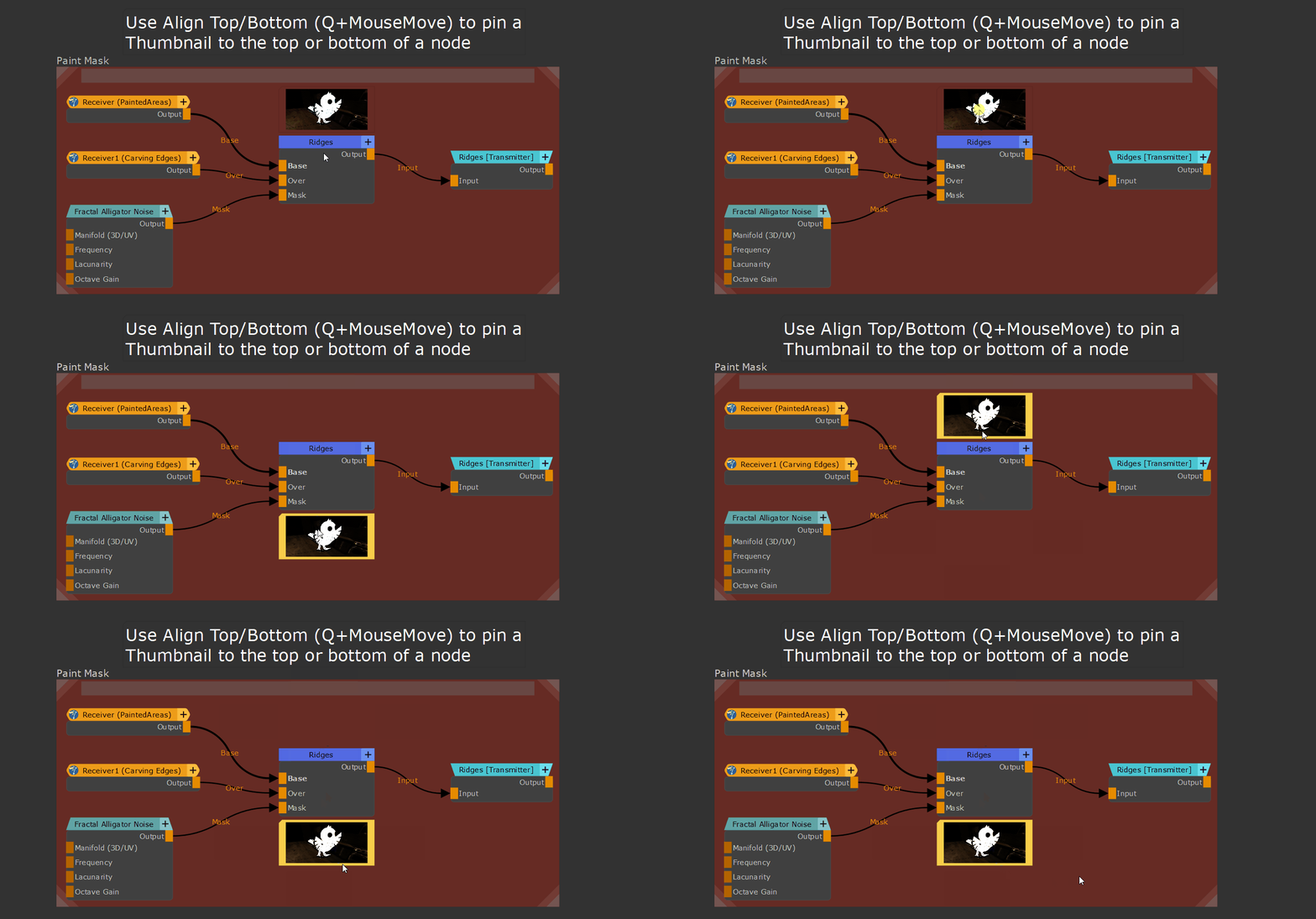
Node Thumbnails created via the Image Annotation System exhibit some special behavior when used with Node Align. You can use node align top/bottom to pin a thumbnail to the top/bottom
of its target node. The pinning is maintained when regenerating the thumbnail
Use Image Note from Library to use one of the many Vector Icons shipping with Extension Pack or add your own.
For full information about the Library and how to create your own libraries, refer to the Sticker Library topic of this help
You can add an icon to the Nodegraph by pressing the "Create Image Note" Button at the bottom of the dialog or double clicking an icon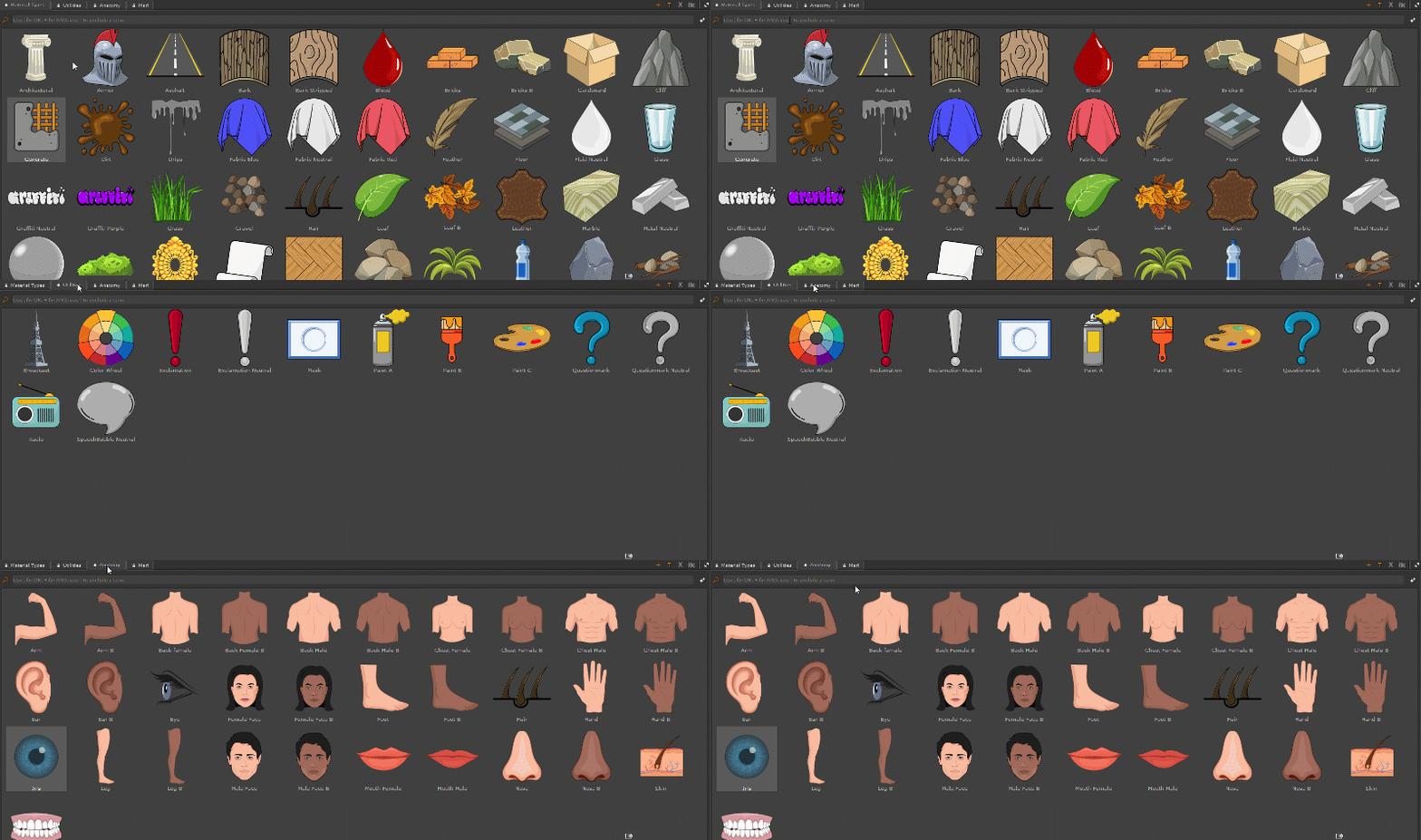
You can colorize icons using the "Colorize Icon" Feature and the available Blend modes.
The initial Icon size can also be defined and changed at any point later from the Image Notes Node Properties.

A simple method to remove all Image Notes from your current Node graph
You can remove all "Node Changes" Text Nodes from the current Graph by using the "Remove Node Changes" Option