Educational Site Licenses can be activated similarly to individual licenses if you choose to, however they support additional licensing options for easier deployment.
It is not allowed to make the License Keys available to students for use directly on their home machines.
License keys need to be hosted on School Hardware. Students need to either remote into School machines or be given access to license keys via Network Mounts + Environment Variables
Mari Extension Pack will run for a limited time without activation, until you have to license it to continue using it.
You will need the following to activate it:
Internet Connection is required for activation, unless you had asked for a floating license server version. Sporadically after successful activation Extension Pack will re-check the License, requiring Internet Connectivity again
Choose one of the options below to create a license file you can deploy
1. Install Extension Pack locally or in a writable location
2. Start Mari and go to the Help Menu
3. Choose the Extension Pack Licensing Option from the Help Menu

4. Enter the email and license key in the Licensing Dialog.
The license key can be found in the original purchase email
5. If the licensing information was entered correctly, a dialog will allow you to save a copy of the license file

6. Save the license file as lc.ep
Extension Pack License files are simple text files named lc.ep
You can create a license file with your details by copy pasting the below into a text file and naming it lc.ep and adding in your Email and License Key. Ensure the " characters and brackets remain where they are.
Beware of illegal, hidden "new line" characters
Some Text Editors (e.g. Pluma on Linux, Wordpad etc.) add hidden characters to files indicating a "new line". These characters can invalidate the license file.
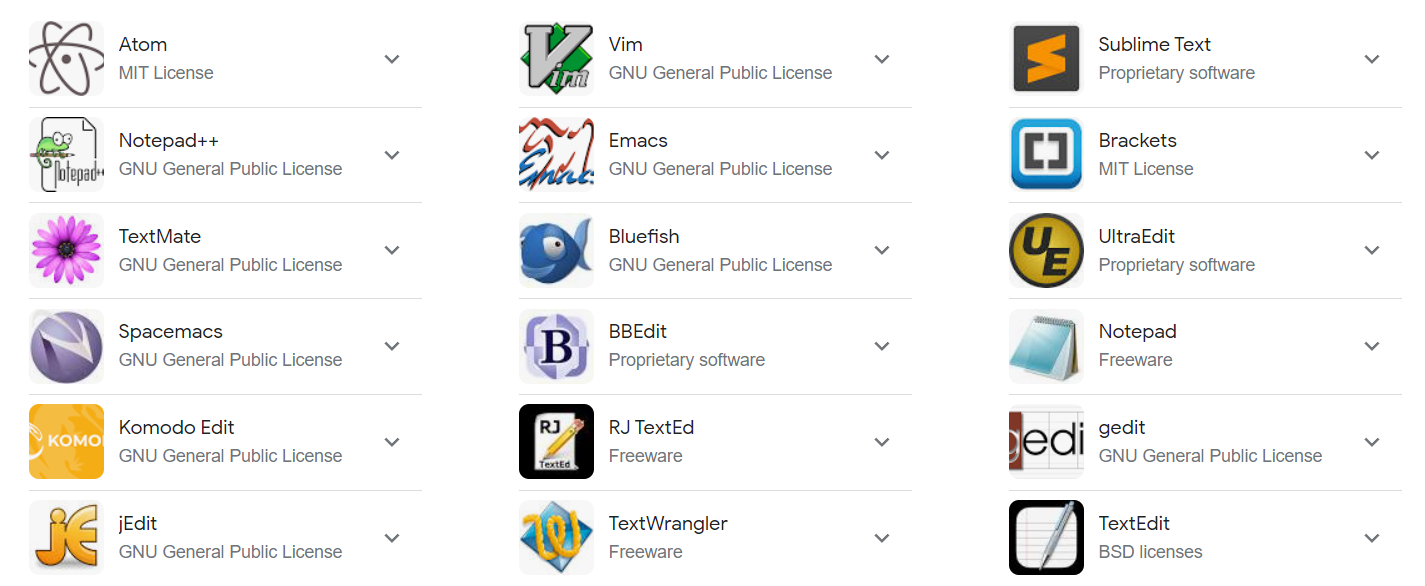
If you choose to create your own license file, it is recommended to use one of the basic editors below or use a proper IDE such as PyCharm, VSCode etc.
If you are running older Mari Extension Pack Versions alongside this version, add separate license information per version into the file. Ensure the " characters and brackets remain where they are and the different main items ("MariExtensionPack2027", "MariExtensionPack6", "MariExtensionPack5") are comma separated.
The License files are standard .json files. You can test if the syntax is correct using an online linter like jsonlint.com