
Released by Jens Kafitz, 2025 - www.MariExtensionPack.org | Join us on  ,
, or
or 
RELEASED ON: November 24, 2025
MINIMUM REQUIREMENT (for Mari 6.x): MARI 6.0v1
MINIMUM REQUIREMENT (for Mari 7.x): MARI 7.0v1
NOTES: supports Mari 7.5
TESTED ON: Windows 10, Windows 11, CentOS 7 (for Mari 6), Alma Linux 9 (for Mari 7)
|
|
Mari 4.x and 5.x are supported by older Extension Pack versions (5R9) which are included in your purchase
|
|
WELCOME TO EXTENSION PACK 6 R3 |
 Welcome to Mari Extension Pack 6 R3
Mari Extension Pack 6 R3 is a free update for existing Extension Pack 6 customers, despite being comparably in amount of new features to the main Extension Pack 6 release !
If you previously did not update to Mari Extension Pack 6 R2.v2, have a look at its changes as well as many feature enhancements and bugfixes originally slotted for 6 R3 were pre-released as part of that patch
Mari Extension Pack 6 will be the last version having officially been tested and supported on Linux CentOS 7.
CentOS 7 reached end of life on June 30, 2024. In Line with Foundry's policy we will be primarily supporting Mari on Linux Rocky 9+
Full Extension Pack 6 R3 Tutorials Playlist:
|
NEW FEATURES |
Click on a feature for more information
Previous Extension Pack Versions did not work with the new Mari 7.5 due to a conflict with a newly introduced native Mari Blend Mode ("Subtract"). This has been resolved
Since 6R2.v2 Extension Pack's Download and Install size has been reduced by more than 50% without any loss in functionality. This has been achieved by improving data sharing in default presets in the Preset Browser. The download and install size has shrunk from around 8 GB to 3.5GB
New options at the top of the projects tab allow you to sort your projects into collections to reduce clutter in the projects tab.
Mari Projects can belong to multiple collections at the same time.
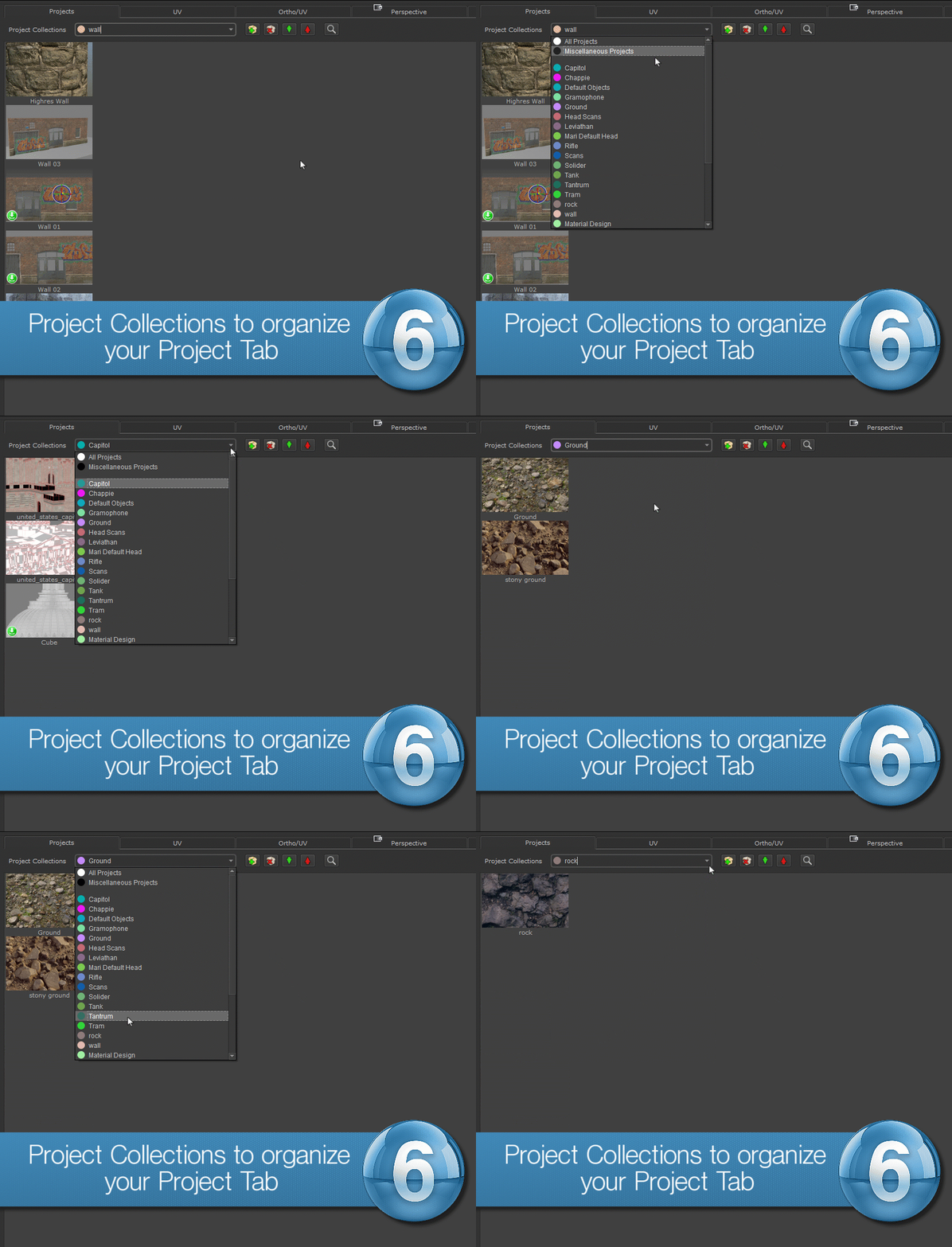
In addition to sorting projects into collections, you can now also filter the project tab:
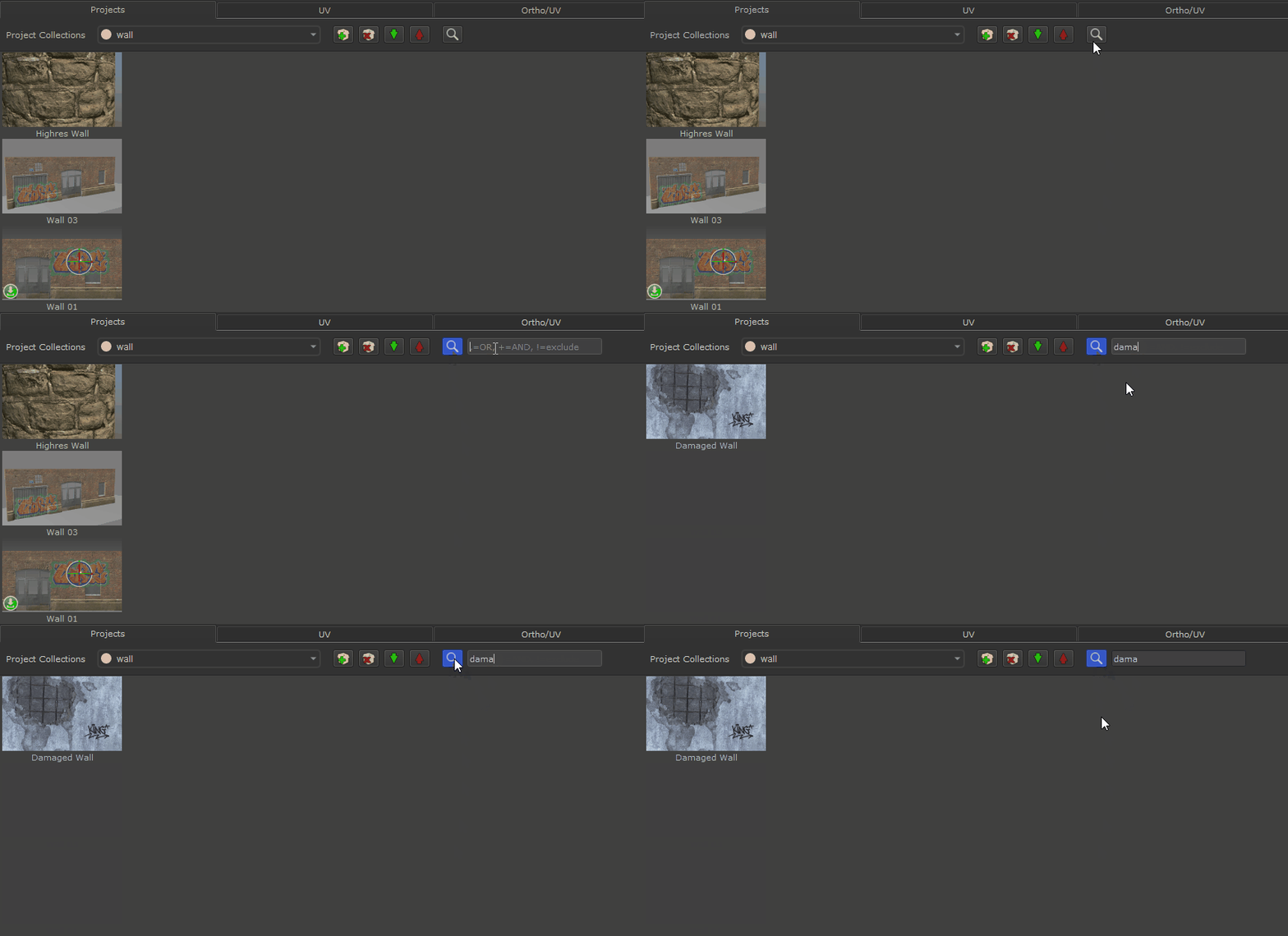
Filtering supports Expressions and Metadata searches:
Use "," (comma) for OR, "+" for AND, "!" for EXCLUDE
 ProjectA,ProjectB - search matches need to contain either "ProjectA" or "ProjectB"
Project+Final - matches need to contain "Project" and "Final"
Project+!Draft - matches need to contain "Project" but are not allowed to contain "Draft"
In addition to searching through Project Names you can also search through Project Metadata (visible in the Project's Tooltip)
Metadata searches are prefixed with "$" sign
"$sphere" will match against any project that has a metadata value containing "sphere" in any of its Metadata Entries
"$version:7" will search in the metadata called "version" if it contains a number 7 (showing you only projects that have been created in Mari 7)
To support integration into pipelines the project collection system comes with extensive Python API ( mari.ep.projectCollections() )to create collections, assign projects etc.
which could be used for example by Studios to automatically create show specific Collections.
Activating the "Transform Selected Object" Tool (SHIFT+T) now displays a numerical value widget directly in the viewport, allowing you to enter precise values.
You can use this to transform your geometry or place locators, decals etc.
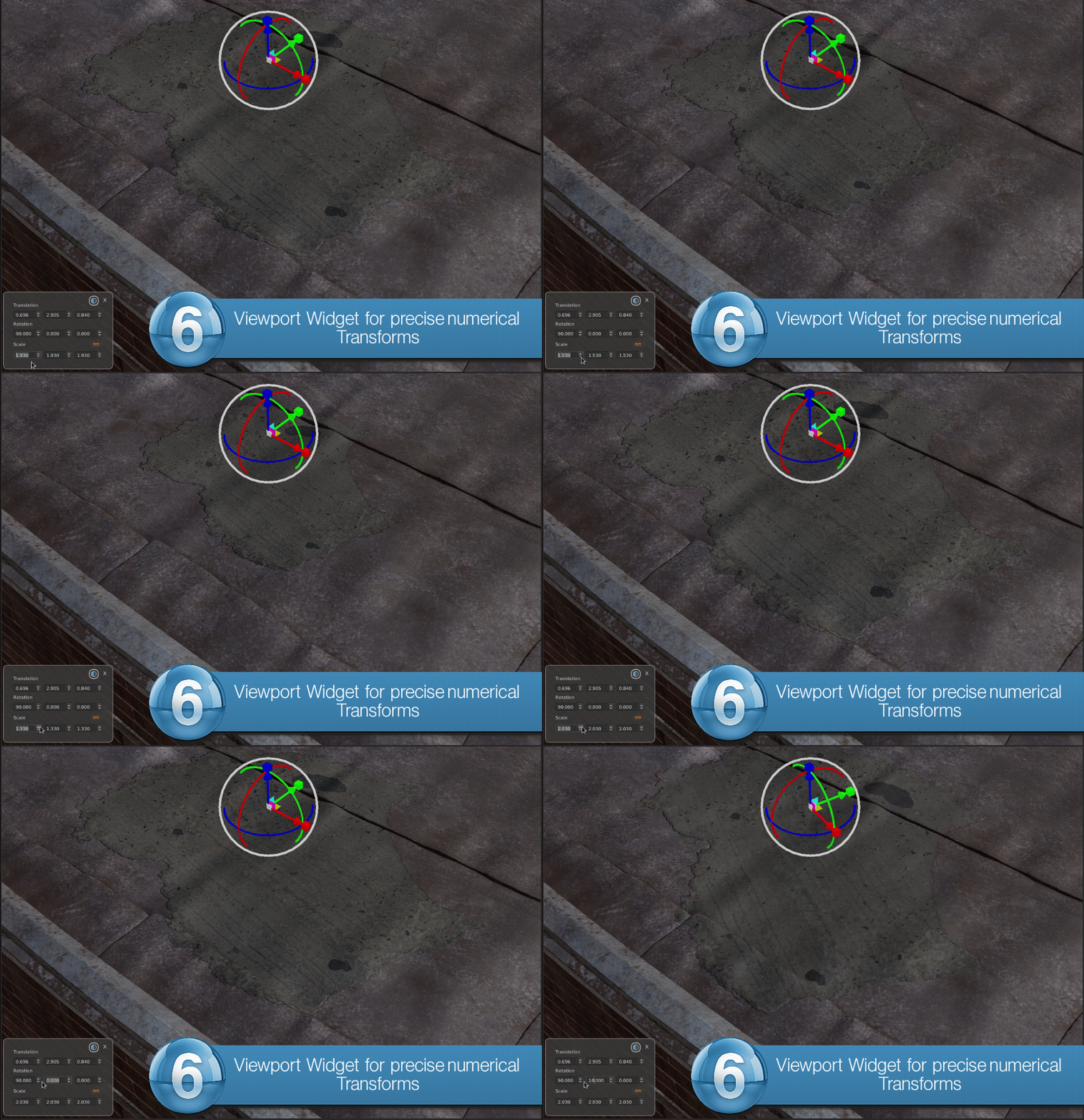
You can also use the "Edit Transforms" tool in the toolbar, (visible while the "Transform Selected Object" Tool is active) to input precise numerical transformations via a dialog.
This dialog also allows you to edit the Transform Matrix directly to achieve for example shearing effects.
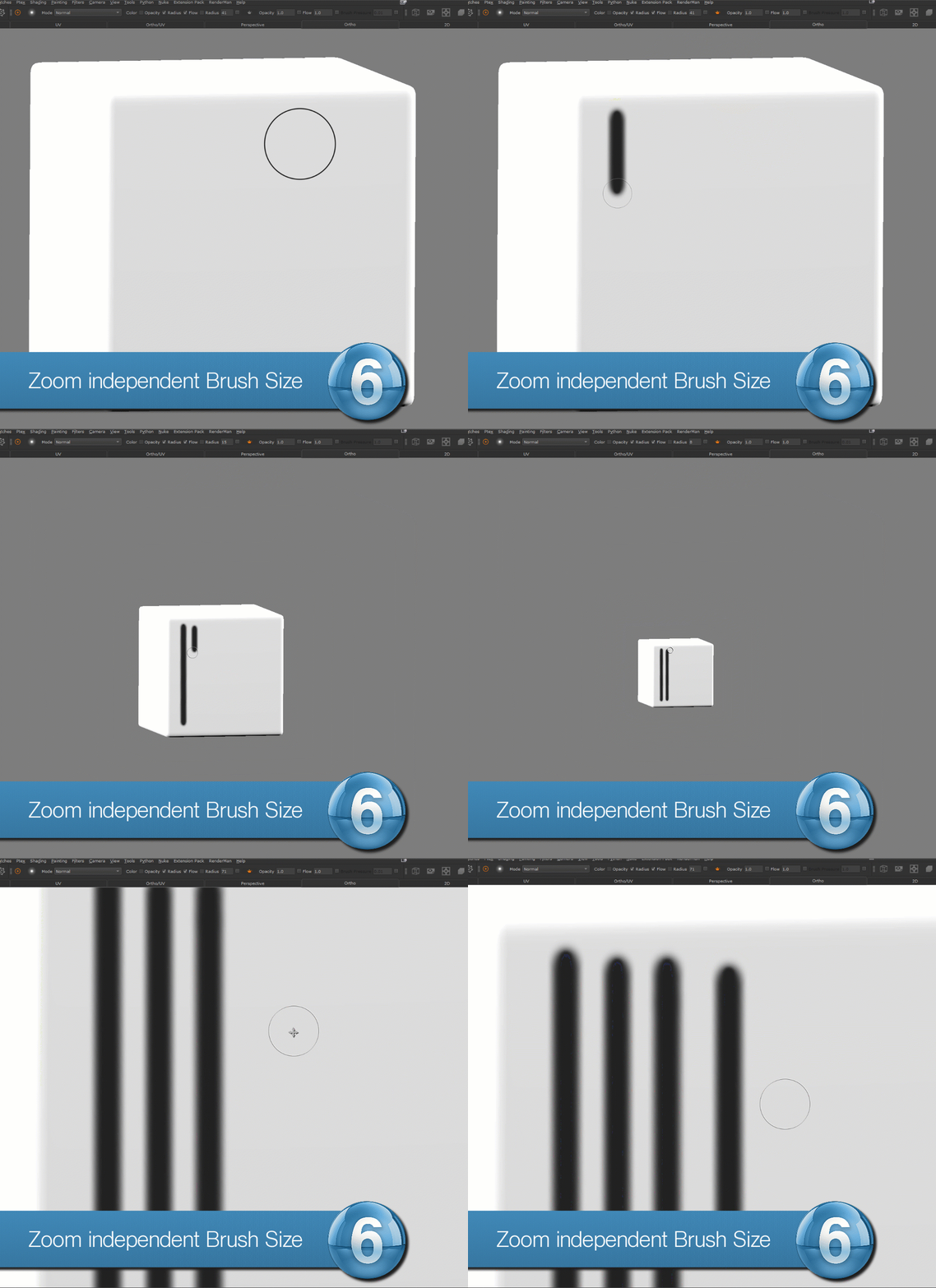
All paint tools now support "Dynamic Brush Size". Dynamic Brush size will dynamically scale your brush radius up and down depending on how far away you are from your object.
This allows you to maintain consistent stroke widths and give more freedom to zoom in and out of your scene.
|
|
Dynamic Brush Size works best in Orthographic and UV Views. In perspective views it is an approximation that might not always be correct |
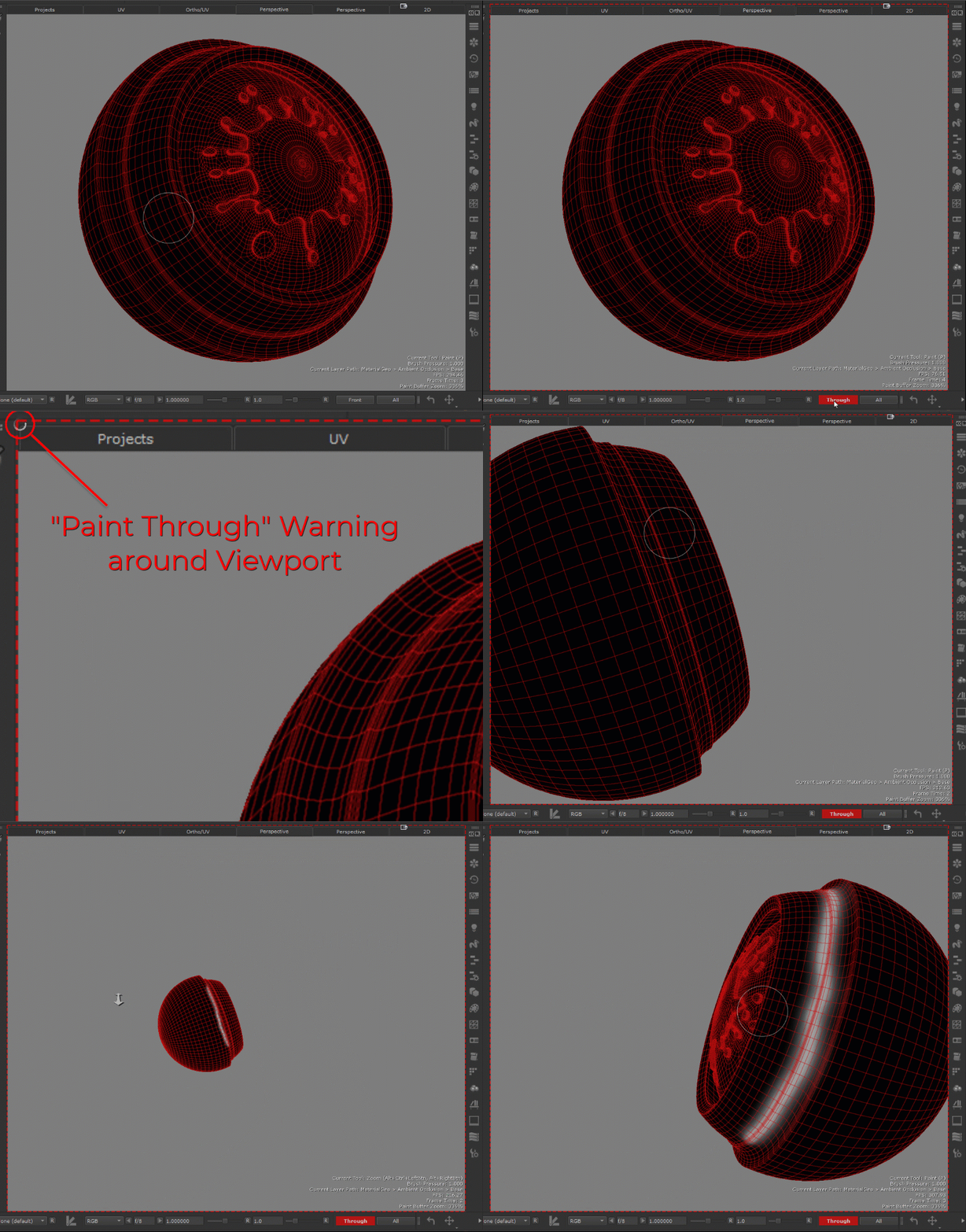
You can now display an optional warning outline around the viewport, if your projection mode is in "through" mode (paint traversing to back of model).
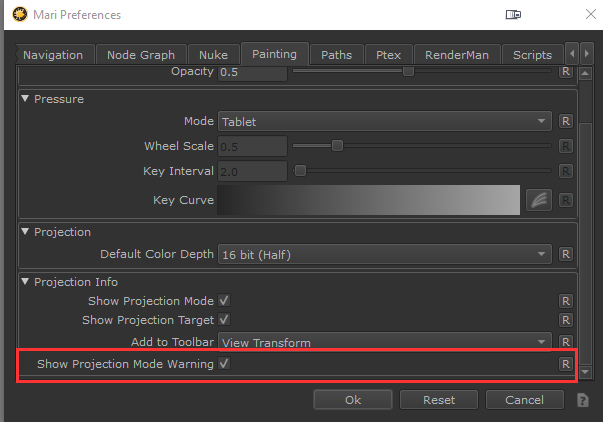
You can activate the warning via the Preferences. It is off by default
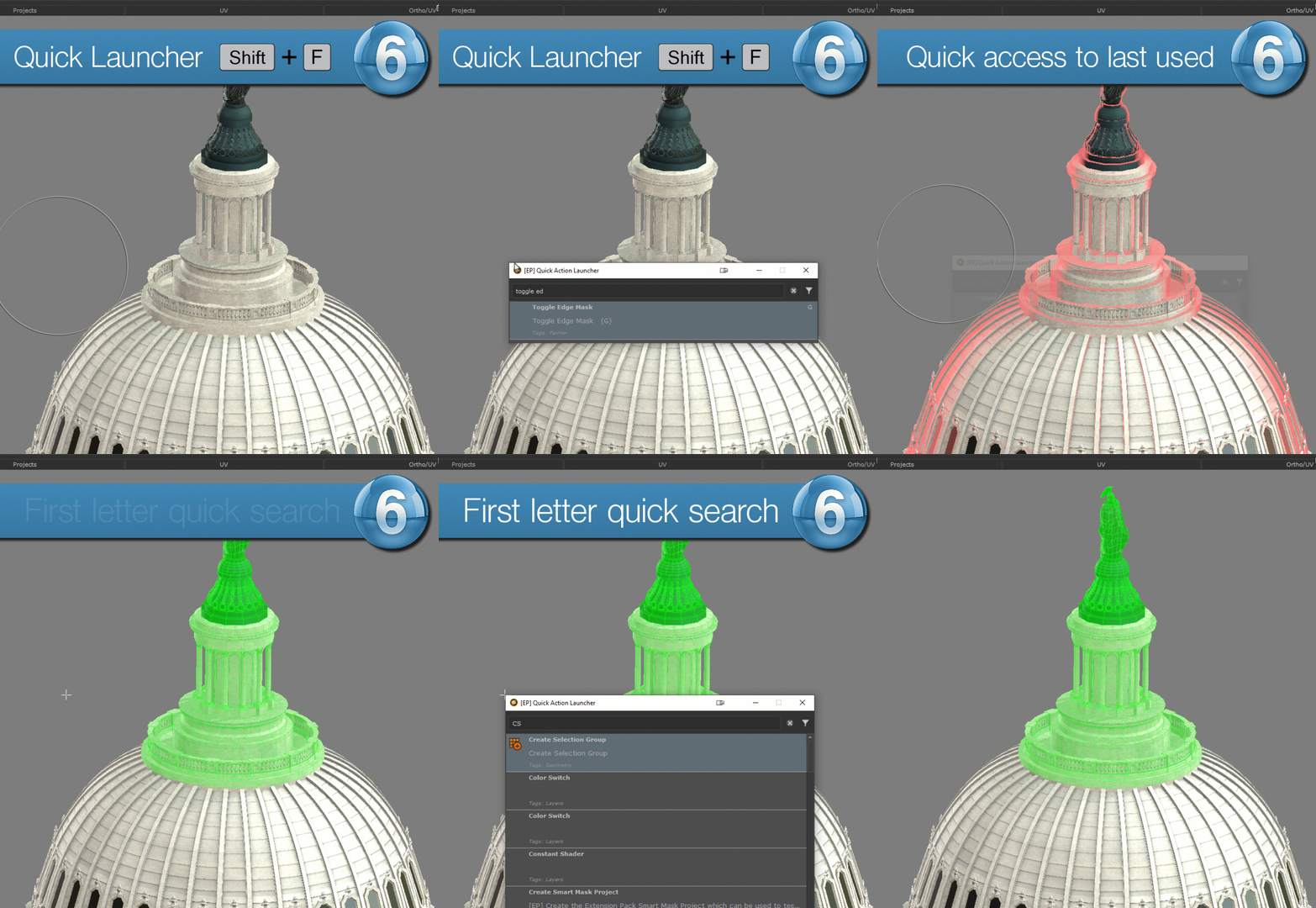
A new Quick Launcher is now available on the Hotkey SHIFT+F. The Quick Launcher allows you to execute any mari action.
A history is kept of the last few executed items
Using the search field will bring up any results containing the search string, e.g. "doc" will bring up any action containing those letters like "Mari Documentation"
You can search based on the beginnings of action names e.g. "r ed" will show you "Ramp Editor"
By using capital letters you can search for only the first letters of words, e.g. "CSG" will show you "Create Seelection Group" and "Combine Selection Groups"
Extension Pack now defines custom Node Context Menus for a number of Nodes. Node Context Menus can be shown by selecting a supported Node and pressing CTRL+SPACE
A large number of Nodes already now come out of the box with Context Menus:
•Bake Points and Multi Channel Bake Points
•Merge and Multi Channel Merge
•Paint Nodes
•Shaders & Channels
•Broadcasters & Receivers
•Radios & Radio Transmitters
•Geo Channels
•Groups
•Curve Nodes (Brightness Lookup etc)
•Tiled & TIled Extended
•Triplanar & Axis Projection
•Manifod 3D & UV
•Height Blend & AB Compare Mask
•Projection
•Cloud
•Directional Gradient
•Nodegraph Stickers
•All Extension Pack Material Presets
Custom Node Context Menus can be authored using the Hotbox Manager and registered using Extension Pack's Python API. Please refer to the dedicated Help Section on creating and registering your own context Menus
|
|
On Windows, Node Context menus are activated by pressing & holding CTRL+SPACE. On Linux they are brought up by tapping CTRL+SPACE |

Create automatic Dot Nodes to keep your Node connections straight with the new "Auto Dot Input Connections" (Hotkey: Alt + .).
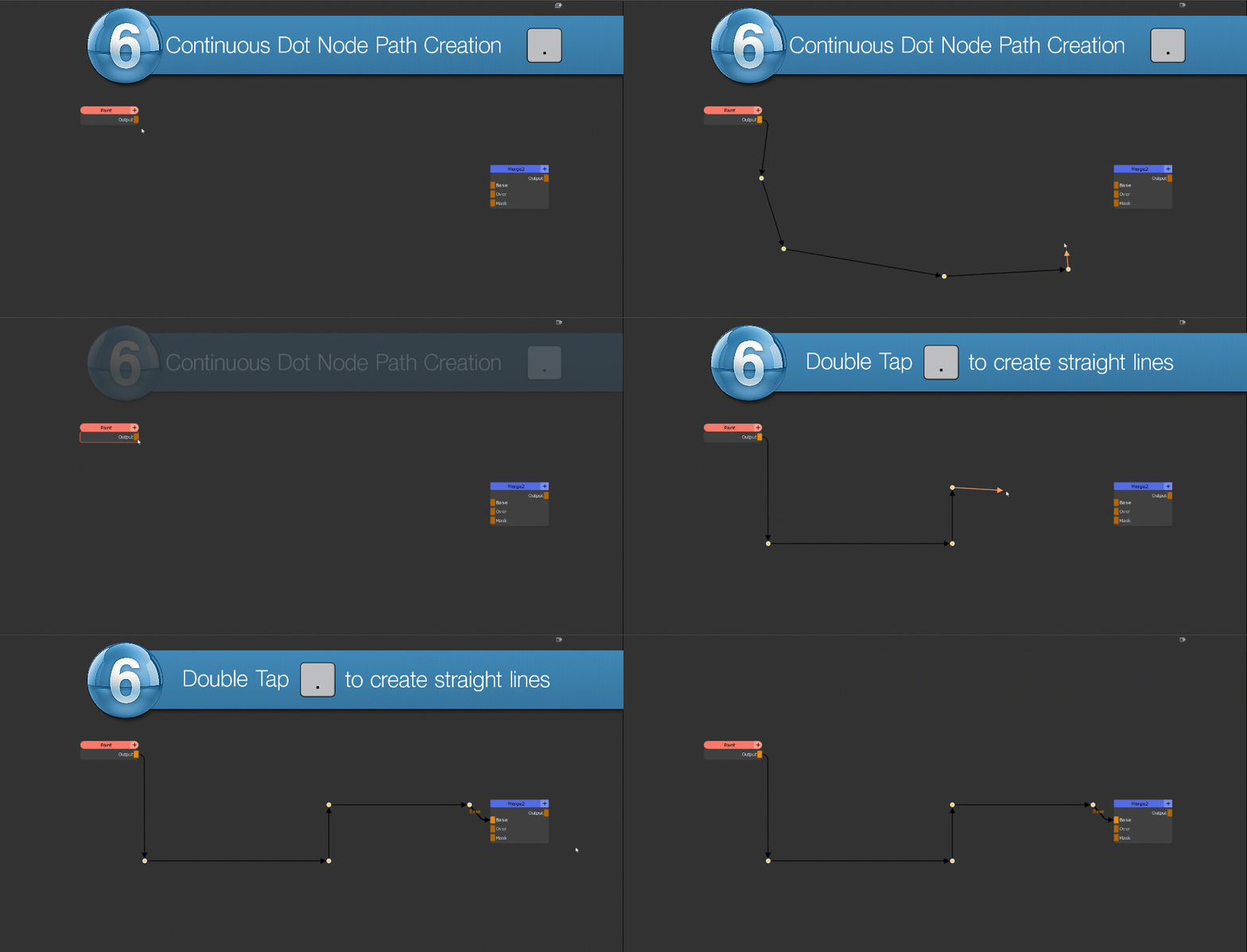
Execute multiple times for different path options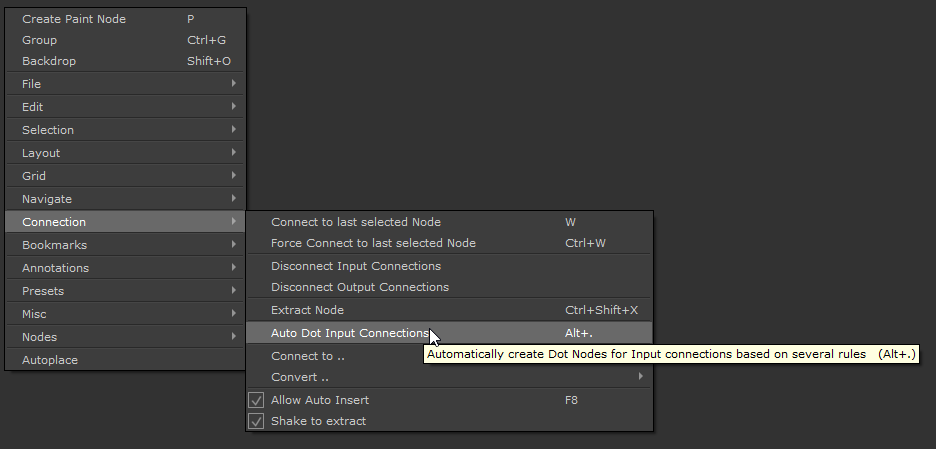
Automatically created dot nodes can be updated at any time to new positions by re-executing the command
While holding a connection line you can now directly insert a dot node on the cursor position. The Output Connection of the dot node is picked up automatically
To force the dot node creation to align to the last created node, double tap the dot node creation hotkey (".")
The feature also works when instead of Output Ports, you drag away from Node Input Ports:
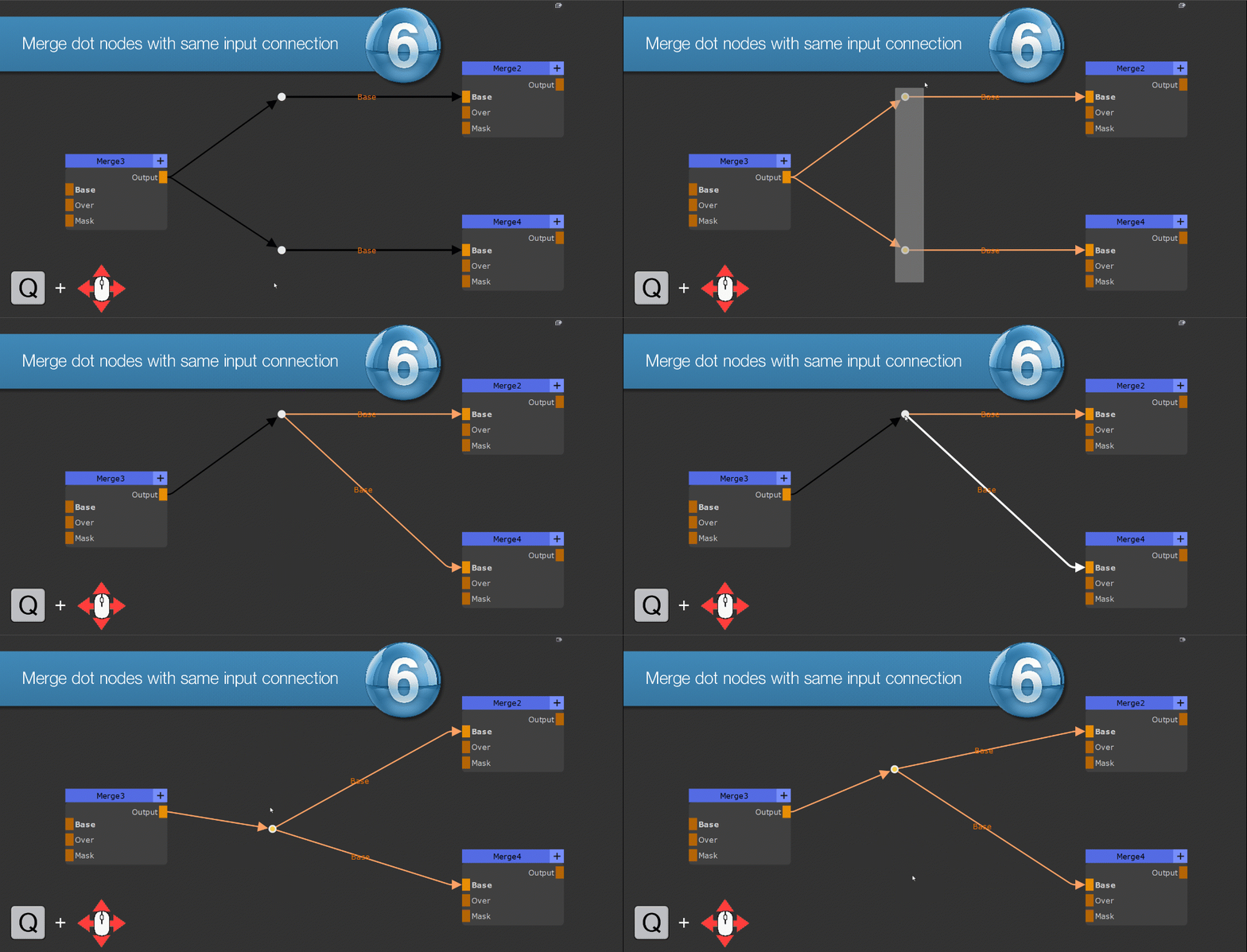
Using the Node Align Tools (e.g. hold "Q" and move mouse) you can now easily merge two dot nodes that share the same input port connection
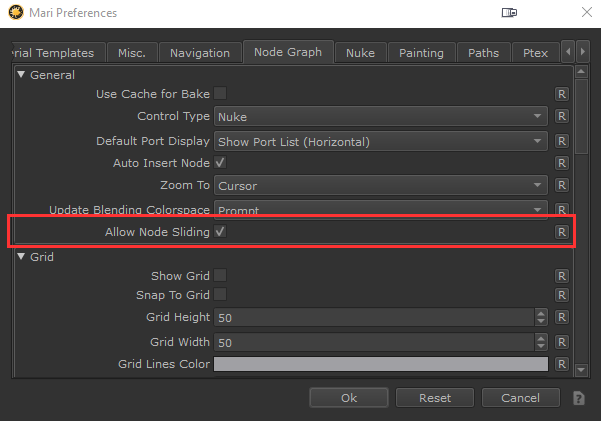
When pressing CTRL+SHIFT in the Nodegraph, you can now move selected node axis constraint
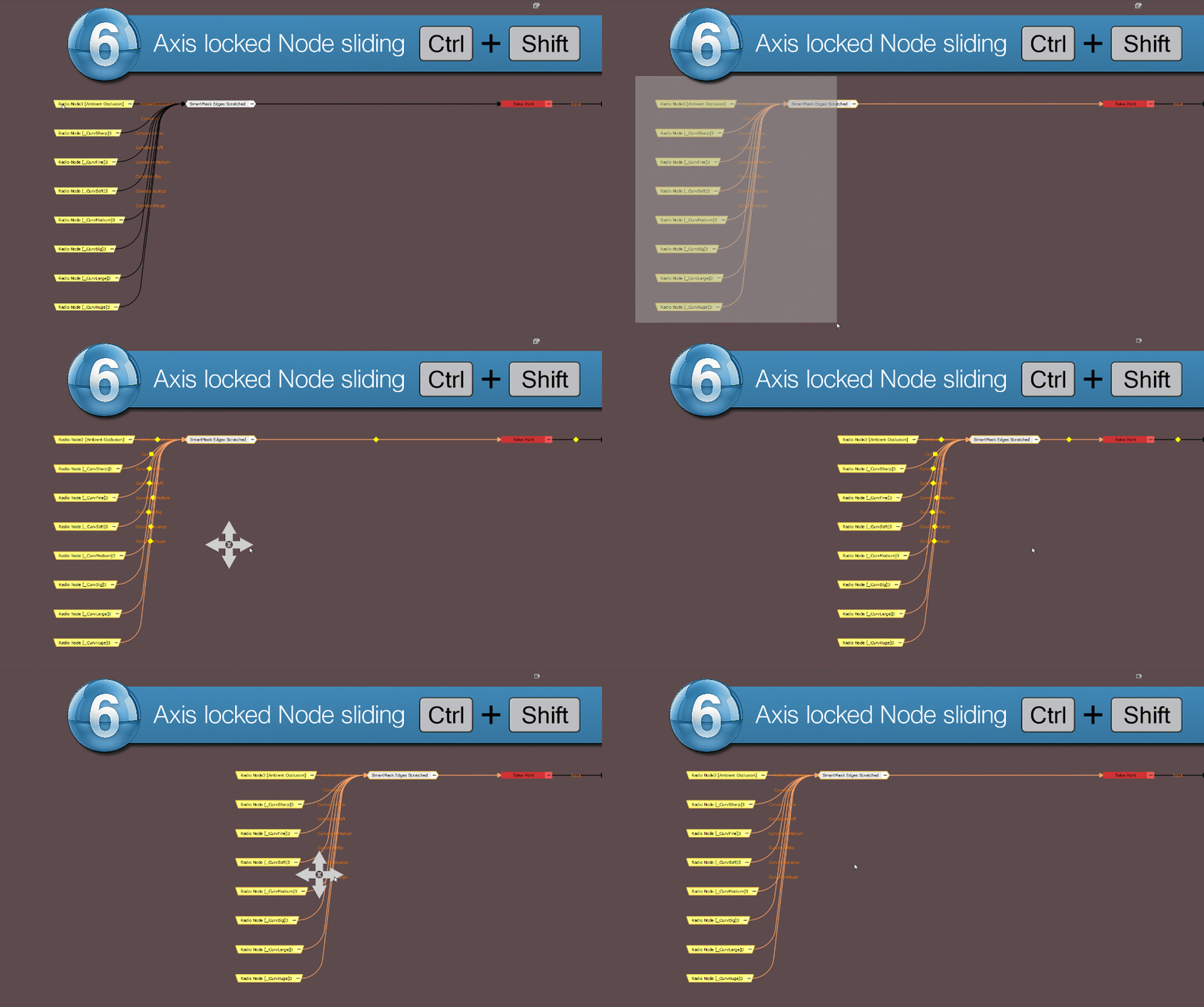
You have the option to turn this behavior off in the Mari Preferences Nodegraph Tab
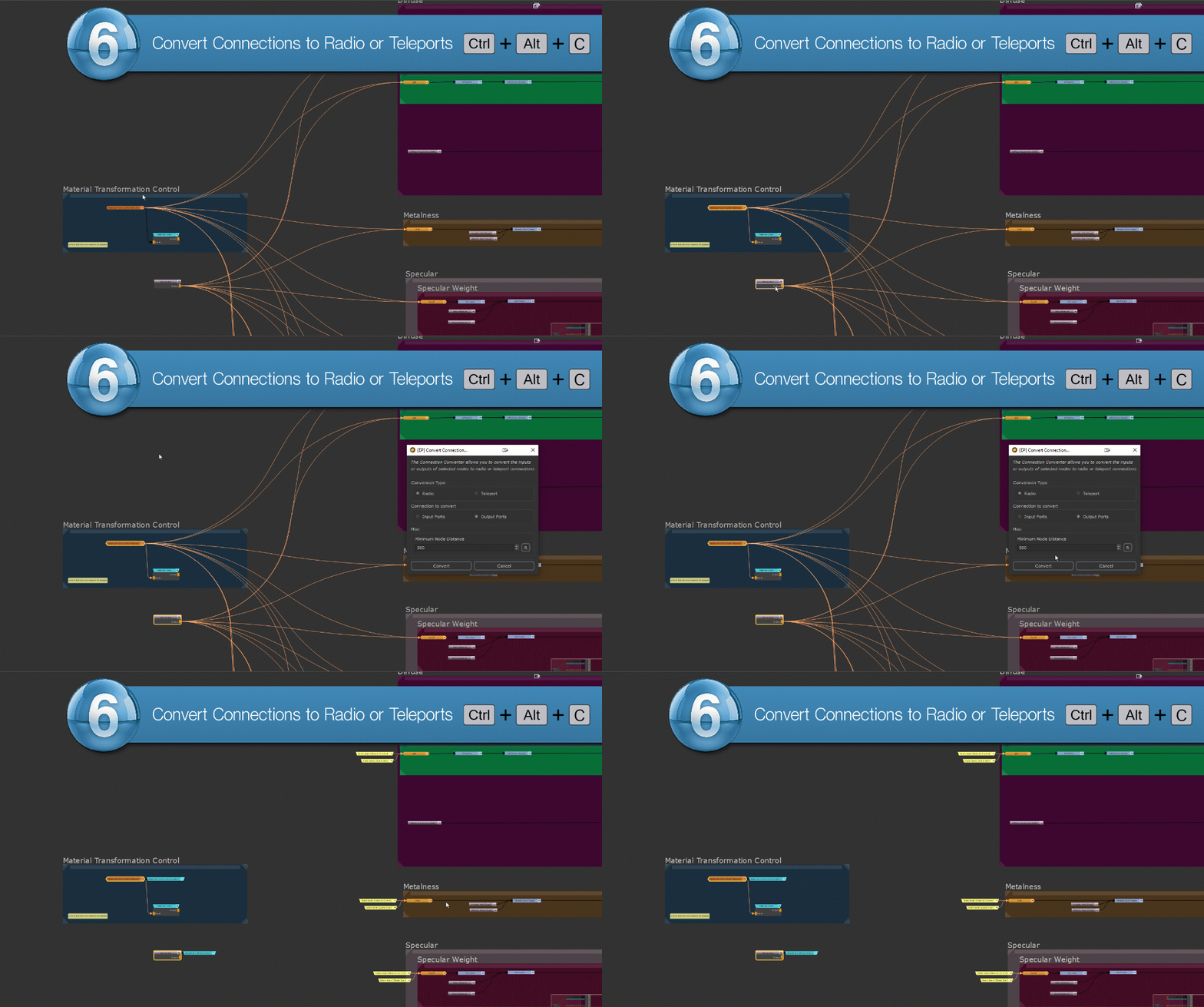
Use the new "Convert to .." options to easily convert node inputs or outputs to radio or teleport connections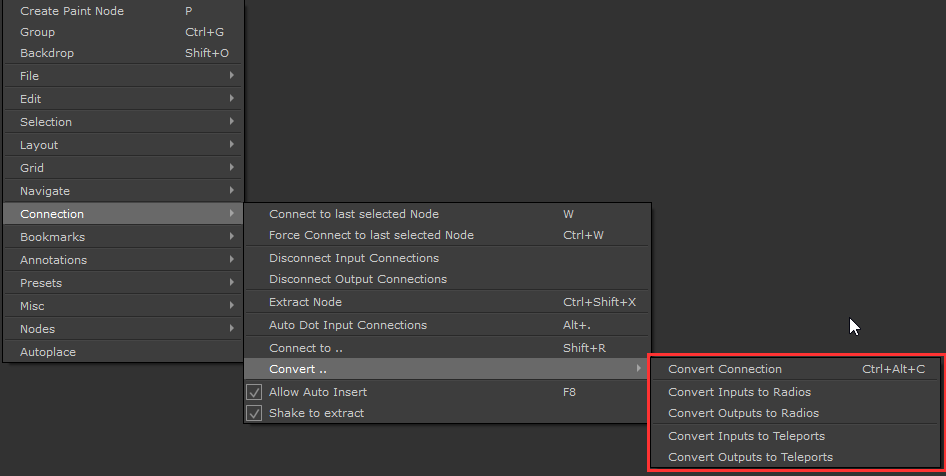
The tool comes in multiple variations:
individual actions to convert just inputs or just outputs to Radios or Teleports
A convenience dialog hotkey'd to CTRL+ALT+C containing all options
The old "Connect to Radio Transmitter" (SHIFT+R) tool has been upgraded in style and functionality. It has been renamed to "Connect to ..." as well.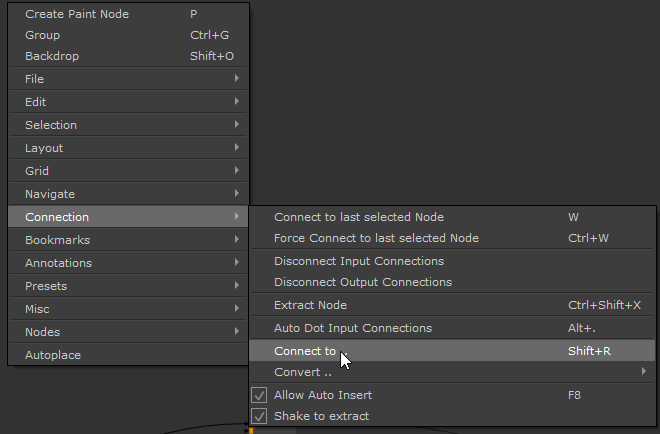
The tool now behaves context sensitive:
As before if you have a a Radio Node selected, it allows you to create a connection to a radio transmitter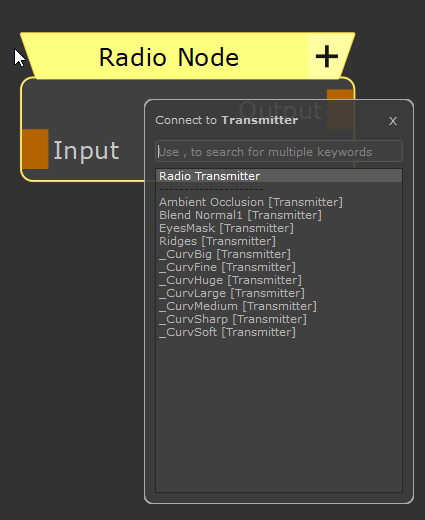
If you have a Teleport Receiver selected and execute the tool, it will now show all available Broadcast Channels you can connect to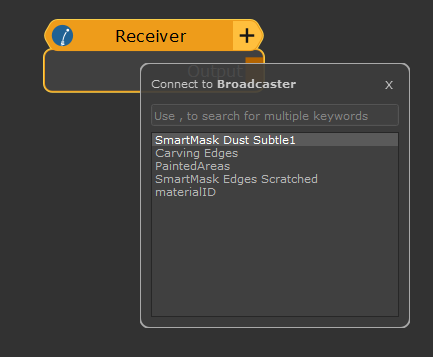
If you have a Teleport Broadcaster selected, it allows you to change the Broadcast Channel Name, without having to access the Node Properties of the Node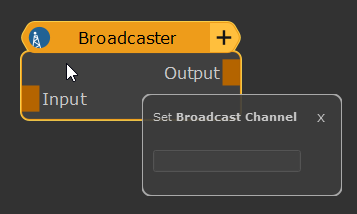
If you have a Geo-Channel Node selected, it allows you to choose an existing Geo Channel to connect to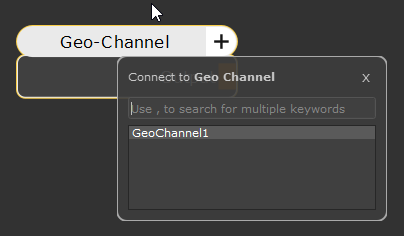
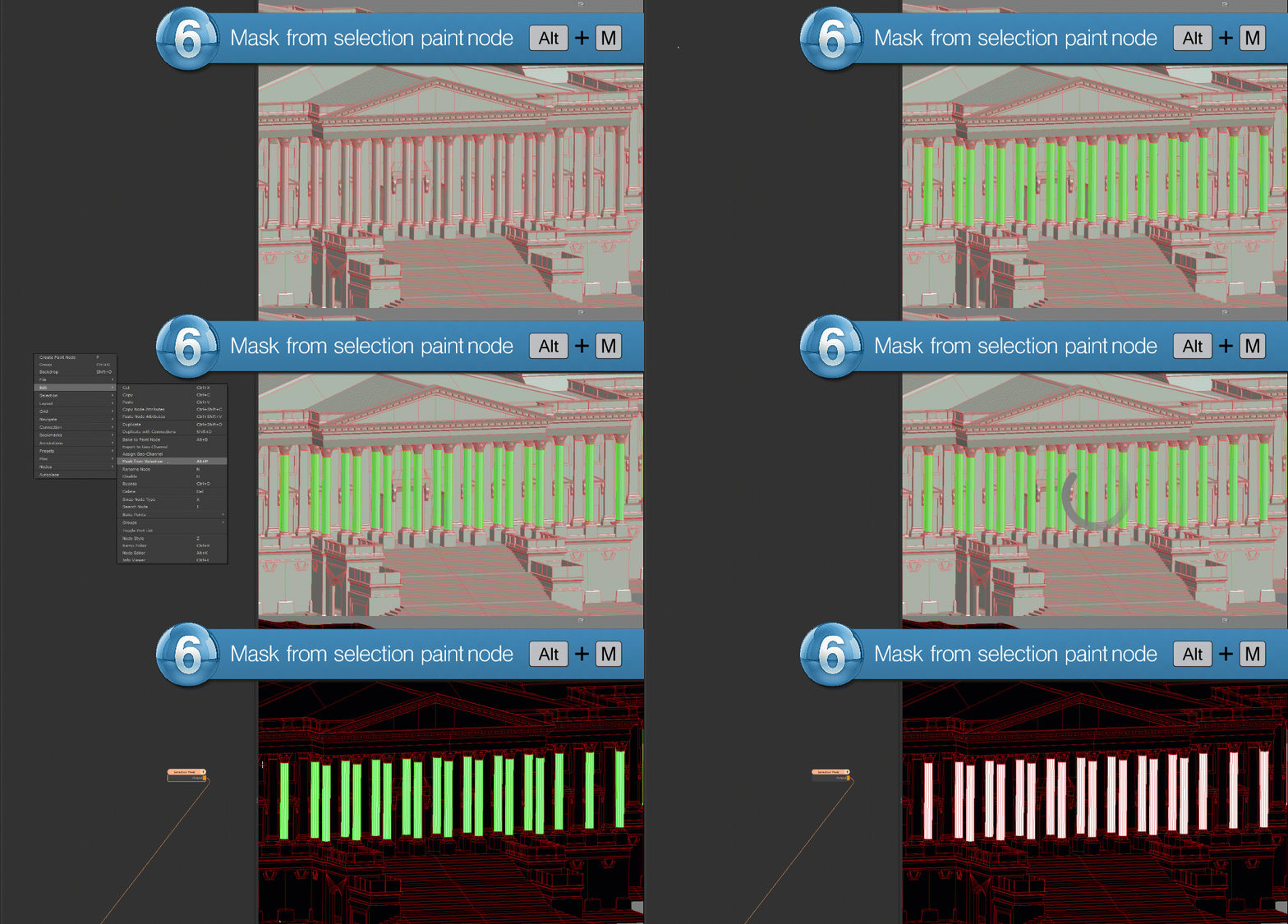
Create masks from yout current selections more easily with the new "Mask from Selection" tool in the Nodegraph (ALT+M)

In Mari Extension Pack 6 R1 we introduced the concept of "Image Notes" (or short "Stickers") to the Nodegraph, allowing you to take screenshots, import files or use icons from our library to visually annotate your Nodegraph.
With Extension Pack 6 R3 this has now been taken one step further with the "Sticker Designer": A full Paint Tool for the Nodegraph to create Image Annotations
The new Multi Channel Node Optimizer improves your Viewport Performance by removing connections from Multi Channel Nodes (Materials, Multi Channel Merge Nodes and Bake Points) that are not in use on the connected shader.
What is in use is determined by the presence of channel nodes.
Connections can be dynamically added and removed if new channel nodes are added or old ones removed.
Below you can find some Viewport Speed Comparisons with and without the optimization on the example of an Arnold Standard Surface Shader
|
Multi Channel Nodes connected to Shader |
Optimized |
Culled Connections |
Average Viewport FPS |
|
5 |
NO |
0 / 37 |
31 |
|
5 |
YES |
30 / 37 |
62 |
|
11 |
NO |
0 / 37 |
19 |
|
11 |
YES |
30 / 37 |
27 |
In addition to disconnecting non-used connections, Multi Channel Bake Points will automatically get non-active streams set to disabled to save unnecessary bakes
Doing a Node Align left or right on a single node (e.g. by holding "Q" and move Mouse left or right) will now nicely nudge the node against the next node, creating a straight line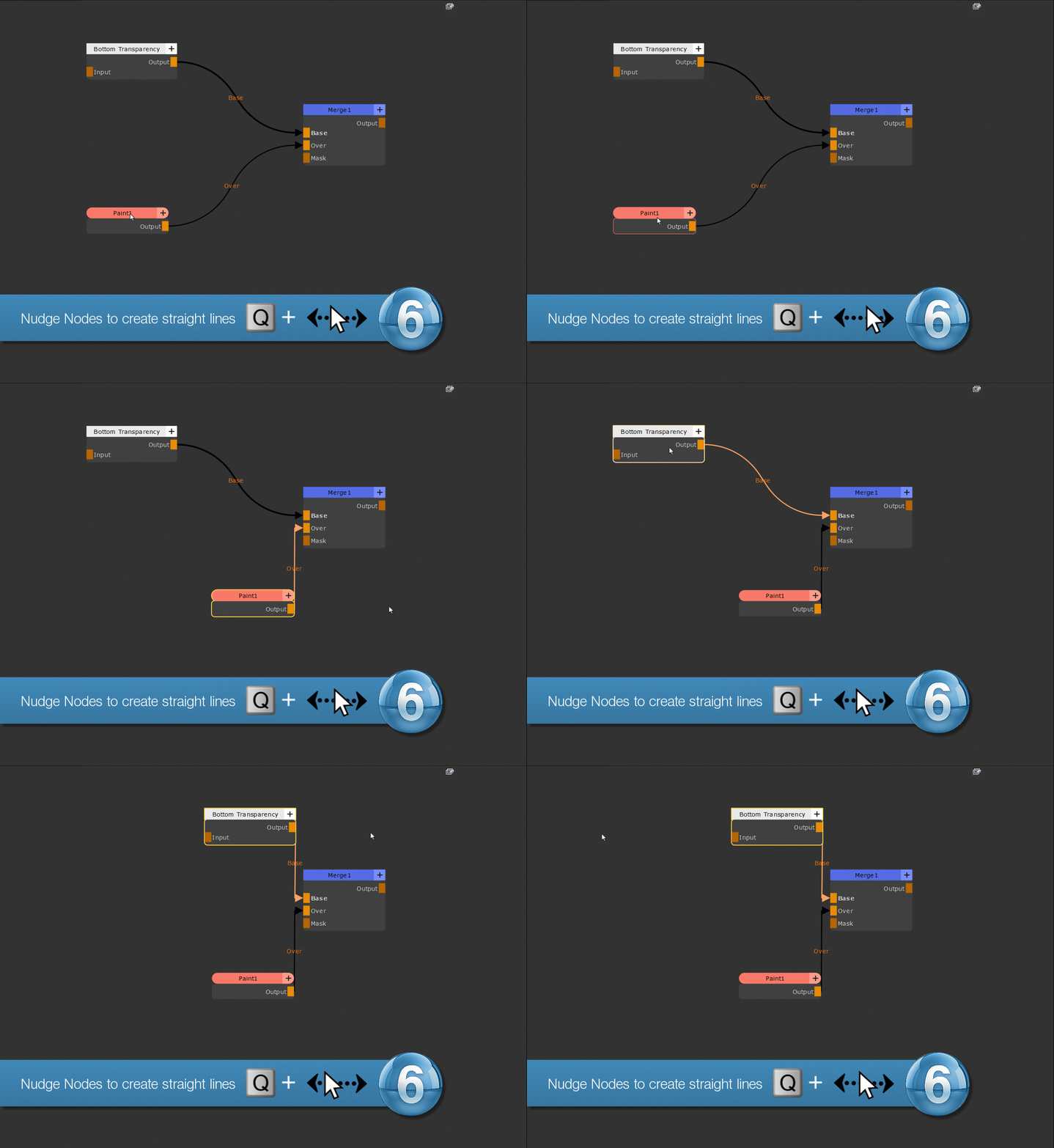
Using Node Align Top/Bottom in "Node Stream aware mode" (ALT+Q+Mouse up/down) now treats each single node selection of a stream as if only one node is selected in total, giving access to "Port aware" aligning in a batch mode.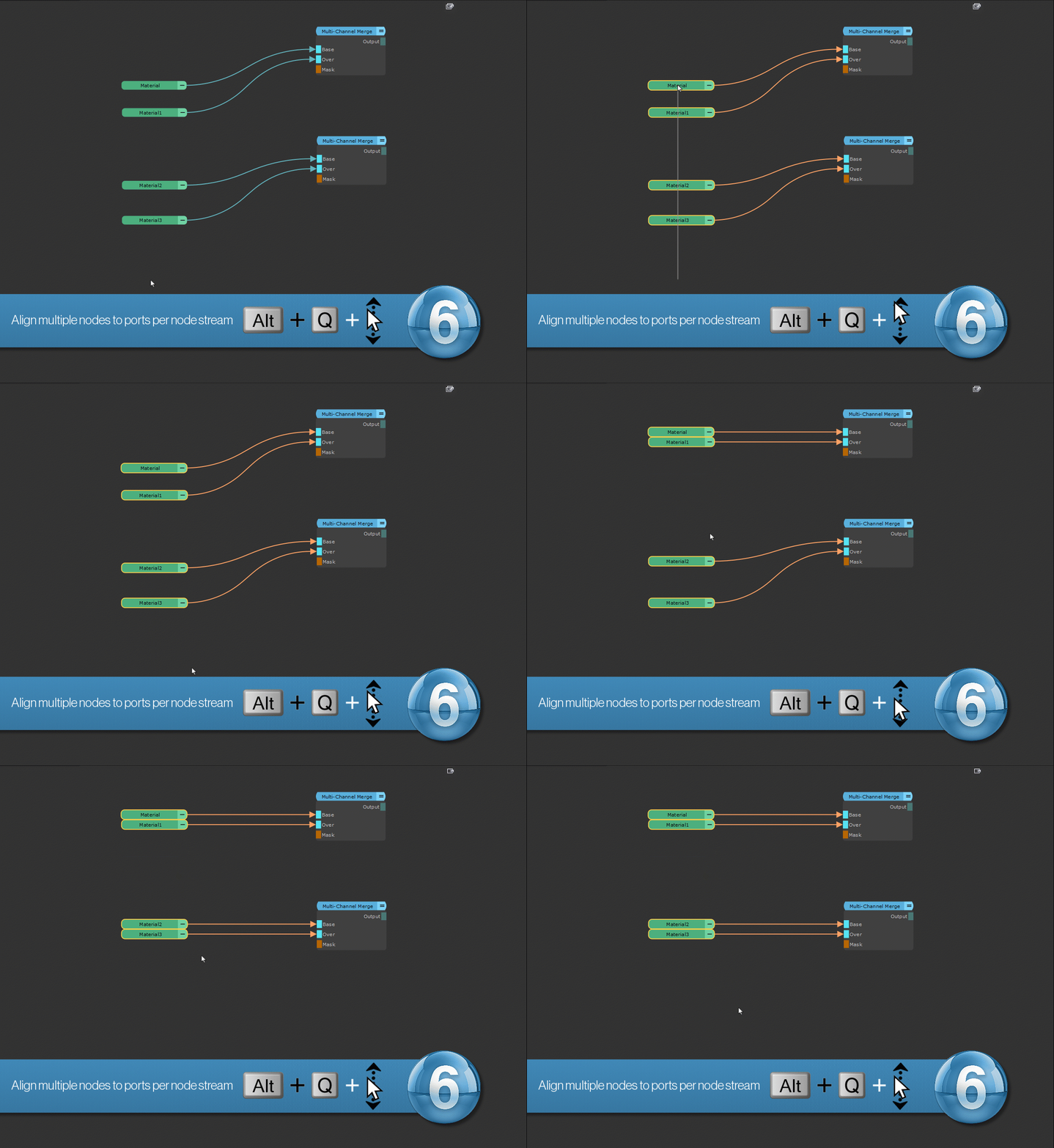
You can now use Node Align Top/Bottom (Q+Mouse up/down) to pin a Node Thumbnail to the Top/Bottom of a Node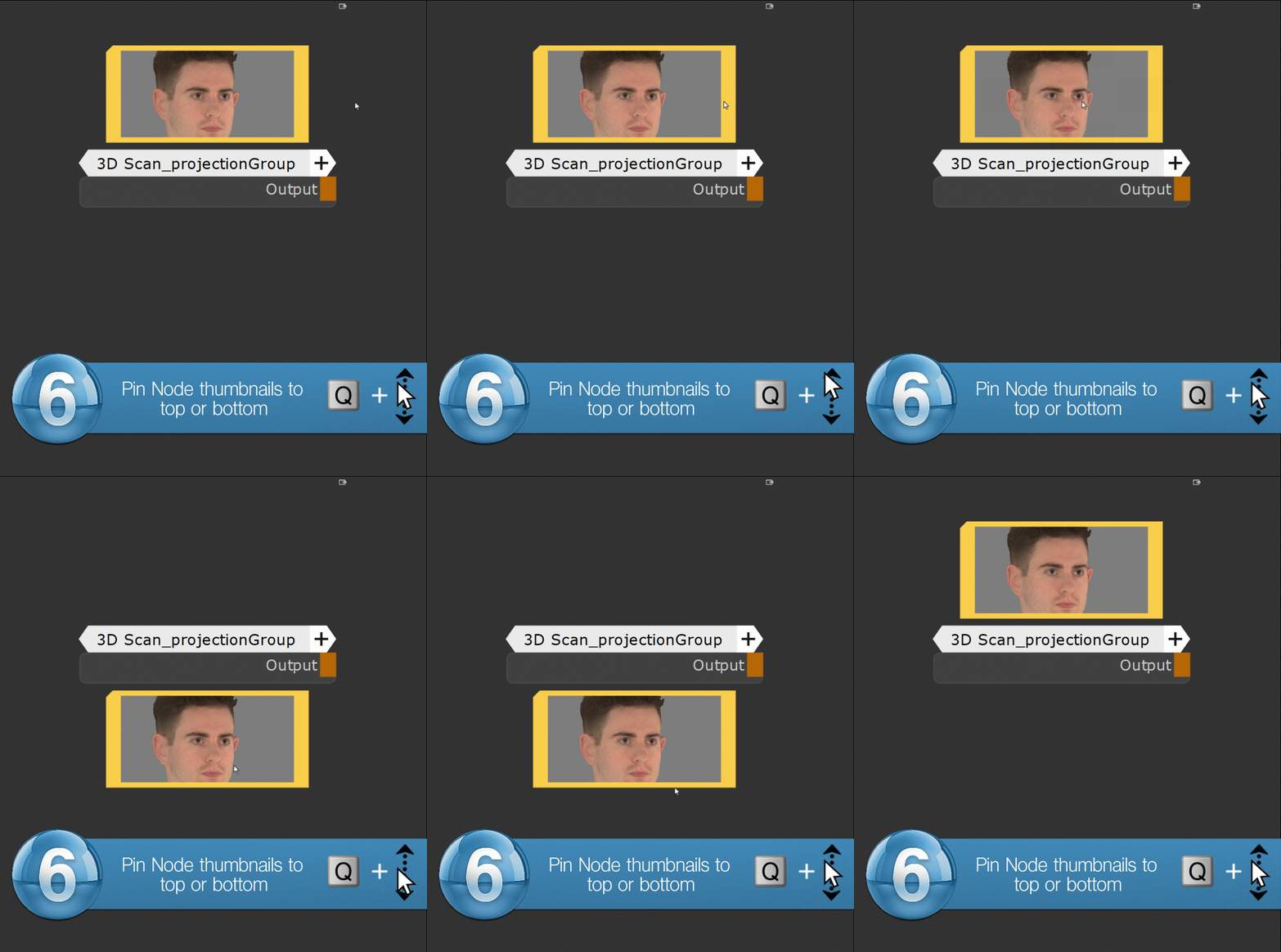
Node Align, Distribute and auto-layout functions now always take any Node Thumbnails with them, no matter if they are selected or not. It respects any previous top/bottom pinning of Thumbnails.
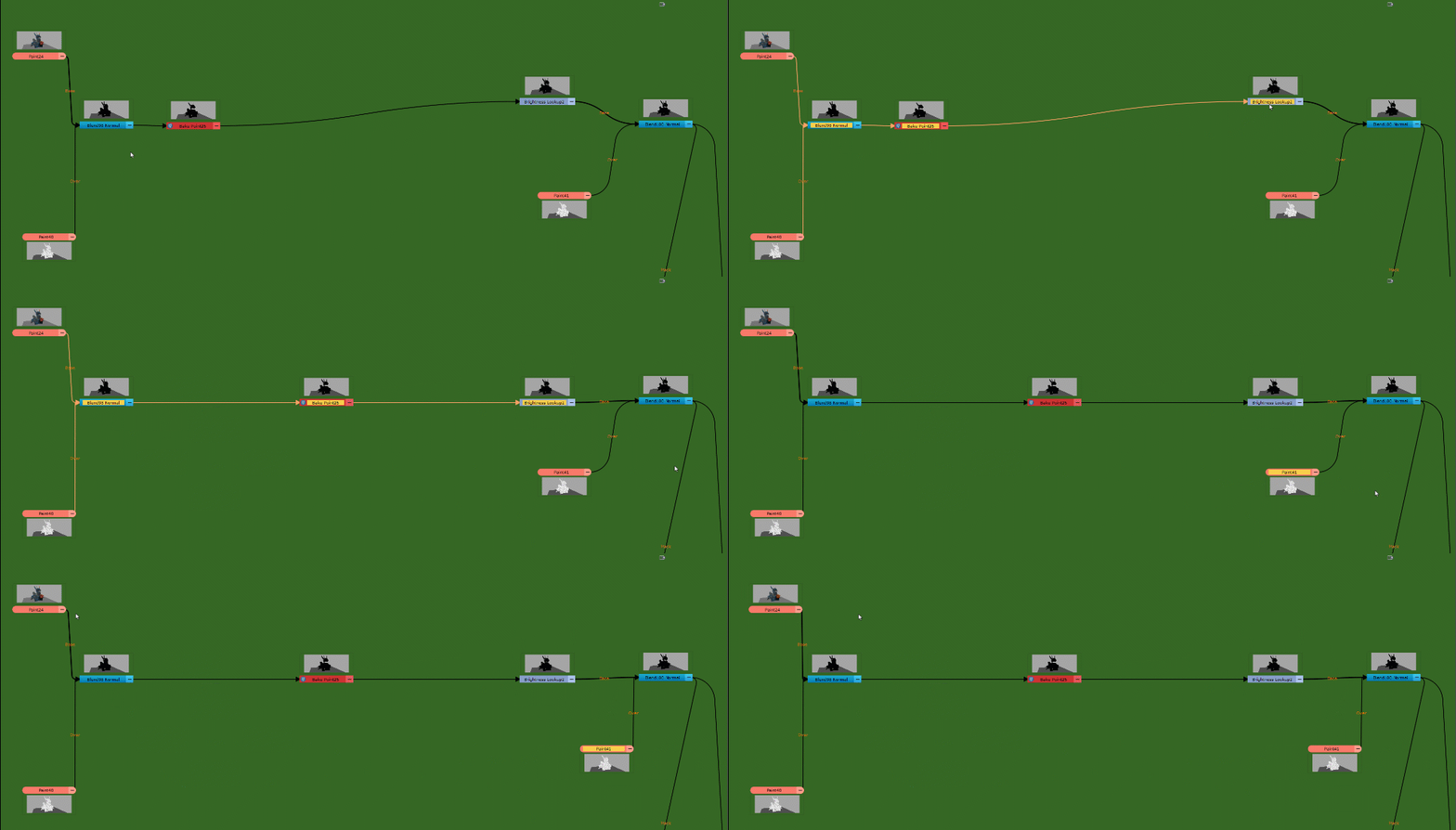
When distributing nodes vertically, nodes are now presorted first based on input or output connections to ensure correct order and not have crossing connection lines
The default Objects Dialog has been converted to a shelf. The dialog can be used to import standard Objects into your Scene.
Its new Shelf mode allows you to add arbitrary numbers of your own default Objects so you are not limited to what Extension Pack provides by default.
This can be especially useful in a studio environment where you might want to add objects such as Scale References to keep your artists grounded in your scene scale while texturing.
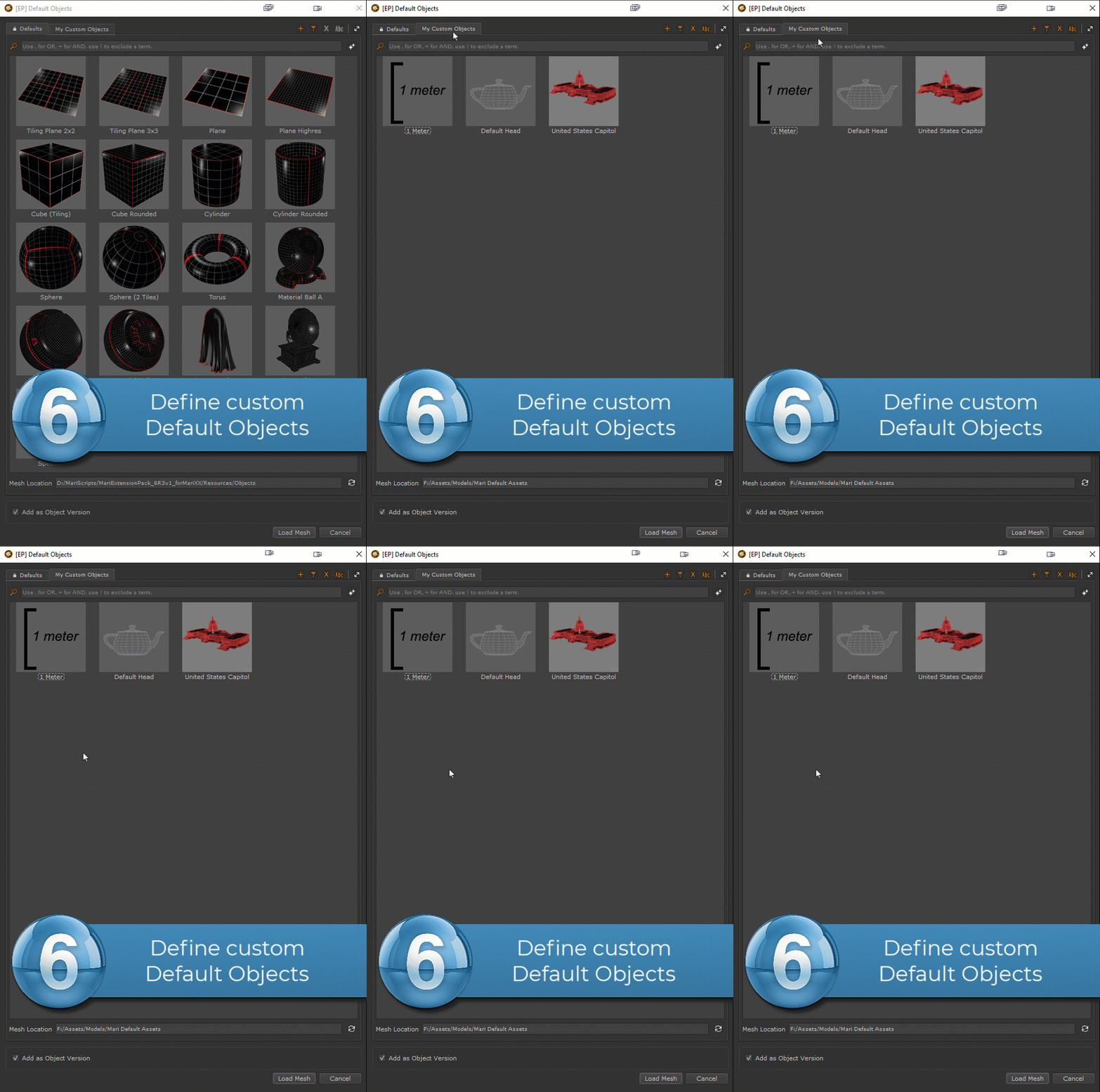
You can define arbitrary numbers of extra tabs, either manually via the UI or by pointing the Environment Variable MARI_EP_CUSTOM_DEFAULT_OBJECTS_FOLDER to one or multiple Folders containing mesh files
You can define custom icons, by placing an image file matching the mesh name along side the mesh file
You can define a post import python script to execute, by placing a python script file with matching filename as the mesh along side the mesh file (e..g. box.obj | box.py)
You can define additional options by defining a so called "JSON" file that is named like the mesh file. Json files allow you to
Define a custom thumbnail path
Define a Tooltip
Define a Label for the Mesh Item in the shelf, that is different than the geometry file name
Define the name of the Geometry inside Mari after it has been imported
Define a custom Python Script path to call when the Geometry has been imported (e.g. to automatically apply a nodegraph to it, load in textures etc.)
Define load options for the Geometry (e.g. to create Selection Sets etc.)
Refer to the help topic for more information
Example of a custom "json" file to define additional settings for the Default Objects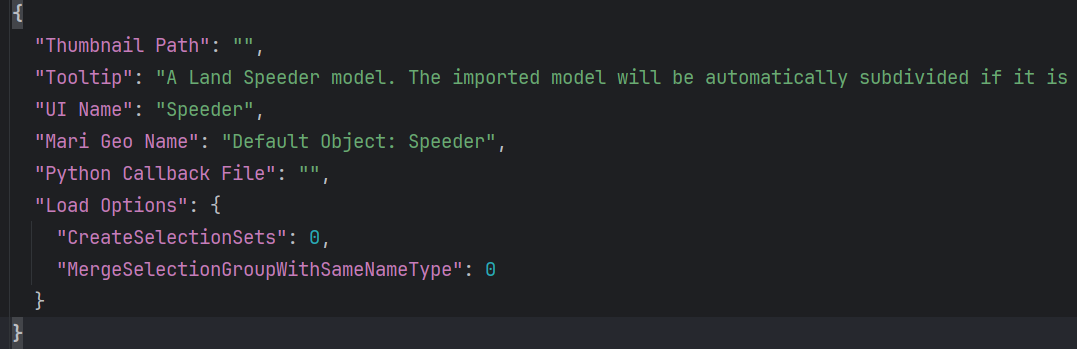
Given the continued viewership of the 10 Reasons you cannot paint in Mari video on YouTube, many Mari users seem to struggle with cases where they cannot project paint on their object because of one of the many Lock options Mari provides.
Extension Pack now provides a notifier in the viewport, if you are trying to paint on a locked object, allowing you to unlock the setting. The following cases are checked
No Object selected
Object locked
Selection Group locked
UDIMs locked
Layer locked
Channel locked
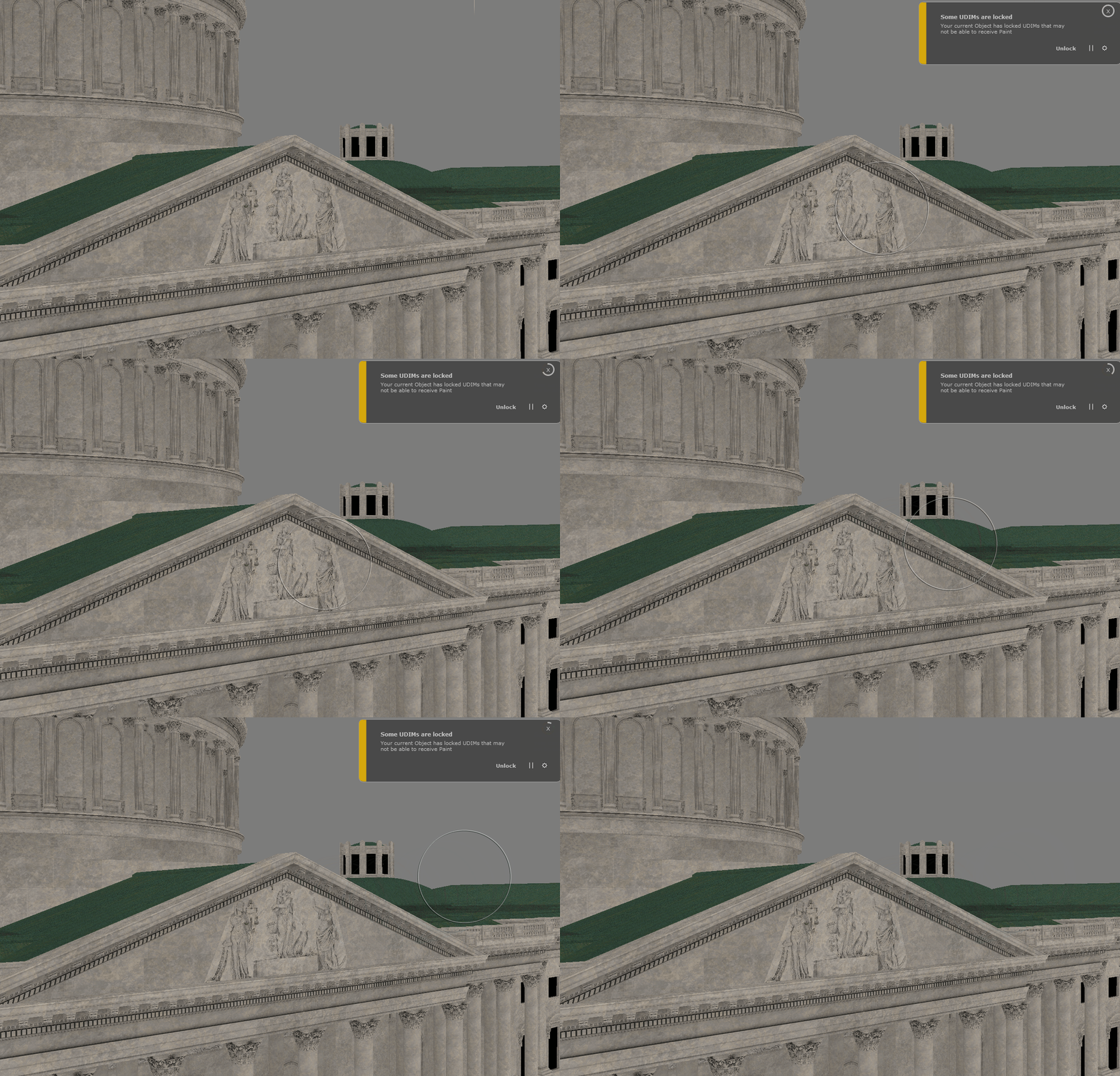
You can pause the notifications for the duration of your Mari session. 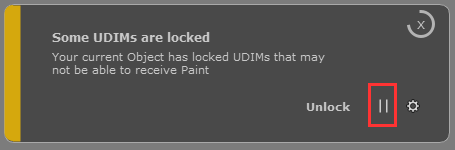
You can disable the notifications permanently or on a case by case basis via the quick access to its settings within the Notifier dialog or within the Mari Preferences / Painting Tab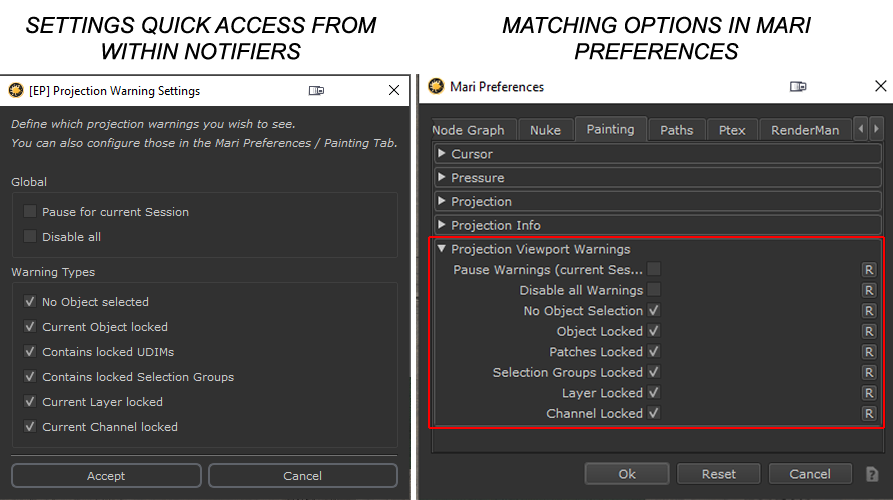
You can now customize Mari's UI Brightness and Contrast to your liking using the new UI Brightness Options found in the Mari Preferences / Misc Tab
Examples of different (extreme) UI Styles achieved using the new brightness settings
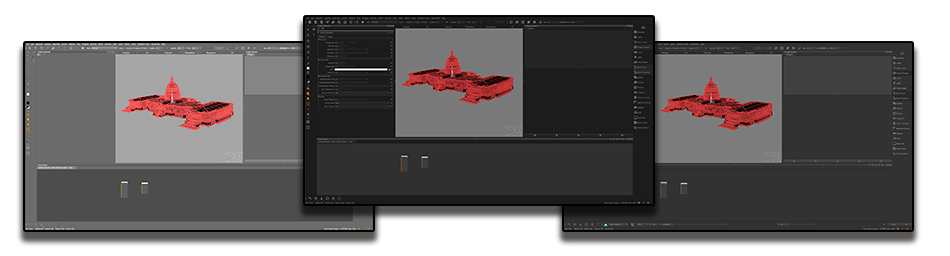
For more radical UI Changes you can now choose from Themes such as "Extension Pack Steel" and "Extension Pack Steel (Desaturated)" which heavily customize the look and feel of UI elements.
Even if left at the Mari Default theme, Extension Pack will apply subtle changes to Mari's Style removing some embossed borders.

If you want to create your own color palette, you can do so by choosing the custom theme which allows you to configure colors and ui elements via the Style Editor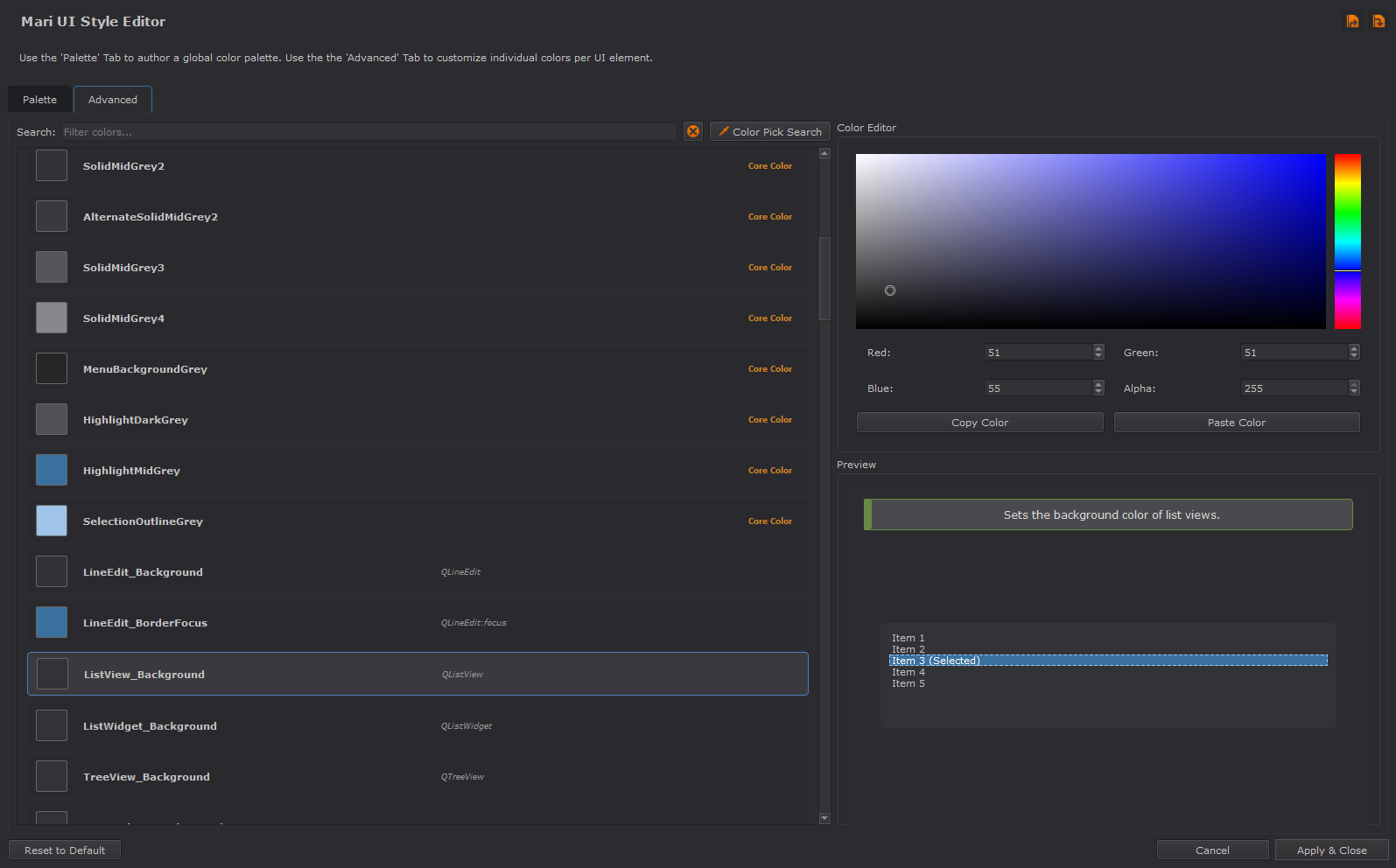
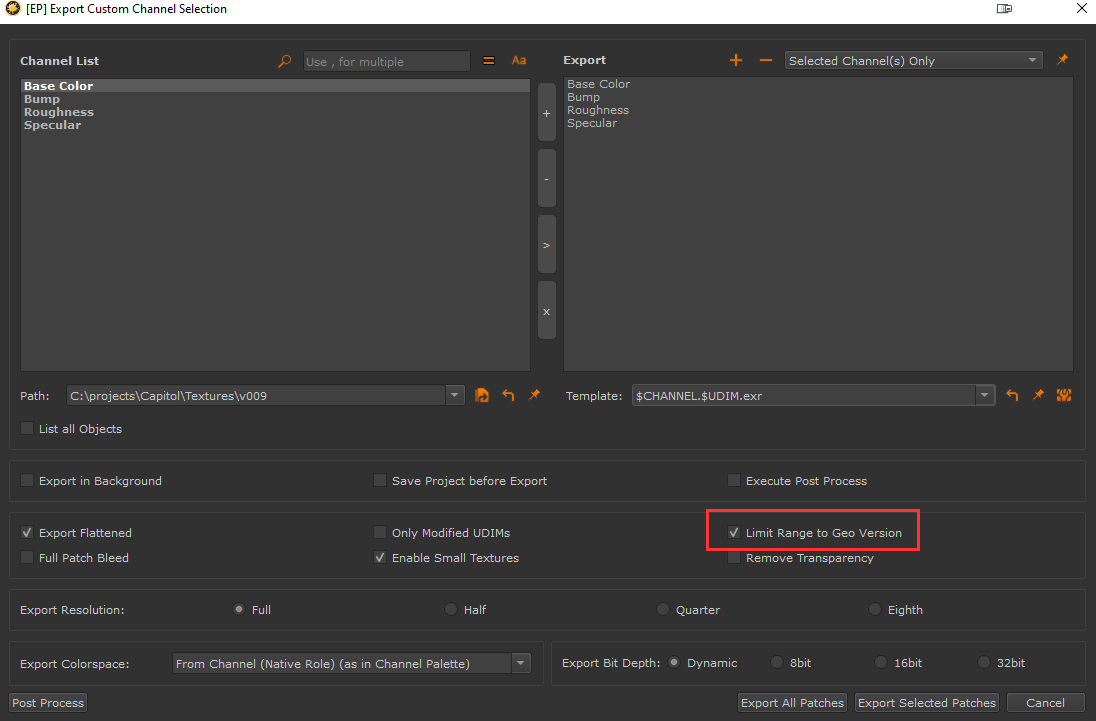
Extension Pack's own Channel Exporter has received a small update with the "Limit Range to Geo Version" checkbox.
if on (default), the exporter's behavior remains unchanged and it will only export UDIMs from the currently active Geometry Version
if off, the exporter will step through all loaded geo versions on an object and export all UDIMs.
This can be useful if you use Geo Versions to house model variants with different UDIM counts, to export everything in one go.
You can now decouple images in your Nodegraph from their main projection node (e.g. Axis Projection) with the new "Image Sampler" Node Type
The following nodes support Image Sampler connections via a new dedicated port:
The AB Compare Mask Node performs simple operations to create a mask based on two inputs
is value A larger than value B
is value A smaller than value B
is value A equal to value B or within a tolerance
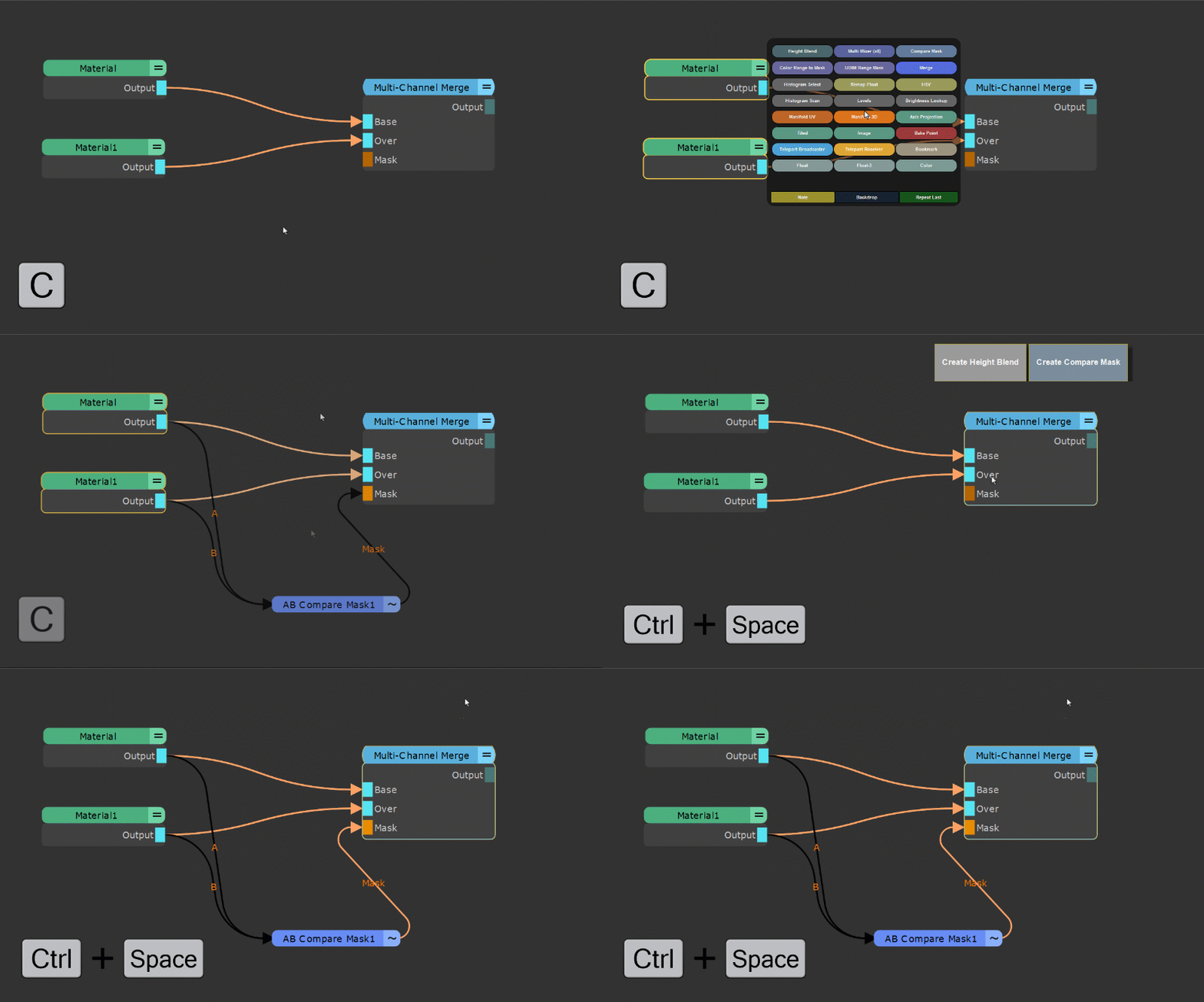
The Node can be used to easily mix materials based on their bump or displacement height. The node is a lightweight alternative to the more complex Height Blend Node which generally offers more control at the expense of performance.
Similarly to the Height Blend Node, convenience options have been added to quickly create the setup for you:
You can create the setup with two (material) nodes selected and by pressing CTRL+ALT+M
Alternatively you can select two (material) nodes and choose the "Compare Mask" Option from the Node Creation Hotbox (Hotkey C)
Finally you can also access it via the new Node Context Menus, by selecting a Multi Channel Merge Node and pressing CTRL+SPACE
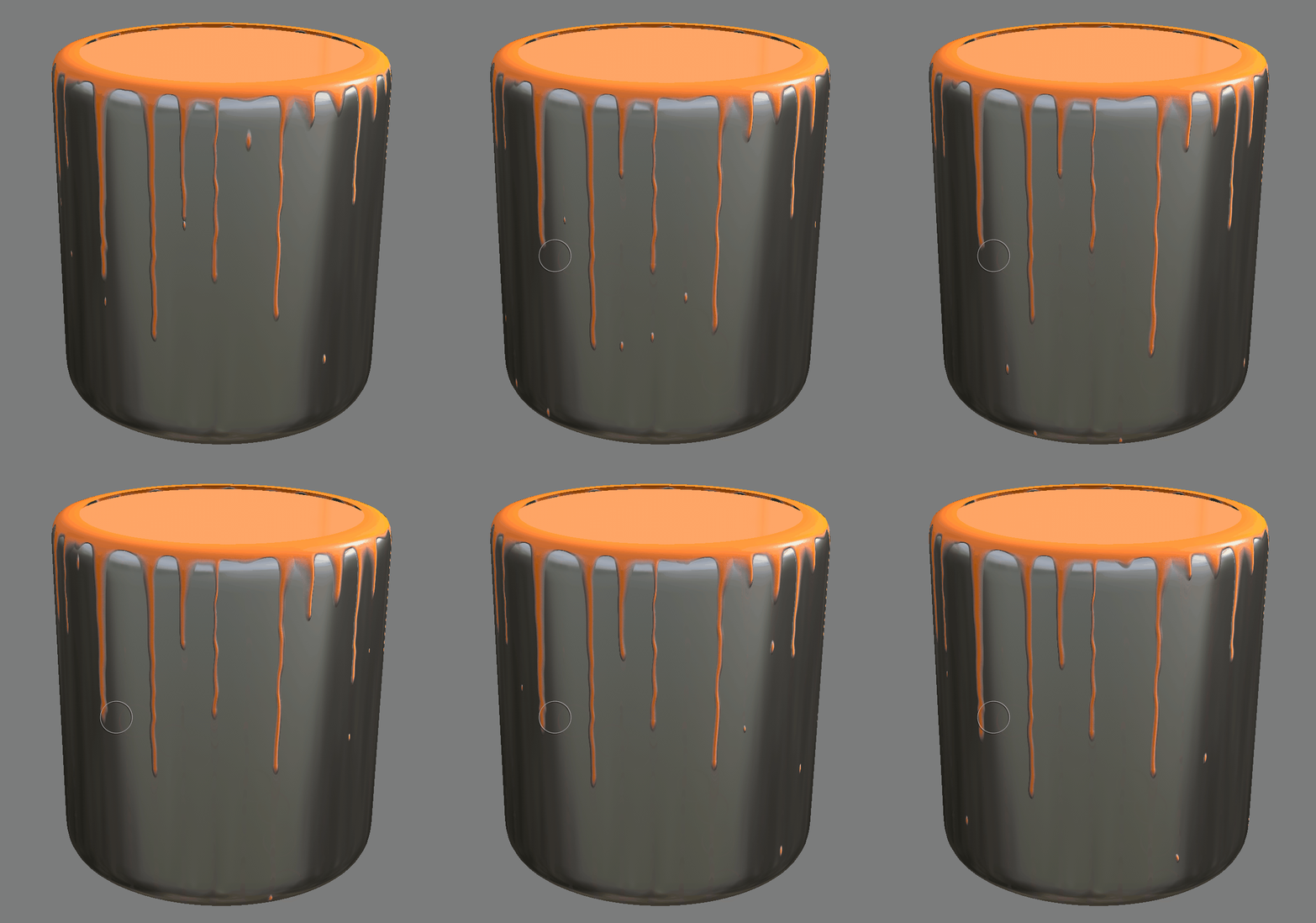
The Paint Drips 2D Node is a fun addition to the procedural library, allowing you to create procedural drips .. and you can even animate them !
Drag & Drop of Materials from Mari's Shelf into the Nodegraph has been extended with context aware behavior
If you have no node or a non-multi-channel node selected, the behavior remains unchanged and the material will be created at the drop position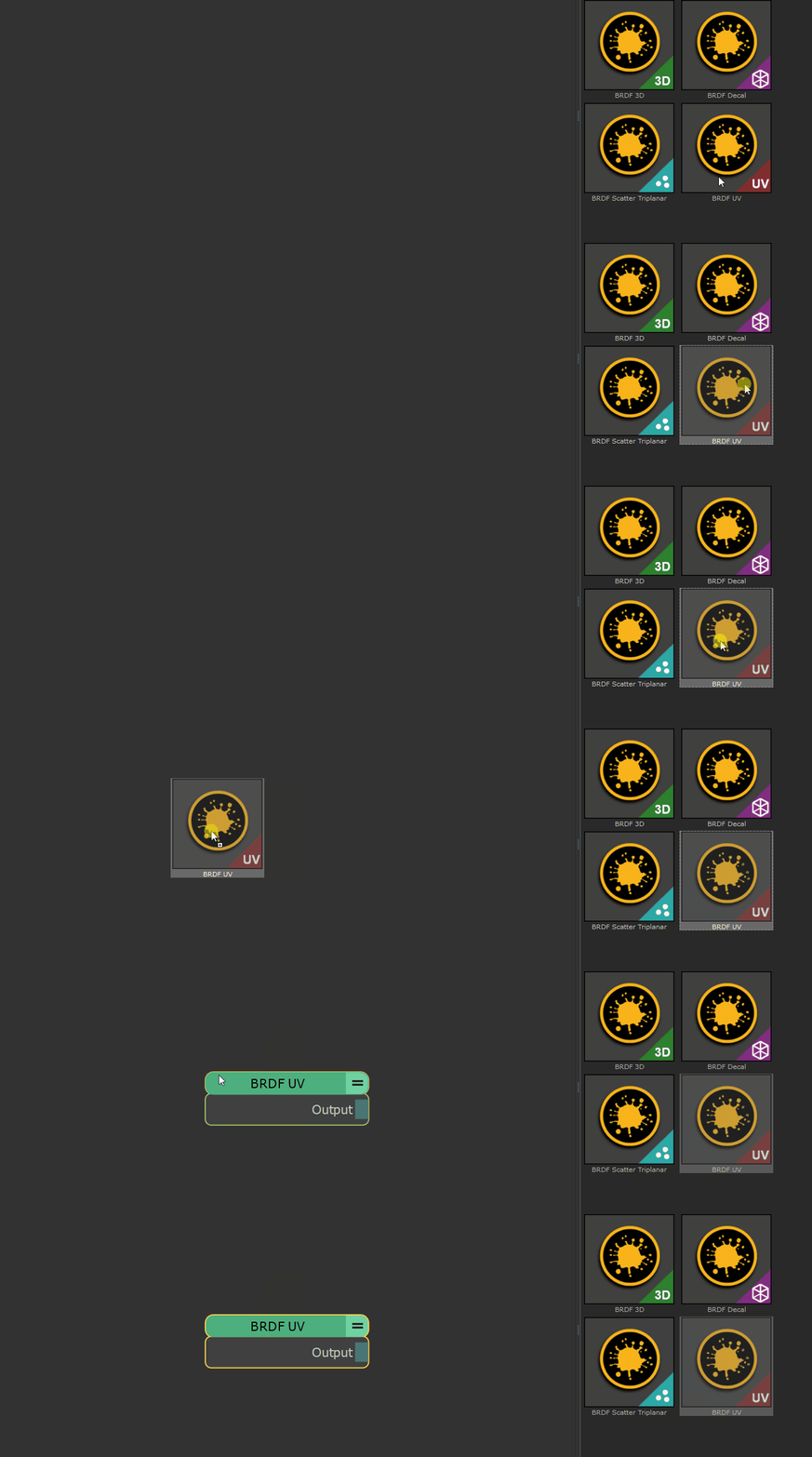
If you have a single Multi Channel Node selected (e.g. Material) a new multi channel Merge Node will be created and the old and new nodes will be merged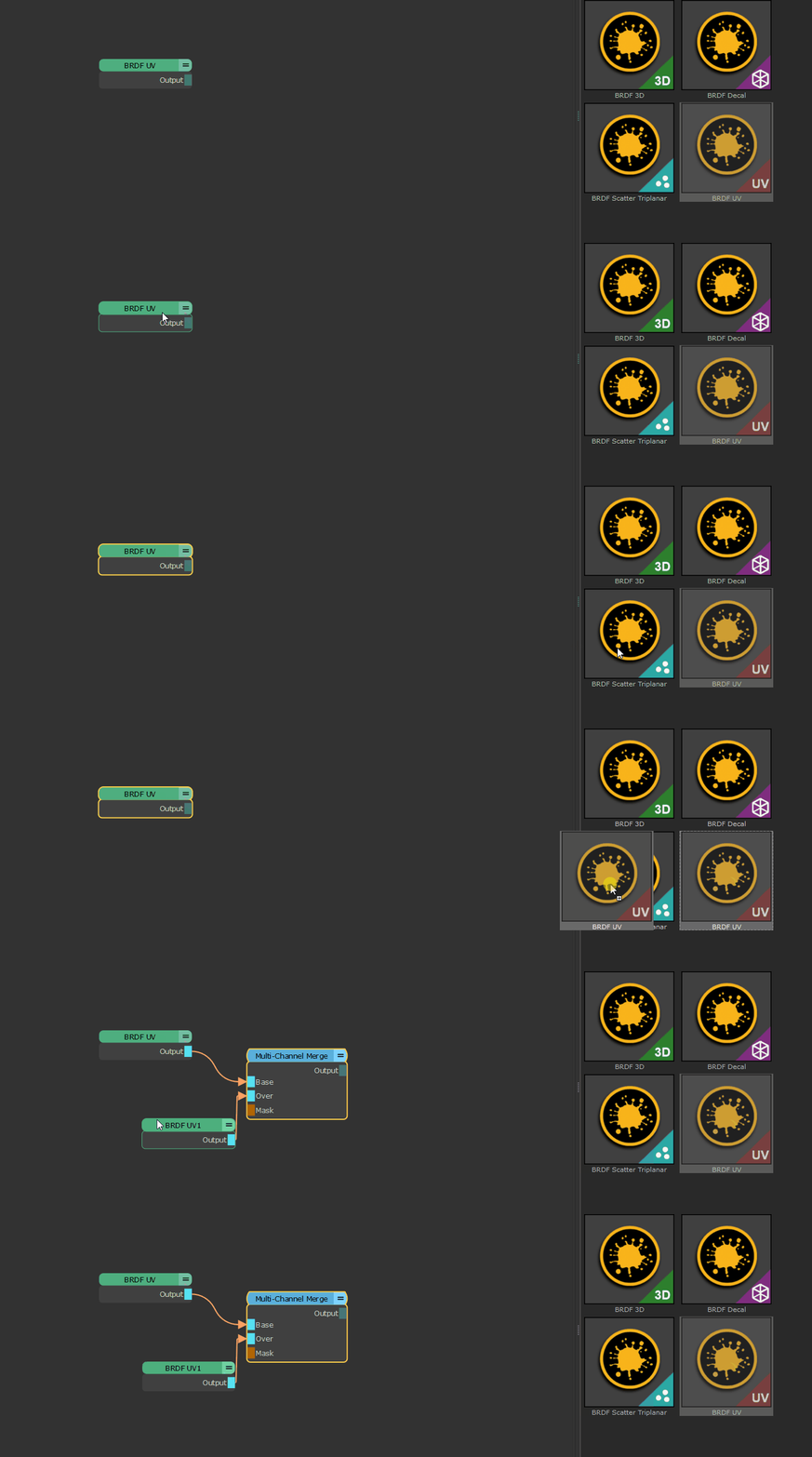
If you have a Multi Channel Merge Node with an open Input (Base or Over) selected, the new Material will be auto connected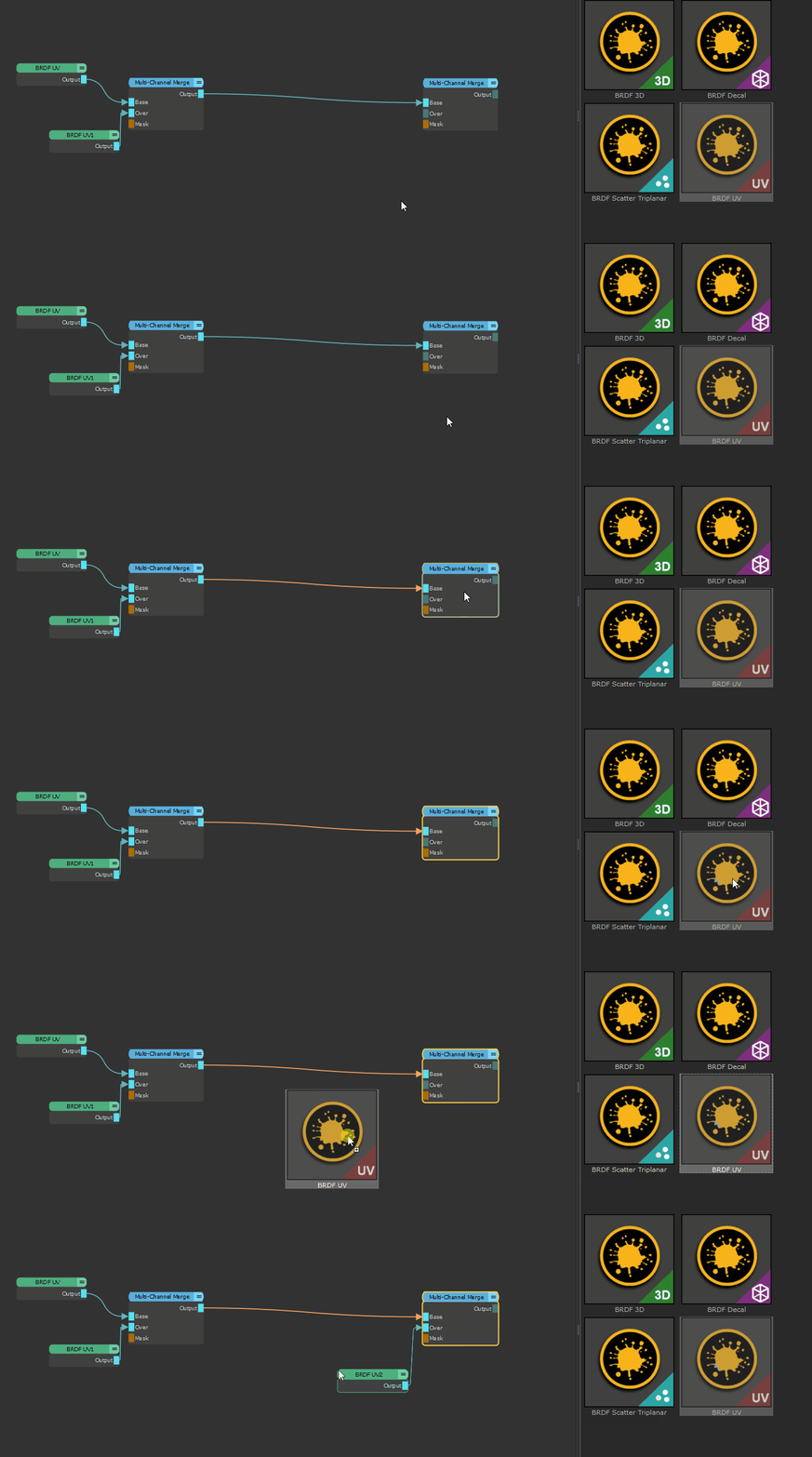
If you have a Multi Channel Merge node without an open Input selected, a new Multi Channel Merge node will be auto created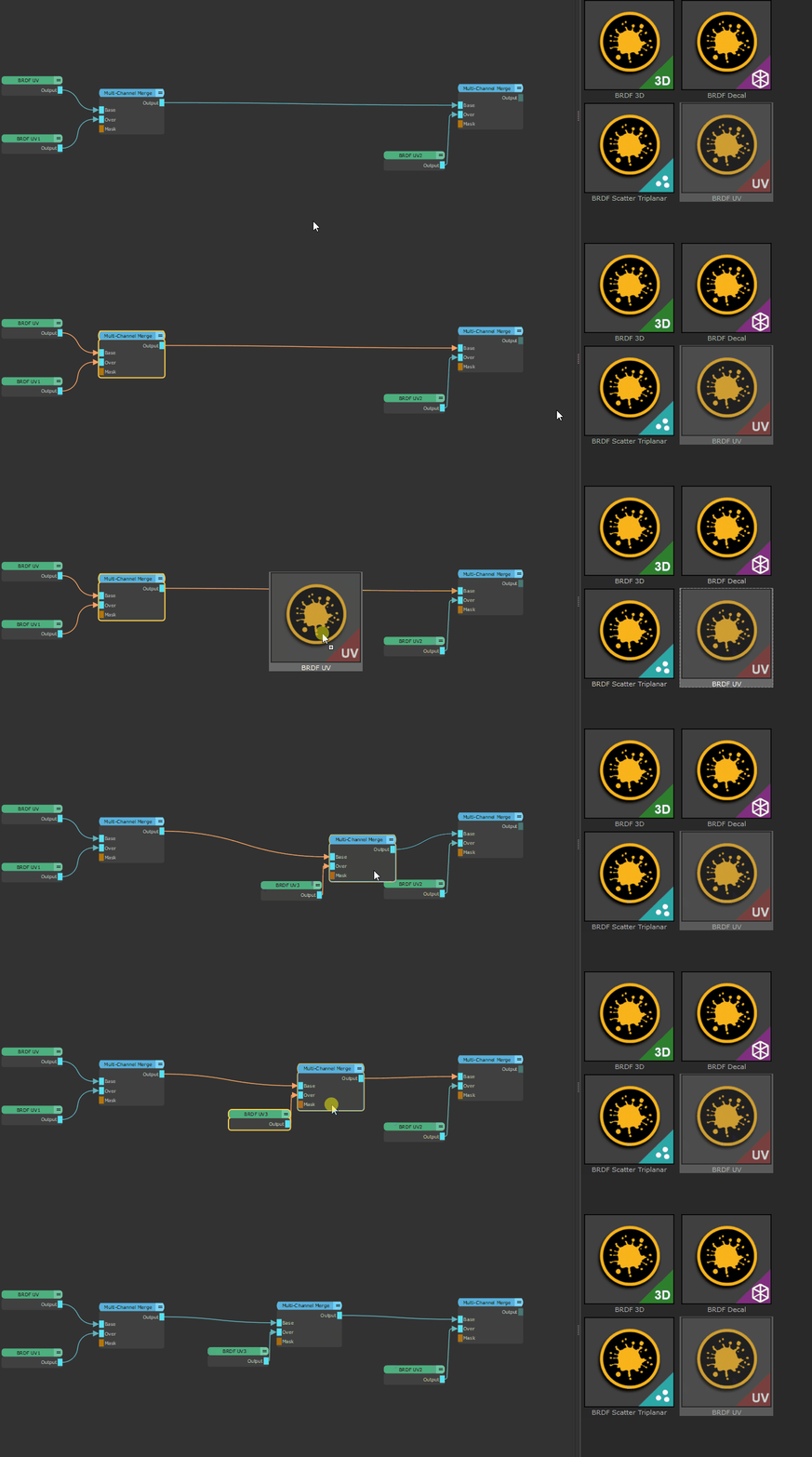
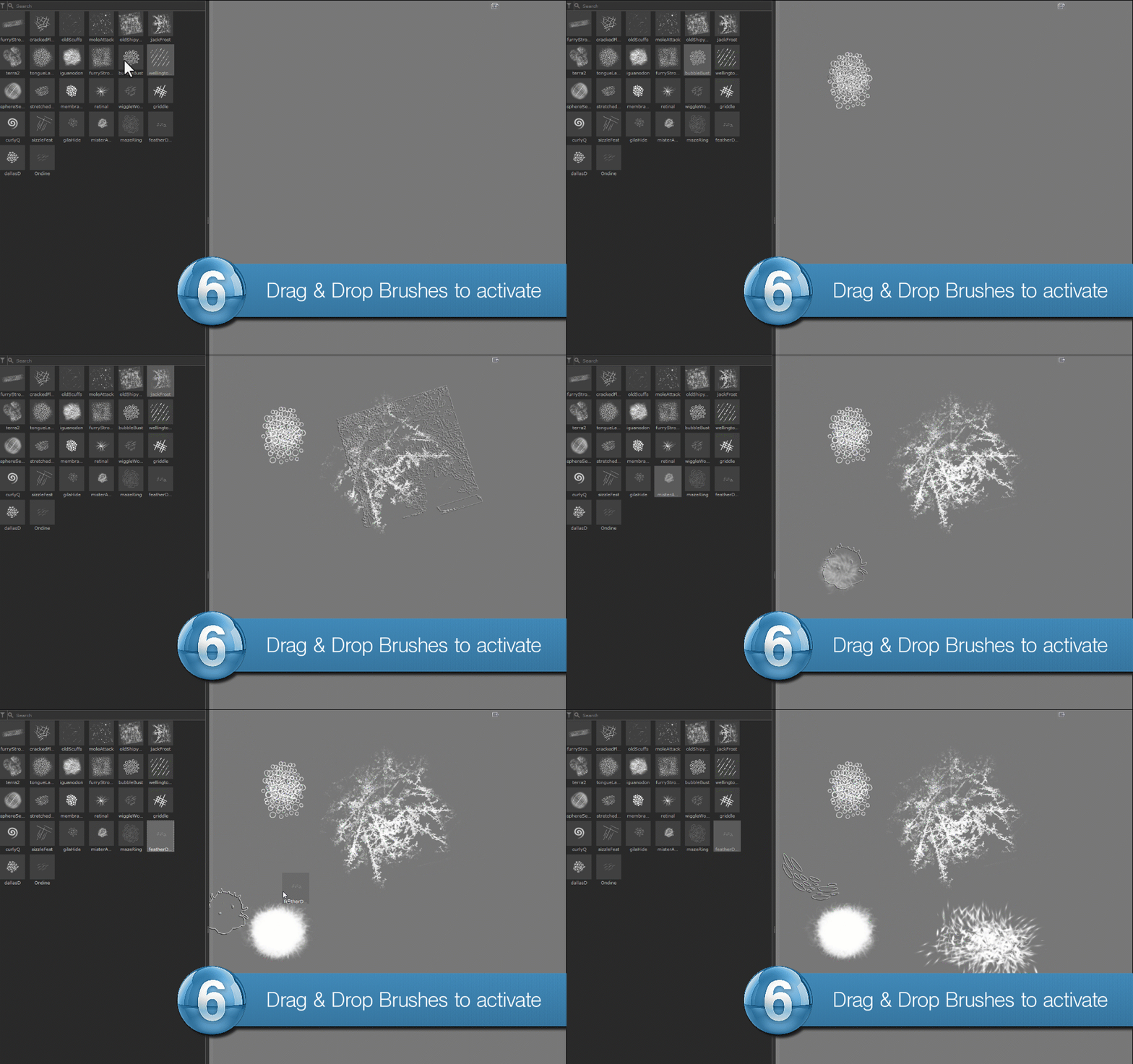
You can now drag & drop Brushes from the Shelf to the canvas to activate the, as an additional way on top of Mari's Double Click on the Shelf item
If you hold the SHIFT or CTRL Key when dropping the brush, only the Bitmap settings of the dropped Brush Item are pushed on your current tool,
while other settings (jitter etc.) are kept.
The "Smart Merge Node" Creation (Hotkey M) in the Nodegraph has been extended with additional functionality:
New: Selecting Output Nodes inside a Material and pressing "M" will now create a Multi Channel Merge node, feeding its output connections into the selected Output Nodes
Existing: Selecting one or two Multi Channel Nodes and pressing "M" creates a Multi Channel Merge Node
Existing: Selecting one, two or three regular Nodes and pressing "M" created a Merge Node
Existing: Selecting four or more regular Nodes and pressing "M" creates Mixer Nodes
Currently no Support for Substance Designer 15
The Substance Baker Bridge currently does not support Adobe's latest Substance Designer 15.x (July 2025) release which introduced major changes to the baking system. Extension Pack aims to restore compatibility via a patch in the coming months.
If you have older versions of Designer available you can point to them via the SAT_INSTALL_PATH Environment Variable, which the Substance Baker Bridge will use.
The Substance Baker Bridge can now bake multiple Geo Versions of a single Object in one go. You have the choice to bake the current version, all versions or a custom selection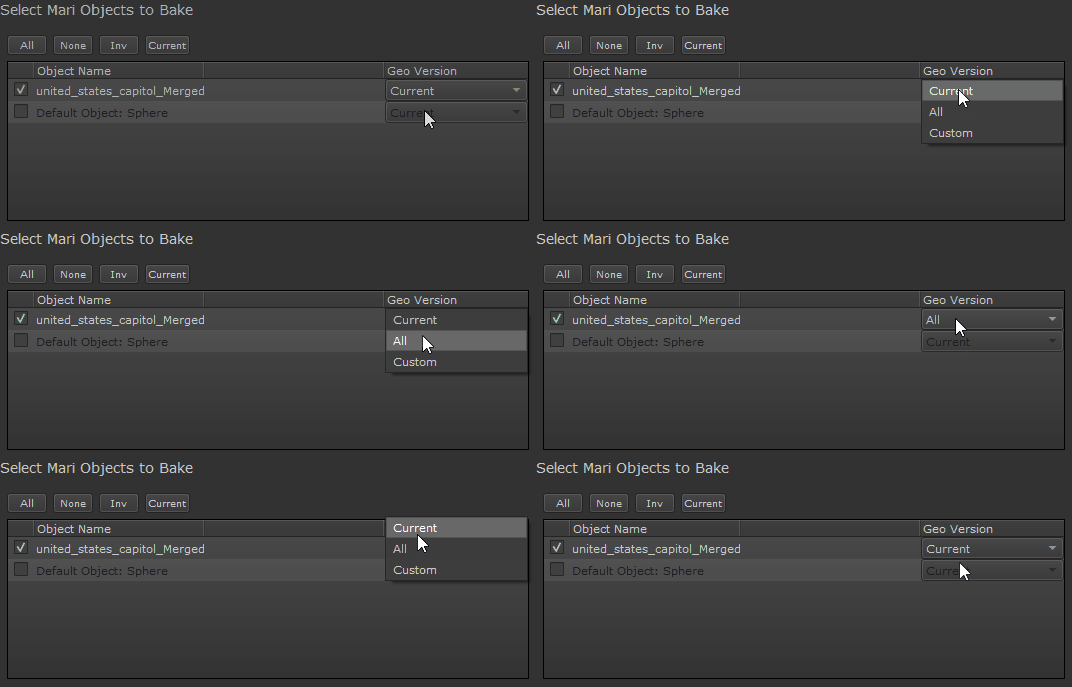
|
|
Geo versions need to have unique UDIM ranges in order not to overwrite each other during batch baking |
A new option "Prefer original Mesh from disc" has been added.
When on, the Baker will try and use the original mesh you imported into Mari instead of writing out the mesh from Mari. This can be beneficial to maintain geometry information that may have been lost on import into Mari like custom Face Normals.
If the on disc mesh path no longer exists or it is a format that is not supported by Substance (ABC, USD) the Baker Bridge will fall back to using the imported Mari Geometry.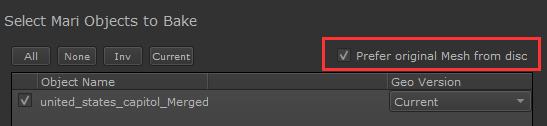
In Mari 7.x or higher, it is now possible to hide the Substance Baker Bridge Button from the main Mari UI via the Mari Preferences / Bakery Tab.
Sliders in the Substance Baker Bridge can now be adjusted using a Houdini Style Increment ladder, when right mouse clicking on them. Click and drag on an increment for finer our coarser slider changes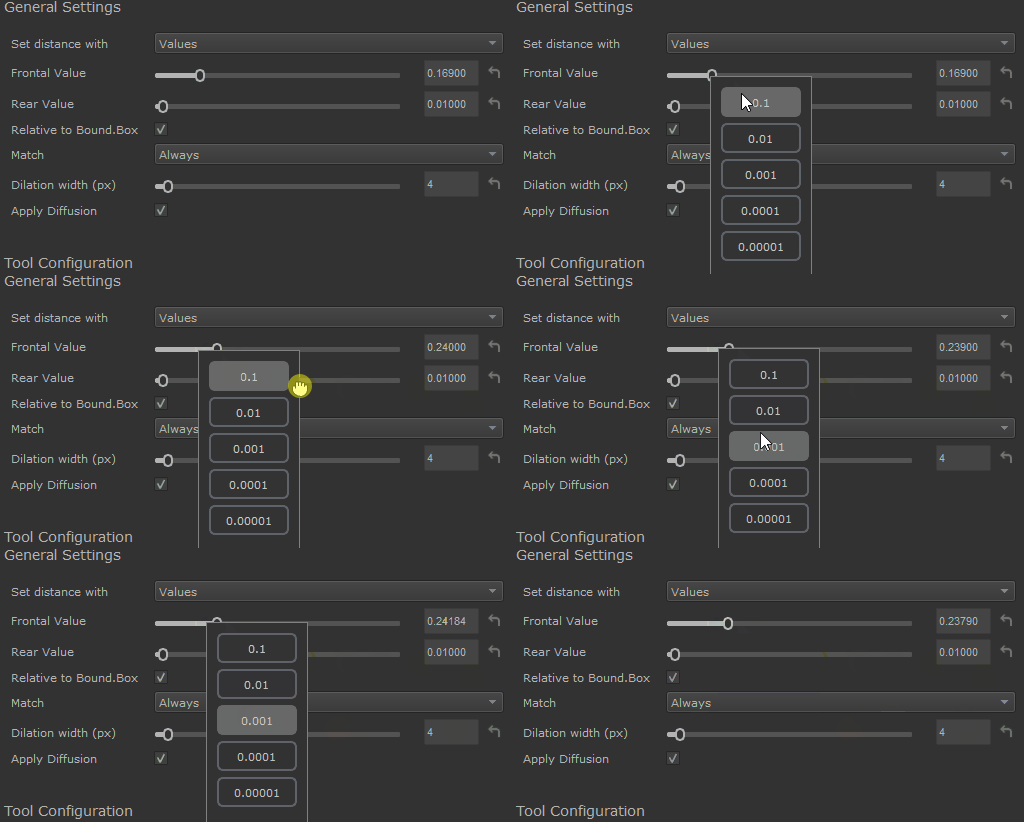
The Substance Baker Bridge dialog now displays available GPU Memory (GPU Baking) or RAM (CPU Baking) in the lower right corner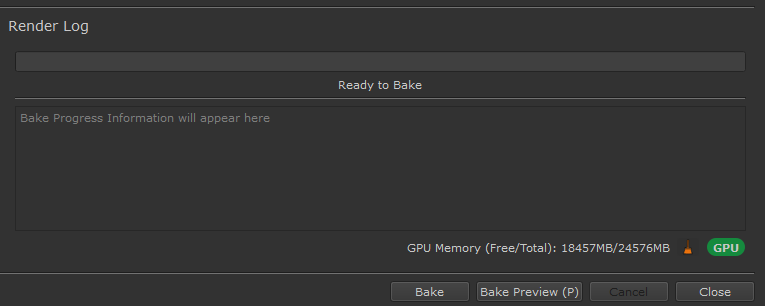
By clicking on the "Broom" icon you can clear memory if low. This is achieved by reducing Mari's Memory Footprint in its Preferences. The Preferences are then restored to their
previous state, when you close the Substance Baker Bridge dialog. In order to avoid cases where low memory preferences remain (e.g. after a crash), the Preferences are now also
checked on Mari launch, if they have been properly reset to the state before the user "cleaned memory"
When the Baker Bridge detects a low memory situation immediately after its dialog is launched, it will try and auto-clear memory for you, though less aggressive than via the manual "Broom" button
The Baker Bridge will now continuously check the memory during baking and warn you if you are running low
The Substance Bake Process ("sbsBaker" in your task manager) is now polled (every 30-90) seconds if it is still running, and a message in the log field of the Baker Bridge will tell you that it is.
This is to give the user an indication that baking is still ongoing in cases where Substance does not return any output for a very long time, which can happen on faulty and "dirty" meshes with a lot of bad geometry.
You can now switch directly between CPU and GPU Baking via a button in the lower right corner. This is the same as switching it via the Substance preferences.
Right mouse clicking on a slider in a Hotbox, now allows you to adjust the sliders precision using a Houdini style Increment ladder.
Drag on an increment for finer or coarser slider changes
Example of a Hotbox (here a Node Context Menu that can be activated using CTRL+SPACE) and the new Increment Ladder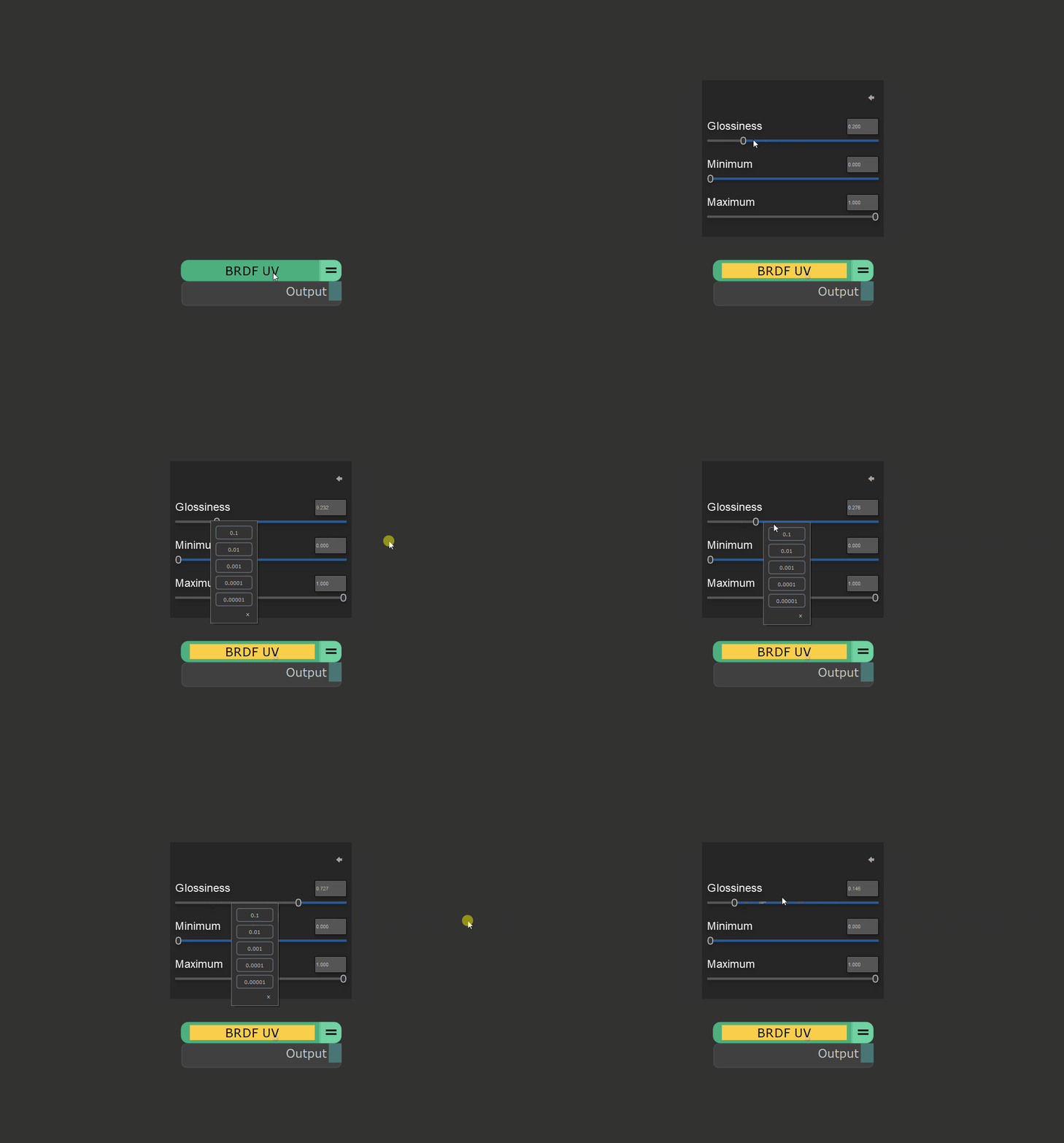
Hotboxes now have the option to turn on a Drop Shadow Effect via the "Style" Section in the Hotbox Manager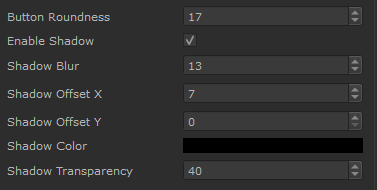
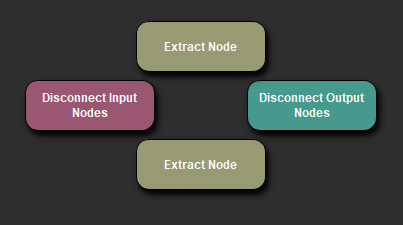
When defining a Python script requiring multiple functions on a button , any function called "main" will now be the primary function that will be executed.
Mari 7.1 takes over some hotkeys that have long been exclusively held by Extension Pack.
Extension Pack now checks for Hotkey Conflicts on start and will show a dialog, allowing the user to resolve the conflicts.
You can reopen the Dialog from the Help Menu.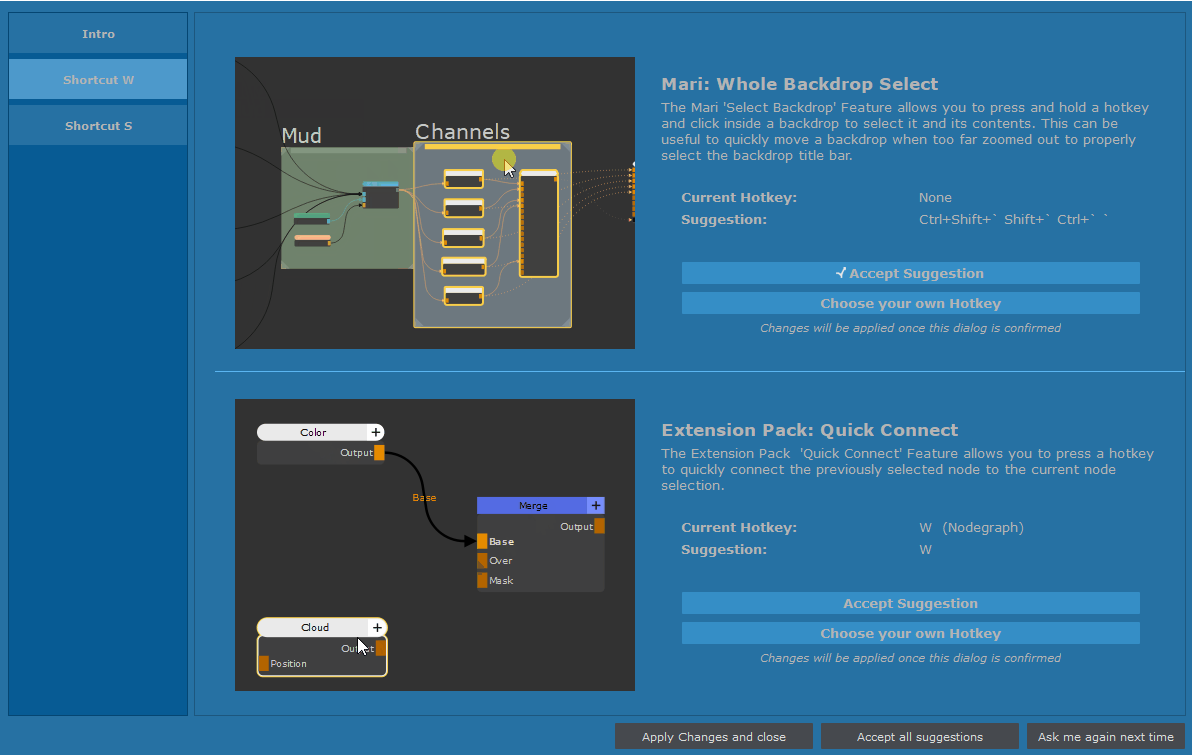
In Mari 7.5, Extension Pack's "Subtract" Blend Mode is now hidden as Mari 7.5 adds the Blend Mode itself (/Darken/Subtract)
The "Quick Connect" Option now also works with Multi Channel Nodes and shaders, connecting all ports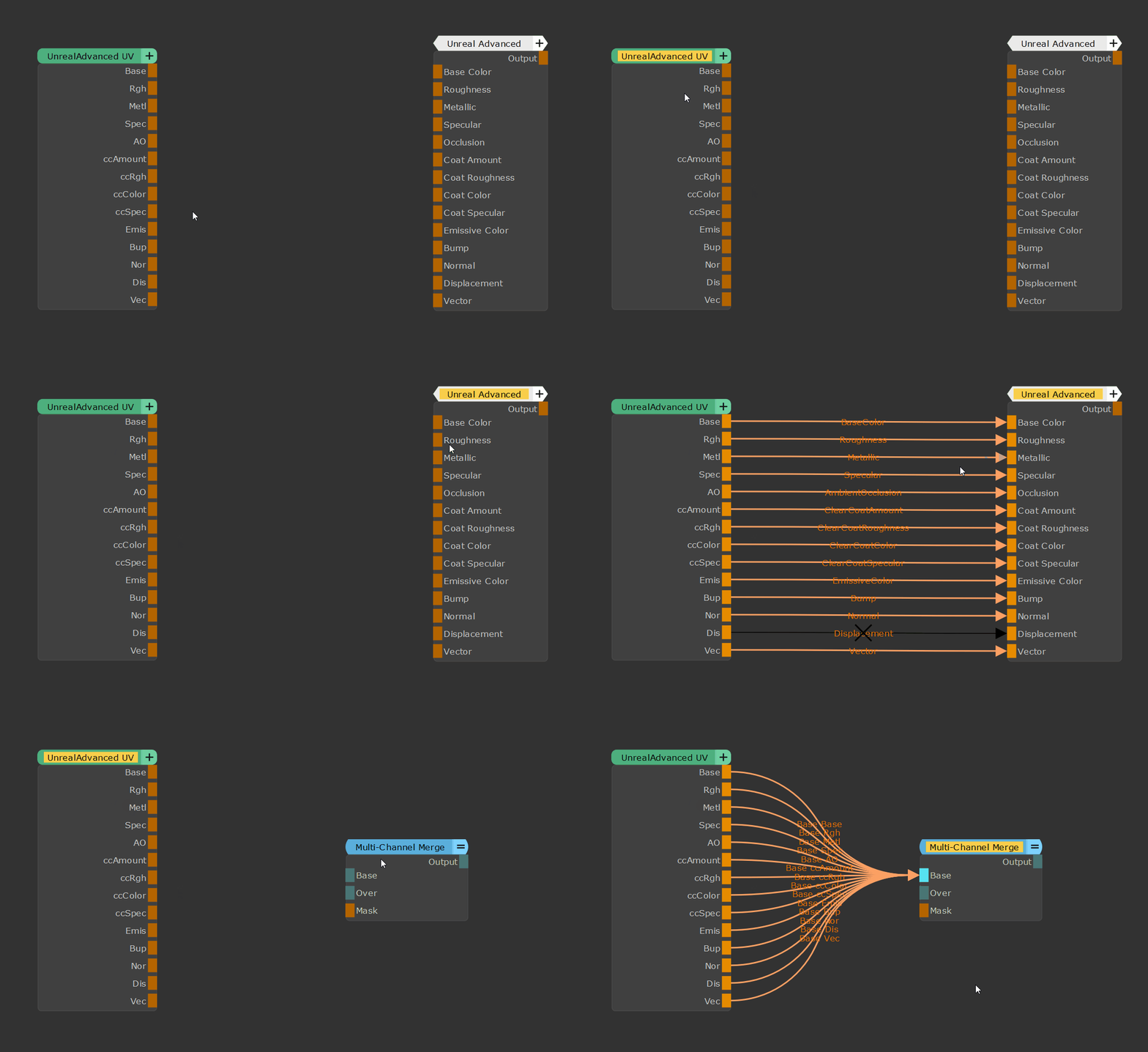
A new Node "Orientation Mask" has been added. This node is purpose built to isolate either down or upfacing normals of the geometry with some transition. It can for example be used in combination with a occlusion to isolate "down facing" occlusion better.
A new Node "Color Matrix" has been added. The node works identically to Nuke's Color Matrix Node.
Extension Pack's "Subtract" Blend Mode is now disabled for Mari 7.5, as it ships with its own. Existing use cases of "Subtract" will then fall back to Mari's native Subtract Blend Mode
The Ramp Editor no longer relies on a list of hardcoded node types it can edit. It can now edit any node containing a curve.
A new option to "Unsubdivide" a mesh has been added to the Object Palette Right Mouse Click menu. "Unsubdivide" will remove any applied OpenSubD from the Object.
A new "Show Last Hidden" Option has been added to the Selection Menu
An option to remove all Geo Channels from an Object has been added. This option is currently only available from the Extension Pack / Objects menu
An option to remove all Bake Point Bake Information has been added. This option is currently only available from the Extension Pack / Project menu
The 3D Scan Projection Wizard logic to associate images to cameras has been extended to support both matching by start of name and end of name. E.g. a image "MyView.exr" will match to any projector name containing the name eg. "Camera_MyView", "MyView_Camera" etc.
The Complex IOR Node now uses a more intuitive interface to enter n and k values
Pause Viewport Hotkey has been moved to CTRL+ALT+SPACE and now gives a notifier in the VIewport that it has been activated
Extension Pack Tool that previously generated Image Manager Tabs, in Mari 7.5 and higher now generate Image Manager Groups
A dynamic Hotkey Overview has been added to the Help menu.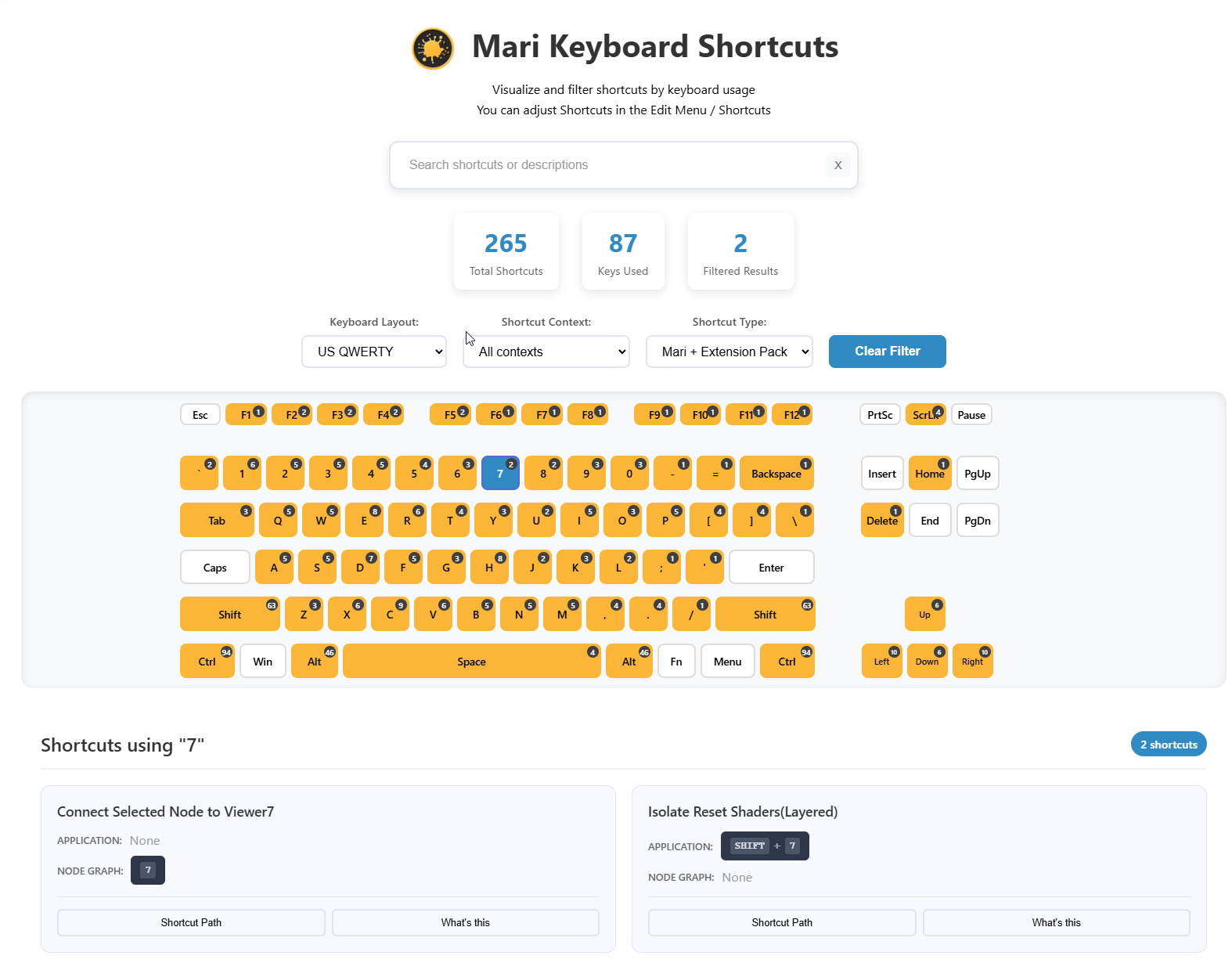
|
BUGFIXES |
The HDRI Loading dialog on Mari startup could hang, if the HDRI Location specified in the Preferences/Path Tab contained a directory called "Mari", "_Mari" or similar.
Extension Pack did not load in Mari 7.5
Computed Values could get inverted when using the Histogram Range Node, with lower "Range" values
Exposing multiple curves from different nodes to a material or group node and then trying to edit specific nodes with the Ramp editor, didn't work
The Substance Baker Bridge Progress Bar was sometimes reaching 100% before all bakes finished
Baking Objects with very long names in the Substance Baker Bridge, could cause the Log & Progress Bar UI elements to expand past their boundaries and overlap with other UI elements
The last baked UDIM of a finished bake in the Substance Baker Bridge was sometimes not loaded into the Image Preview window
The Paint Buffer Outline as well as its Size and Bit depth Labels were sometimes visible in Node Thumbnails
Fixed an issue in the "Tangent Space Normal to Surface Normal" and "Axis Mask" Nodes, where normals were getting slightly dimmed down when a tangent space normal map was fed into the node
Closing the "Image Note from View" Dialog via the "X" in the title bar did not properly reset the previously changed Display properties (e.g. visibility of grid, HUD etc.). These settings are adjusted when opening the dialog to avoid having Mari UI elements such as Grids, Huds or selection visible in the captured screenshot.
The Node Editor was unable to set the Expand/Collapsed states on Node Properties Groups on Mari 7.1 Smart Masks or Mari 7.0 Custom Procedurals
The Node Editor would error while applying changes, if a group name in the edited node ended with a "+"
A attribute "hashStringList" in Material Templates caused an error when editing the Templates via the Extension Pack Node Editor
Patch to Image Manager was not fully respecting patch selection ranges and was importing too many UDIMs into the Image Manager
The 3D Scan Wizard Node Layout the tool generated was no longer aligned vertically
The 3D Scan Wizard was sometimes reporting an incorrect number of setup cameras. This was just a reporting error. The actual setup happened on the correct number of cameras.
The gradient bar in the Ramp Editor was black with custom OCIO config files, when using OCIO v2.
Dragging an .EXR file into the viewport when the Paint Through Tool was not already active, was not always showing the "Use as Paint Through" / "Use as Environment Map" context menu options, due to the files sometimes missing their Filepath Drag & Drop Payload (MIME Data)
The top and bottom color of Mari's Viewport Background Color would get reversed when opening a Project
Opening a Project that was saved with Mari Extension Pack 5 could sometimes give an error on Project Open because of a Mari internal change of naming of some Viewport Display Settings
Performance of the "Channels from Node" tool was very low when creating new channels. This now should be near instant.
Changing a value in a spin box ui element of the Hotbox Manager using the Keyboard, would make the spin box loose focus immediately, making it very hard to type in values
Changing a color field via the color dialog in the Hotbox Manager did not update the Hotbox Preview until the Color Dialog was closed
Single Hotkey Press Hotboxes (without "Press and Hold" Behavior) did not receive mouse focus immediately, requiring an extra click
Handling of the "Projection Mask" port on Axis Projections, when no image was set in the node, was inconsistent compared to e.g. "Image" or "Tiled (Extended)" nodes.
The node now behaves the same as others, pre-multiplying the supplied mask as an Alpha against the defined Base Color Values. This change only affects newly created instances of the Axis Projection Node
The "Optimize Load" option has been removed from all Nodes (e.g. Axis Projection, Image, Tiled Extended etc.) since it was causing nodes repeatedly to evaluate transparent even if an image was set in a node
The Shortcut to pause the viewport refresh has been moved from CTRL+SPACE to CTRL+ALT+SPACE. You will now also get a notification in the viewport that its refresh is paused.
|
|
The following Bugfixes were pre-released as part of the Extension Pack 6 R2.v2 Patch |
When loading a preset in the Substance Baker Bridge, the previously selected Baker Attributes were not deleted from the UI, causing elements to overlap
Baking into an existing Geo Channel using the Substance Baker Bridge would write a brand new geo channel, instead of overwriting the existing selected one
Fixed an issue in the Substance Baker Bridge where geometry with a lot of n-gons could make the Baker Bridge seem like it was hanging after a bake completed,
while the dialog was in fact still processing through (sometimes thousands) of related log messages from Substance
Fixed a bug where the Substance Baker Bridge could freeze if Mari's auto-save kicked in. Autosave is now paused while the Baker Dialog is open.
The Node Editor (force any Node) was not working. Other than the normal Node Editor, the "force any Node" version can be used to edit any node, not just groups and materials.
Editing Nodes with the Node Editor would print a python error to the console, if editing an Attribute with an Item List from a native Mari Node.
Editing Custom Procedurals with the Node Editor could fail on a number of Attribute Types
The Node Editor could crash Mari if "Close" was clicked while an "Apply Changes" was running
Editing a standard Mari Blend Mode Dropdown Menu Attribute in the Node Editor would only leave the first 10 Blendmodes in the Dropdown, after the change was applied.
Node Align Right did not work, when all nodes to align were dot nodes
Fixed multiple alignment issues with using Node Align Left/Right with Backdrops
Fixed a bug where backdrop aligning via Node Align Top/Bottom no longer worked at all
Swap Nodes was listing each shelf containing Custom Procedurals as a separate category
Replacing an Image Annotation with another one could leave behind "ghost sticky notes" without any contents
Changing the size of an Image Annotation was not undo-able
Image Annotations would disappear when a Project was opened after it had been extracted from an Archive
The local Web Server to display the "offline help" had a python syntax error
Using "MathJax" Fonts with the Text Generator would crash Mari
In the Text Generator, the Bold/Italic Checkboxes were incorrectly set when choosing Bold, Italic or BoldItalic from the Font Style Dropdown Menu
The Text Generator did not identify fonts with "Oblique" in their Font Styles as being "Italic". The Italic Checkbox is now correctly set for this font style.
The "Mirror X/Y" Buttons were not added to the Paint Through Tool Properties, if the Paint Through Tool was activated by the Text Generator
The "Legacy Color Picking mode", found in the Ramp Editor options, wasn't turning on automatically on Linux CentOS and Mari 6, resulting in a black screen when color picking.
The mode is not necessary/available for Mari 7.
Some Linux distributions (e.g. EL8) would show a non-desirable color picker, for example in the Ramp Editor, Node Style Selector, Hotbox Editor etc.
Some Tooltips of Extension Pack Menu Actions were overly long and not properly line-wrapped
If you had two exactly identical images loaded in the image manager, yet they had different colorspaces, dragging an image to the nodegraph or layerstack would create two nodes/layers
.exr images loaded via shelf .msh files in some cases were not giving the "Use as Environment Light" when dragged into the Viewport
Dragging an image from the Mari Shelf to the Nodegraph and creating a "Projection" node printed a python error to the console.
The Mari Material Ingest Tool would no longer recognize nodes as ingestion targets, if they had their node color changed via the "Node Style" Tool.
Using "Align to View" with a manually created Locator (created via the Object Palette) caused an error
Fixed a bug where locators would jump back to their last known viewport position when modified via the Viewport Gizmo after it had been previously modified via either "Align to View" or "Scale to Fit"
After a Hotbox closed there was a slight delay until the focus returned to Nodegraph or Viewport.
If you used the Middle Mouse Button or Mouse Wheel in the Nodegraph after a Extension Pack Dialog closed, the Focus was not properly set to the Nodegraph resulting in Hotkey Presses only being evaluated after the second time they were pressed.
Custom Hotkeys assigned to Mari Extension Pack Nodes were lost after a Mari restart
Fixed an error where the Preset Browser would not open if a custom tab had been created, pointing to a location already defined via the "MARI_EP_SMART_MASK_FOLDER" environment variable
Fixed an error where the Icon Browser would not open if a custom tab had been created, pointing to a location already defined via the "MARI_EP_ICONSHELF_FOLDER" environment variable
Manually changing the Projection Mode (front/through) or target (All/SelectedOnly) via the Painting Palette, did not update the Extension Pack Projection Mode/Target Buttons
Defining multiple functions inside the Python Code of a Hotbox Button was not evaluating the full code context.
Importing an HDRI image into the Image Manager via the File Load Dialog (not shelf) and using it as an Environment Map by dragging it into the Viewport, would duplicate the image in the Image Manager
Images from the Extension Pack "Shapes" shelf would end up being installed into the "Grunges" Shelf, over and over on each Mari start in Mari 7.
Extension Pack did not load properly in Mari 7.1 due to a change in Mari's internal Menu structure
The new Mari 7.1 Node Packages were not supported in Extension Pack
|
API Updates |
The mari.ExtensionPack() class now comes with an alias:
mari.ep.nodegraphSelection.deselectAllNodes()
is the same as ..
mari.ExtensionPack.nodegraphSelection.deselectAllNodes()
More than 100 new Python methods are available. You can find them tagged as EP6R3 in the Python API Help
A incomplete list with some examples can be found below:
mari.ExtensionPack.autosave()
A new class has been added to manage and pause Mari's Autosave, which can sometimes interfere with python operations
mari.ExtensionPack.benchmark.gpuMemoryUsage(subtract_mari_usage=True)
Several methods have been added to the benchmark() class, allowing you to sample GPU Memory, RAM Usage etc.
mari.ExtensionPack.matrix()
Many of Mari's internal and previously inaccessible Matrix Transformation Methods have now been exposed to the matrix() class
mari.ExtensionPack.utils.forceFocusReturn()
As there is often a delay until Mari receives Focus again and accepts Keyboard shortcuts, after a Python Dialog or Widget is closed,
a new forceFocusReturn() function has been added that will immediately return the focus to the mari widget it is over (also setting correct shortcut contexts)
mari.ep.nodeUtilities.registerNodeContextMenu(target, contextMenuPath, classInstance=None)
Allows you to register a custom Node Context Menu that can be brought up using CTRL+Space. For more information on how to author and register them, refer to the dedicated help.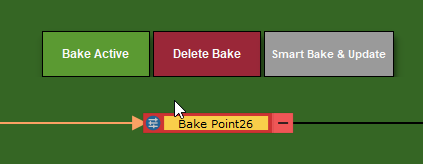
mari.ExtensionPack.utils.notification()
A new notification API allows you to create notifcations in the viewport that are not blocking the user from using mari. This can for example be used to inform the user of a new Model Publish or similar.
You can add Buttons with Callbacks to the Notifcations to give the User interaction choices.
A full example notifcation can be found under /Extension_Pack/Resoures/PythonExamples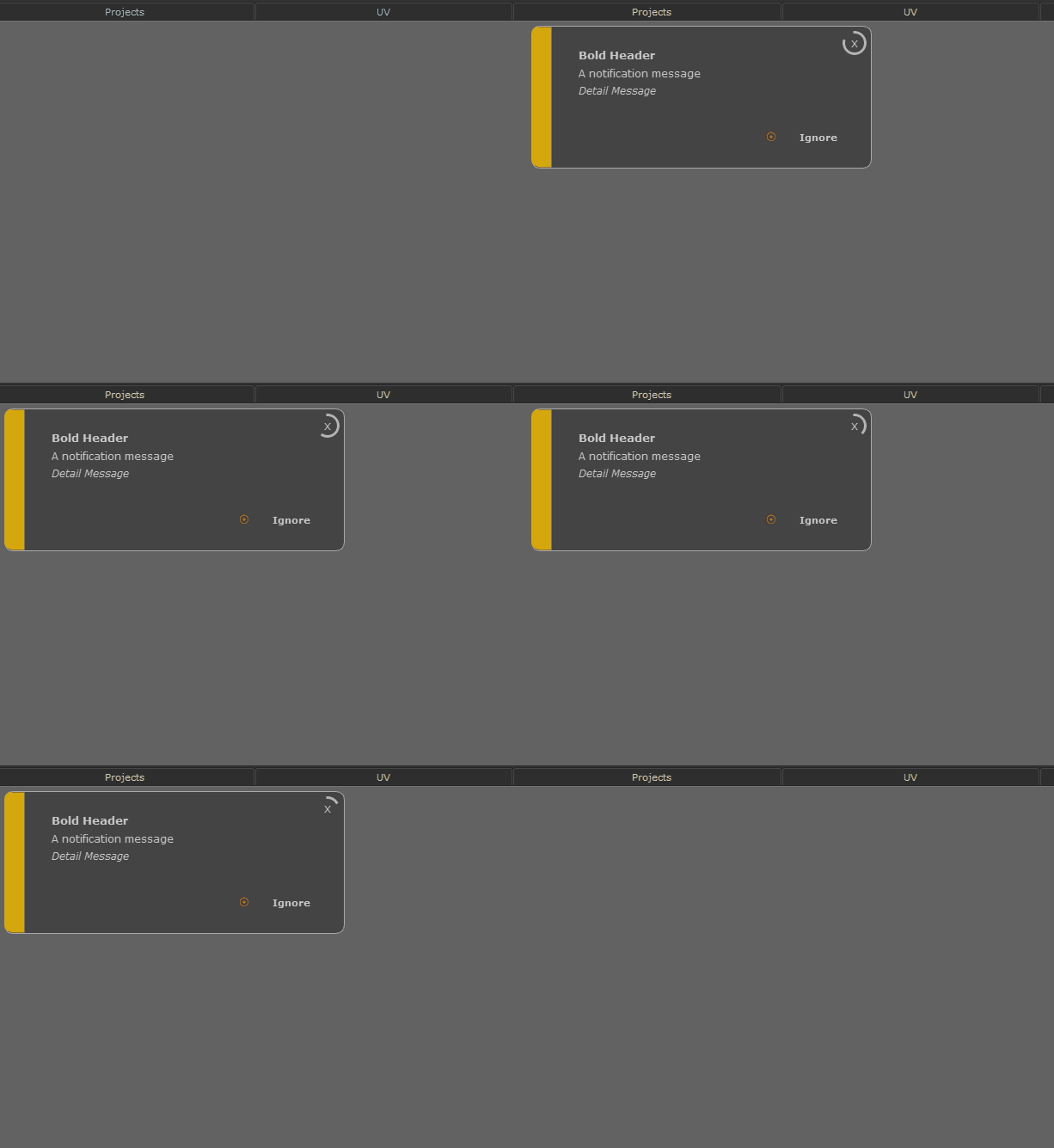
mari.ExtensionPack.nodeGraphPalette.graphNotification()
A simpler version of viewport notifications is also available for the Nodegraph to show simple messages
The Python API Online & Offline Help have been reworked for better readability
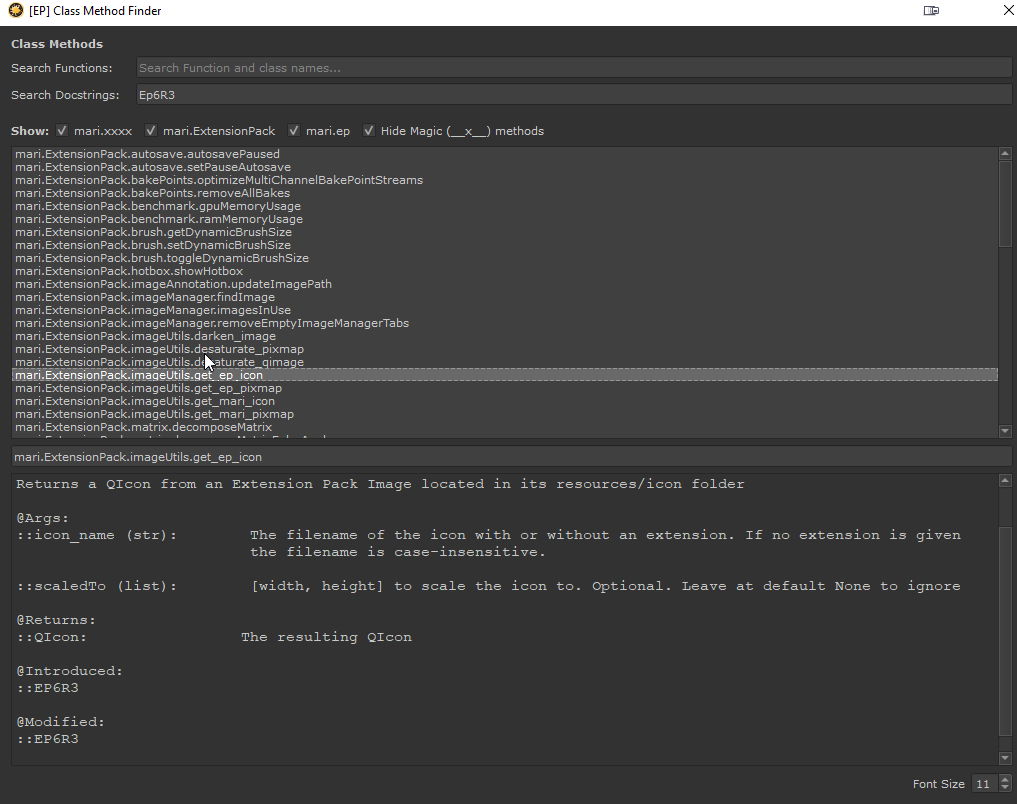
The Class/Method Overview Tool now allows you to
pre-filter for only native Mari or Extension Pack Functions and Classes
search through Docstrings (e.g. by entering EP6R3 you will get any function added/updated in Extension Pack 6 R3)
|
Deployment Updates |
Please note, Extension Pack 6 will be the last version to be tested on Linux CentOS. Going forward all Linux testing will happen on Rocky Linux 9 exclusively.
Mari's Main Window can now be locked until Extension Pack has been loaded, to avoid people opening projects already before EP fully initialized.
To do so set the environment variable
▪MARI_EP_DISABLE_MAIN_WINDOW_DURING_LOAD
New environment variables have been added to prevent Extension Pack Dialogs from appearing after Mari Startup.
▪MARI_EP_NO_SPLASH_SCREEN .. disables Extension Pack's Splash screen when set to "true" or "1"
▪MARI_EP_NO_SHORTCUT_RESOLVER ..disables Extension Pack's Shortcut Conflict Dialog when set to "true" or "1"
The downloadable Offline Help has been updated. You can download it from here.